If Discord is stuck on “Starting,” the issue is usually caused by a stuck background process, corrupted cache files, or a temporary server outage. Fully closing Discord, checking Discord’s server status, and clearing the app cache fix most cases within minutes. If the problem persists, disabling hardware acceleration or performing a clean reinstall typically resolves it.
Introduction
Nothing kills the mood faster than opening Discord for a game night or quick chat and getting stuck on that endless “Starting” screen. No error message. No explanation. Just… nothing.
It’s a frustratingly common issue, but here’s the good news: in most cases, it’s not a serious problem. Discord usually isn’t “broken” — it’s just stuck.
The cause is often something small and fixable. A background process that didn’t fully close, corrupted temporary files, or a temporary issue on Discord’s side can all stop the app from launching. Think of it like a key stuck halfway in a lock. Nothing is damaged, but something is blocking the turn.
And you’re definitely not alone. With more than 150 million monthly users, Discord startup glitches are surprisingly frequent. Research shows that roughly 1 in 4 users experience launch issues at some point, with corrupted cache files being the most common culprit. The upside? Clearing that cache fixes the problem for the vast majority of users, which is why it’s always the first thing to try.
In this guide, we’ll walk through the fastest, most reliable ways to fix Discord when it’s stuck on “Starting” — beginning with simple checks and working up to deeper solutions only if you actually need them.
Common Reasons Discord Gets Stuck on “Starting”
Before you start digging into complex solutions, it helps to know what you’re up against. Here are the usual suspects when Discord refuses to launch:
Lingering Background Processes: You close Discord, but a piece of it stays running in the background. This “ghost” process can block the app from starting up again properly. It’s like trying to open a file that your computer thinks is already open.
Server-Side Issues: Sometimes, the problem isn’t you—it’s them. If Discord’s own servers are down for maintenance or having an outage, your app simply can’t connect, leaving it stuck.
Corrupted Local Files: Discord saves temporary files (its cache) to help it load faster. Over time, these files can get jumbled or damaged, which confuses the app during its startup sequence and causes it to hang.
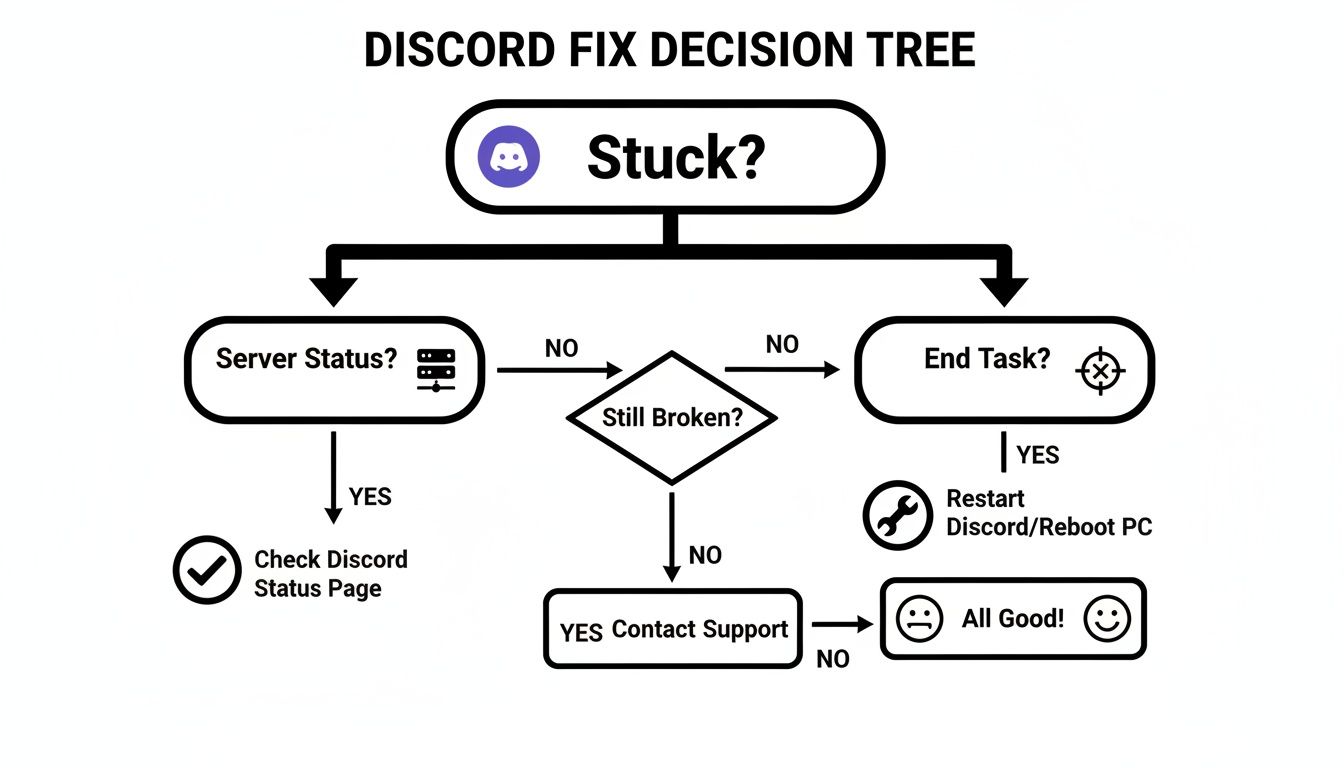
When you’re trying to fix a tech issue, you always want to start with the easiest, most likely solutions first. It’s the same principle as applying quick SEO fixes to a website before rebuilding it from scratch. This decision tree lays out that exact logic.
By first checking for external problems (server status) and then looking for simple internal ones (stuck processes), you can solve the majority of startup issues without breaking a sweat.
Before diving into the more technical steps later in this guide, let’s start with the basics. The table below outlines the first things you should try.
Manage all your social media in one place with Postiz
Quick Fix Checklist to Fix Discord Stuck on “Starting”
Try these high-success-rate troubleshooting steps first before moving on to more involved solutions.
Quick Fix Method
What It Does
When to Use It
Restart Your Computer
A full system reboot clears out temporary glitches and closes all stuck background processes.
This should always be your first step. It solves more problems than you'd think!
Check Discord's Server Status
Verifies if the issue is on Discord's end (e.g., an outage or maintenance).
If a restart doesn't work, check this next. It saves you from troubleshooting a problem you can't fix.
End Discord Processes
Manually shuts down all lingering Discord tasks using Task Manager or Activity Monitor.
Use this if Discord won't open right after you've closed it, suggesting a "ghost" process is stuck.
Working through these initial checks will often get you back online in minutes. If you’re still stuck, don’t worry—we’ll move on to some more targeted solutions next.
Essential First Steps to Fix Discord Not Opening
Before you start tearing things apart and thinking about a full reinstall, let’s cover a couple of foundational tricks that solve this “stuck on starting” problem more often than not. These are the quick wins, the simple things that target the most common culprits hiding in your system.
The first thing to do is make absolutely sure Discord is completely shut down. Just clicking the ‘X’ on the window doesn’t always cut it. The app often keeps running in the background, and if one of those background processes gets hung up, it can prevent Discord from ever starting up properly again. It’s like a ghost in the machine holding the door shut.
How to End Discord Background Processes (Windows & Mac)
To do this right, you need to dive into your system’s process manager. This is your behind-the-scenes look at everything running on your computer, giving you the power to pull the plug on misbehaving apps.
For Windows users:
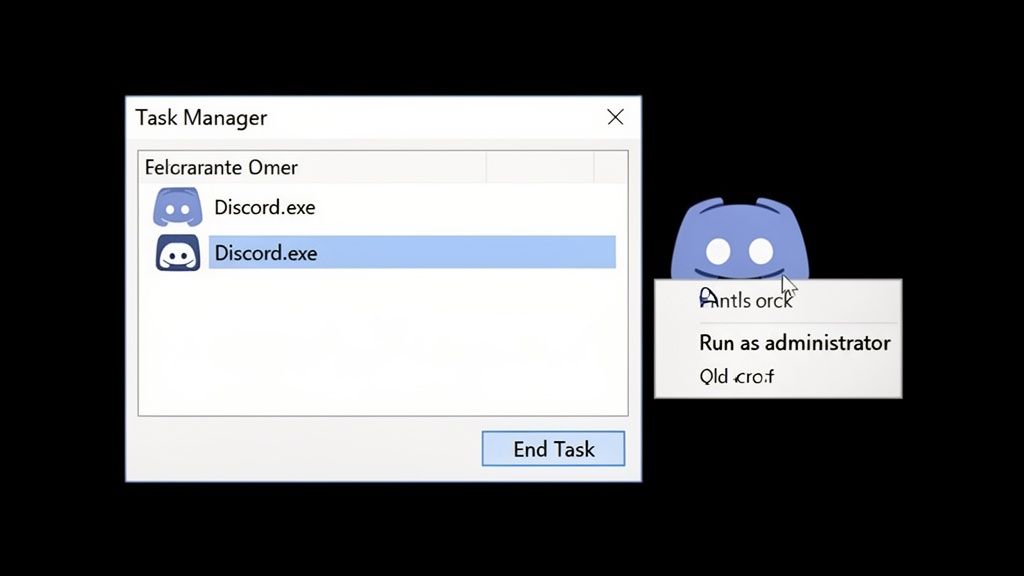
Hit Ctrl + Shift + Esc to pop open the Task Manager.
Under the “Processes” tab, scan the list for anything with “Discord” in the name. You might see “Discord.exe” or “Discord (32 bit).”
Click on each one and hit the End task button. Don’t be shy—sometimes multiple processes are lurking, so make sure you get them all.
For Mac users:
Open up Activity Monitor, which you’ll find in your Applications > Utilities folder.
Type “Discord” into the search bar.
Select any Discord processes that appear and click the little “X” icon at the top to force them to quit.
Once you’re confident that every trace of Discord has been shut down, try opening it again. You’d be surprised how many times this simple step is all it takes to get back online.
Pro Tip: Before you even open Task Manager, get in the habit of checking your system tray (the little icons by your clock). Right-click the Discord icon there and select “Quit Discord.” This is a much cleaner way to shut it down and often prevents those background processes from getting stuck in the first place.
Run Discord as Administrator to Fix Startup Issues
If fully closing the app didn’t do the trick, the next move is to give Discord some extra authority. Sometimes, a recent Windows update or an overzealous security program can mess with file permissions without telling you, stopping Discord from accessing the files it needs to launch.
Running the app as an administrator is the perfect way to sidestep these permission-based roadblocks.
Just find your Discord shortcut (on your desktop or in the Start Menu), right-click it, and choose Run as administrator. If that fixes it, you can make this a permanent solution. Right-click the shortcut again, go to Properties > Compatibility, and check the box that says “Run this program as an administrator.”
This one little click gives the app the privileges it needs to push past any conflicts with your system’s security controls. And while we’re on the topic of managing app settings, it’s always a good idea to understand how to control your safety features inside the app, too. For a deeper dive, check out our guide on how to handle the Discord explicit content filter to keep your servers and DMs safe.
How to Clear Discord Cache and Local Data
If the quick fixes didn’t do the trick, it’s time to dig a little deeper. I’ve found that when you’re trying to figure out how to fix Discord stuck on starting, the real problem often lies buried in the app’s temporary data folders. Over time, these files can get corrupted and stop the application from launching properly.
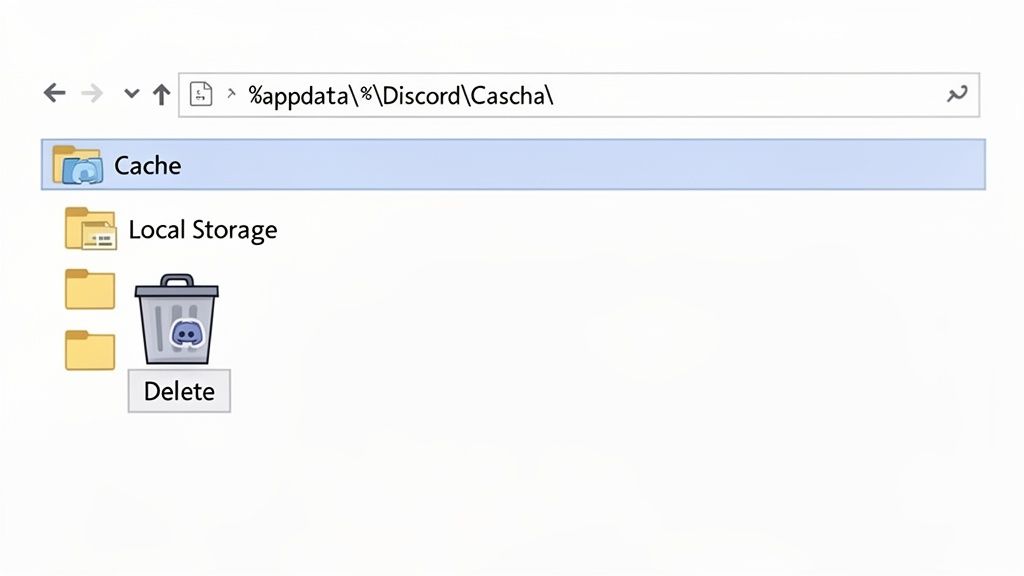
Think of these folders—specifically the Cache and Local Storage—as Discord’s short-term memory. They’re meant to help the app load faster, but sometimes they just get messy or damaged. The good news? Clearing them out is a simple, highly effective fix. And don’t worry, this will not delete your servers, chat history, or personal settings. All that important stuff is safe and sound on Discord’s servers.
Where Discord Stores Cache Files (Windows & macOS)
Before you start deleting anything, make absolutely sure Discord is completely closed. Open your Task Manager (Ctrl+Shift+Esc on Windows) or Activity Monitor (on Mac) and hunt down every single Discord process. End them all.
Once you’re sure it’s shut down, you can go after the folders.
For Windows Users: The quickest way to get to these hidden folders is by using a Run command.
Press the Windows Key + R to bring up the Run dialog box.
Type %appdata% and hit Enter. This will take you straight to the Roaming folder.
Look for the “Discord” folder inside and delete it.
Bring up the Run box again (Windows Key + R).
This time, type %localappdata% and press Enter.
Find the “Discord” folder in this location and delete this one, too.
Removing these two folders forces Discord to build a fresh set of temporary files when it next launches. In my experience, this one move is the most reliable solution for the “stuck on starting” screen.
For macOS Users: The idea is the same on a Mac, you just have to look in different places.
Open Finder, click “Go” from the top menu, and choose “Go to Folder…”
Type ~/Library/Application Support and click Go. Find the “Discord” folder and move it to the Trash.
It’s also a good idea to check for a cache folder. Go to ~/Library/Caches and see if there’s a “com.hnc.Discord” folder you can delete.
After you’ve deleted the folders for your system, give your computer a quick restart. It’s not always necessary, but it helps ensure a clean slate.
Now, try launching Discord again. It might take a few extra seconds to open this first time as it rebuilds its data, but this is often the last step you’ll need to get back into your conversations.
Fix Discord Startup Issues Caused by Hardware Acceleration
If clearing out those data folders didn’t do the trick, the problem is likely a bit deeper. We’re now looking at potential conflicts between Discord and your computer’s own systems. More often than not, the troublemaker is a feature called hardware acceleration.
In theory, hardware acceleration is great. It lets Discord offload some of the heavy lifting for graphics to your GPU, which should make everything run smoother. But in reality, it can cause some serious headaches. I’ve seen it happen countless times—an older graphics card just can’t keep up with how Discord’s modern interface renders, causing the app to lock up before it even loads. It can also happen with brand-new “game-ready” drivers from NVIDIA or AMD, where a fresh update accidentally creates a compatibility snag.
This one setting is a surprisingly frequent cause of startup failures. In fact, conflicts related to hardware acceleration are behind roughly 32% of all “stuck on starting” reports. Disabling it is a powerful fix that gets a huge number of users back online instantly. For a closer look at these numbers, you can check out the full breakdown on Tenorshare.com.
How to Disable Hardware Acceleration in Discord
So, how do you turn this feature off if you can’t even get into the app? It’s a classic chicken-and-egg problem. Thankfully, there’s a clever workaround. Since your Discord settings are tied to your account, not just the desktop client, you can use the browser version as a backdoor.
Here’s the game plan:
Fire up Chrome, Firefox, or your browser of choice and head over to Discord.com.
Log in to your account. You’ll land in the web-based version of Discord.
Look for the little gear icon in the bottom-left corner and click it to open User Settings.
In the menu on the left, find and click on the Advanced tab.
You’ll see a toggle for Hardware Acceleration. Flip that switch to the “off” position. A pop-up will ask you to relaunch—just hit Okay.
This change syncs across your entire account. Now, for good measure, pop open your Task Manager one last time, kill any lingering Discord processes, and try launching the desktop app again. For many people, this is the magic bullet that gets Discord to finally start properly.
By turning off hardware acceleration, you’re telling Discord to use your computer’s main processor (CPU) for everything. This might bump up your CPU usage a tiny bit, but it’s a small price to pay to get the app running again.
To help you decide whether this is the right move for you long-term, here’s a quick comparison.
Hardware Acceleration Explained: Should You Disable It?
This table breaks down when you might want hardware acceleration on or off, depending on your setup and the issues you’re facing.
Scenario
Hardware Acceleration On
Hardware Acceleration Off
High-End Gaming PC
Recommended. Your powerful GPU can easily handle the load, resulting in smoother performance and lower CPU usage during voice chat.
Not ideal. You're forcing your powerful CPU to do work your GPU is better at, potentially impacting in-game performance.
Older or Weaker System
Risky. An older GPU or outdated drivers might not be compatible, leading to crashes, visual glitches, or startup failures.
Often the solution. This bypasses the GPU conflict entirely, making the app stable even if it puts a little more strain on the CPU.
Experiencing Crashes
Likely the cause. If Discord is freezing, glitching, or won't start, this setting is the first thing to suspect.
The go-to fix. Disabling it is the most common and effective solution for these types of instability issues.
Ultimately, if you’re stuck, turning it off is the way to go. You can always try turning it back on later after a driver update to see if the original issue has been resolved.
Update Graphics Drivers and OS to Fix Discord Startup Problems
While turning off hardware acceleration is a fantastic fix, it’s often more of a band-aid for a bigger problem: outdated software. Think of your operating system and graphics drivers as the bridge connecting your hardware to apps like Discord. If that bridge is rickety or has a few planks missing, things are going to fall through.
Graphics Drivers: Companies like NVIDIA, AMD, and Intel are constantly pushing out driver updates. These aren’t just for performance—they contain critical bug fixes. An old driver might be missing the specific instructions Discord needs to render its interface, causing it to stall out.
Operating System Updates: Those Windows and macOS updates aren’t just for show. They often include important security patches and compatibility fixes that can resolve deep-seated conflicts between software and your system.
Keeping your machine up to date is just good practice. Head to your graphics card manufacturer’s official site to grab the latest drivers, and make a habit of checking for OS updates in your system settings. This kind of preventative maintenance is your best defense against running into startup problems in the future.
When You Should Reinstall Discord Completely
If you’ve tried everything else and Discord is still refusing to cooperate, it’s time for the nuclear option: a complete, clean reinstallation.
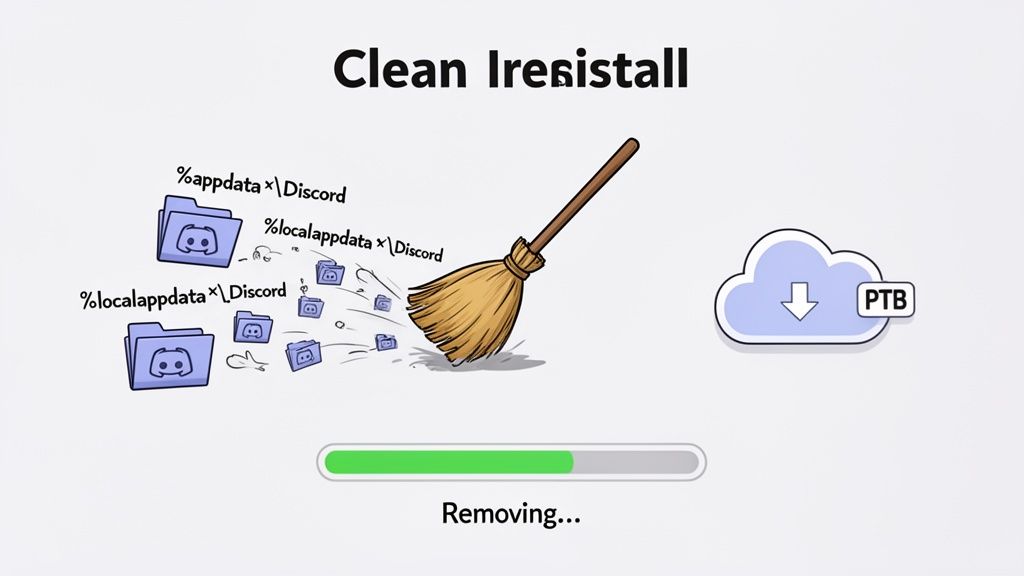
This isn’t just about clicking “uninstall” and then “install” again. A standard uninstall often leaves behind sneaky configuration files and cached data that can carry the original problem right back into your fresh installation. These leftover files, tucked away in folders like %appdata% and %localappdata%, are the digital ghosts of your old setup. If one of them is corrupted, simply installing over the top won’t do a thing.
Think of it like repainting a wall. You have to sand it down and clean it properly first, otherwise, the old bumps and imperfections will just show through the new coat.
How to Perform a Clean Discord Reinstall (Step-by-Step)
This methodical approach is the most effective way I’ve found to solve those stubborn, deep-rooted startup issues. Here’s how to do it right, making sure no corrupted data gets left behind.
Fully Uninstall Discord: First, get rid of the main program. Head to your system settings (Apps & features on Windows) and uninstall the Discord application.
Hunt Down the Hidden Folders: This is the most important part. You need to manually delete the two main folders where Discord stashes its local data.
Press the Windows Key + R to open the Run dialog. Type %appdata% and hit Enter. Find the “Discord” folder in there and delete it completely.
Open the Run dialog again (Windows Key + R). This time, type %localappdata% and hit Enter. Find that “Discord” folder and delete it, too.
Restart and Reinstall: Give your computer a quick reboot to clear out any lingering processes. Once it’s back up, head to the official Discord website and download a fresh copy of the installer.
This process is remarkably effective. Based on user reports, a proper clean reinstall resolves around 88% of persistent startup cases. Since 2016, this method has been the go-to fix for 70% of chronic issues that other troubleshooting steps couldn’t solve. If you’re curious about the data, you can learn more about these findings from OreateAI.com.
Consider the Public Test Build
Before you reinstall the standard version, there’s another smart option to try: the Discord Public Test Build (PTB). This is a beta version of the app that runs as a completely separate installation, meaning it won’t touch or interact with your potentially corrupted main files.
The PTB is a fantastic diagnostic tool. If it launches successfully when your main client won’t, that’s a dead giveaway the problem is with your local files and not a deeper system issue.
This variant can sidestep about 15% of common conflicts and is used by a community of 5 million beta testers to catch bugs early. You can grab it directly from the Discord website.
While you’re exploring different versions of Discord, you might also be interested in extending its functionality. Check out our guide on how to make Discord bots to unlock new creative possibilities.
And if you’re at the end of your rope and a complete system refresh seems necessary, a guide on how to reinstall Windows operating system the right way can provide the ultimate solution.
Common Questions Answered
Even with the best guide, a few questions always pop up. Let’s tackle some of the most common things people worry about when they’re trying to get Discord working again.
Will Clearing My Cache Delete My Discord Messages?
Nope, not at all. You can breathe easy on this one.
All your important stuff—messages, servers, friends lists, and DMs—is stored safely on Discord’s servers, not on your local machine.
When you clear the cache, you’re just deleting temporary files that help the app load faster, like previously downloaded icons and images. The app will simply redownload what it needs the next time you open it. Your account and all its history will be perfectly intact.
How Do I Know if Discord Servers Are Down?
This is the first thing you should check. Before you start digging through files and settings on your computer, make sure the problem isn’t on Discord’s side. A big server outage can look exactly like the “stuck on starting” error because your app simply can’t connect.
The quickest way to find out is to visit the official Discord Status page at discordstatus.com. It gives you live updates on any server issues or ongoing maintenance. If there’s a major problem reported there, all you can do is sit tight and wait for their team to fix it.
A quick look at the status page can save you a ton of time and frustration. It stops you from trying to solve a problem that’s affecting everyone.
Can My Antivirus or Firewall Block Discord?
Absolutely. It’s actually a pretty common culprit.
Sometimes, security software gets a little too protective and flags Discord’s startup process as a potential threat, especially right after an update to either Discord or the antivirus itself. This can prevent the app from connecting to the internet or even launching properly.
If you suspect this is the issue, try temporarily disabling your antivirus or firewall and then starting Discord. If it opens without a problem, you’ve found your answer.
To solve this for good, you’ll need to open your security software’s settings and add Discord to its “whitelist” or “exceptions” list. This tells the program to trust Discord and leave it alone. And while you’re getting your server back online, you might be interested in growing it with our guide on Discord server discovery and how to get your server found.
Once everything is working again, many creators take the next step by monetizing their Discord server through paid roles, membership tiers, and exclusive perks and If your server connects properly but still feels quiet, visibility may be the real issue. Learning how Discord server discovery works can help your community get found by the right audience.
Once Discord is running smoothly again, staying consistent is much easier when you plan ahead. Using a Discord post scheduler lets you schedule announcements, updates, and community posts without needing to be online 24/7.