Discord’s explicit content filter is a built-in safety tool that automatically scans images sent in Direct Messages (DMs) and servers. Its job is to spot and then blur or block content that might be sensitive, giving you more control over what you see.
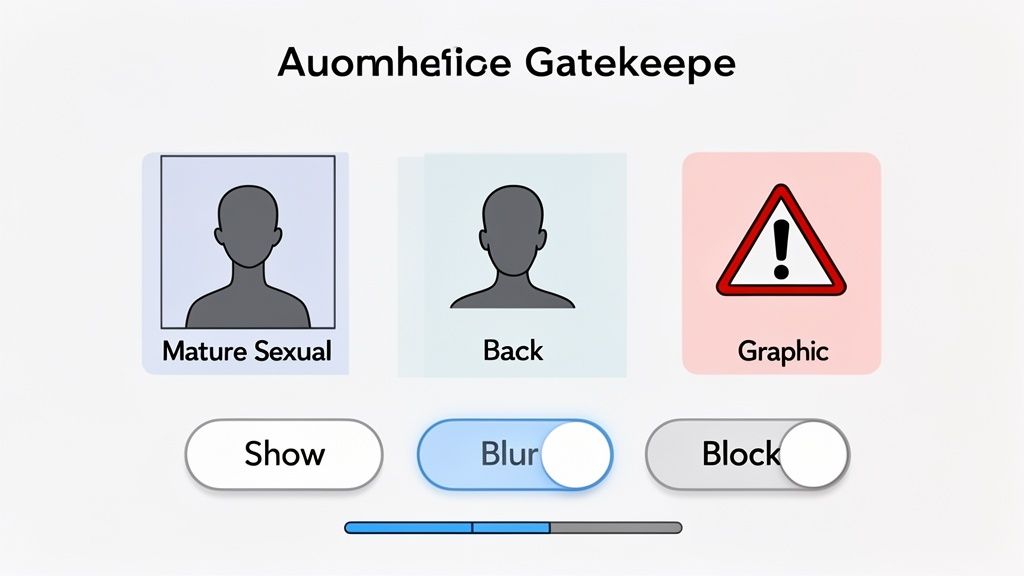
Think of it as a smart gatekeeper for your chats. It's designed to identify material that falls into two main buckets: Mature Sexual Media or Graphic Media, helping to keep your corner of Discord a little safer and more comfortable.
How Discord's Explicit Content Filters Work
At its heart, this isn't just a simple on/off switch. Discord’s system is a multi-layered shield you can adjust to fit your own comfort level. It uses automated detection to analyze images—both new and old—and protect you from seeing explicit visuals you didn't ask for.
When Discord first launched these filters, they wisely separated detection into Mature Sexual Media and Graphic Media. This gives you more precise control over what gets flagged. What's really neat is that when you turn on blurring or blocking, the system goes back and processes historical images in your DMs too, effectively cleaning up your chat history.
The Three Core Filter Settings
You've got three main options for how the filter handles any content it detects. Each one serves a different need, and picking the right one is all about customizing your experience.
Here’s a quick breakdown to help you decide which filter setting is right for you.
Discord Filter Settings at a Glance
Filter Setting
What It Does
Best For
Show
Displays all media without any blurring or blocking.
Users who are comfortable seeing all types of content and prefer zero filtering.
Blur
Hides detected explicit images behind a spoiler tag. You have to click to view it.
A balanced approach. It gives you a warning without completely blocking the content.
Block
Completely prevents detected explicit images from loading or appearing.
Users who want the highest level of protection and would rather not see sensitive content at all.
Choosing the right setting really depends on your personal preference and the communities you're a part of.
How It Works With Other Tools
This explicit content filter doesn't work in isolation. It’s designed to function alongside other safety features, most notably AutoMod. While the image filter is focused on visual media, AutoMod is your first line of defense against harmful text, like specific keywords or spammy links.
Key Takeaway: The explicit content filter is a specialized tool for images that complements text-based moderation systems like AutoMod. Using them together creates a much stronger and more comprehensive safety net for your personal account and any servers you manage.
If you're curious about the broader world of how platforms manage user content, you can find more information about general content moderation services. This technology is just one piece of a much bigger puzzle aimed at making online spaces safer for everyone. At the end of the day, Discord puts the power in your hands to decide what you want—and don't want—to see.
Manage all your social media in one place with Postiz
Setting Up Content Filters for Your Personal Account
Think of your Discord Direct Messages (DMs) as your personal digital space. You get to control what comes in. The best way to keep your DMs comfortable and safe is by tweaking your personal Discord explicit content filter.
This isn't about building a wall around yourself. It’s about setting smart boundaries. For instance, you might be totally fine seeing anything from your close friends but want to prevent unsolicited images from strangers you just met on a big public server. Discord’s settings are built for exactly that kind of nuance.
Navigating Your Privacy and Safety Settings
You'll find all the important controls right in your User Settings. If you're on a desktop, just click the little gear icon (⚙️) next to your username in the bottom-left corner. On mobile, tap your profile picture in the bottom-right and you'll see it.
Once you're in, look for the Privacy & Safety tab. This is your command center for personal content moderation.
Right there, you'll spot the "Explicit Image Filter" section. This is where you call the shots.
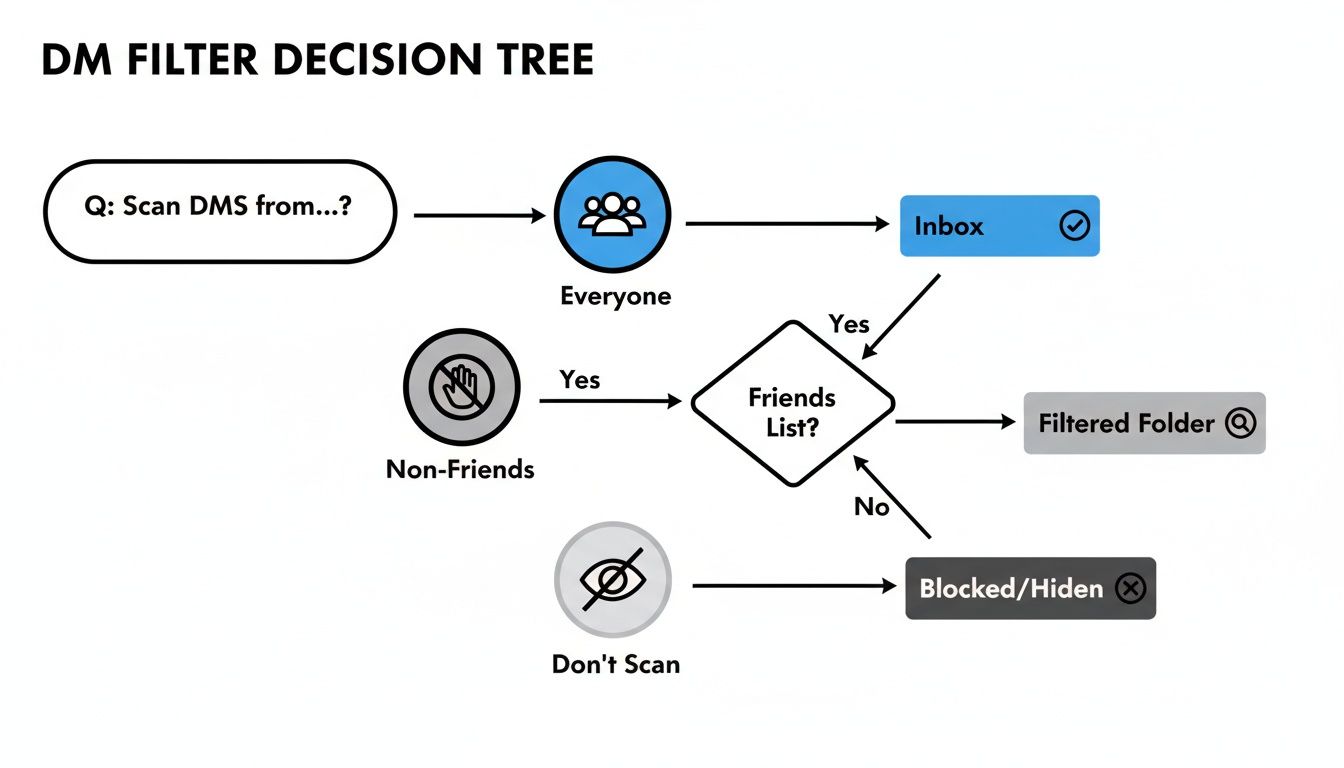
Scan direct messages from everyone: This is the most locked-down option. Discord will check every single image sent your way in a DM and filter out anything it deems explicit.
Scan direct messages from non-friends: This is a great middle-of-the-road choice. It keeps an eye on messages from people you haven't added as a friend but lets content from your actual friends come through as-is.
Do not scan direct messages: This turns the filter off completely. You'll see every image from everyone, no exceptions.
Here’s a classic scenario: you join a new server for a game you love and start getting DMs from random members. The "Scan direct messages from non-friends" setting is perfect here. It keeps you safe from unwanted surprises while still letting you connect with new people. Once you decide someone is cool, you can add them as a friend.
Fine-Tuning Your Experience
After you decide whose messages to scan, you also get to tell Discord what to do when it finds something. These settings let you choose to either Blur or Block images flagged as explicit.
Blurring is great because it puts a spoiler tag over the image, giving you a warning and the choice to view it or not. Blocking just stops the image from loading entirely.
Taking a few minutes to get this set up gives you real control over your online experience. While this involves a few steps, learning about efficiently documenting processes can help you create your own simple guides for personal reference or even for your own server members. By configuring these filters, you're curating a better, safer Discord, so you can focus on the fun stuff—the communities and conversations you actually care about.
Protecting Your Server with Content Filters
When you run a Discord server, you're not just an admin; you're the guardian of a community. Making sure that space is safe and welcoming is your most important job, and thankfully, Discord gives you some powerful tools to get it done right.
Think of the server-wide Explicit Media Content Filter as your first line of defense. It's a broad safety net that automatically scans and blocks images and other media that Discord flags as explicit. For any community that isn't strictly 18+, turning this on is a no-brainer. It does a lot of the heavy lifting for you right out of the box.
Creating Age-Restricted NSFW Channels
Of course, some communities are built for a more mature audience. That's where NSFW (Not Safe For Work) channels come in. When you mark a channel as NSFW, it does more than just add a warning label—it puts up an age gate.
Users have to manually confirm they're over 18 before they can even peek inside. This is a critical step for keeping your server in line with Discord's Terms of Service. As the owner, it’s entirely on you to label these channels correctly and keep that content contained.
Setting one up is quick and easy:
Right-click on a channel (or create a new one).
Go to Edit Channel and then head over to the Permissions tab.
Just flip the switch for the NSFW Channel option.
Done. Now your mature content has a designated home, and only people who consent to see it will.
While you're managing your server, remember that individual users also have their own DM filters. The settings you create on the server work alongside the personal preferences each member has.
This just goes to show how layered Discord's safety approach is—combining server-level rules with individual user controls.
Using AutoMod for 24/7 Moderation
The explicit media filter is great for images, but what about text? For that, your best friend is AutoMod. It's Discord's built-in tool that acts like an around-the-clock moderator, catching problematic messages before they cause trouble.
You can set up AutoMod to do a few key things:
Block Commonly Flagged Words: Start with Discord’s pre-built lists to catch common slurs and profanity.
Filter Custom Keywords: Add your own rules to block words or phrases specific to your community's needs.
Stop Spam & Shady Links: Automatically flag or block messages with suspicious links to protect your members.
Since its launch, Discord’s AutoMod has blocked over 45 million unwanted messages across the platform, which really shows how effective it can be.
Pro Tip: AutoMod isn't a "set it and forget it" tool. Check its logs every now and then. You'll see what it's catching, which helps you tweak your rules and make sure it's not accidentally flagging innocent conversations.
For those who want even more firepower, third-party moderation bots can add a ton of functionality. Things like timed mutes, reputation systems, and advanced logging can take your moderation to the next level. If you're curious, you can learn more about how to add bots to a Discord server and find one that fits your community.
By combining the main content filter, properly managed NSFW channels, and a smart AutoMod setup, you build a truly effective defense for your community.
Understanding Safety Features for Teen Users
Discord has put a lot of thought into protecting its younger users, rolling out a specific set of safety features for teen accounts that operate a bit differently than they do for adults. The whole idea is to create a safer environment right from the start, minimizing the chances of teens stumbling upon unwanted or inappropriate content.
For anyone identified as a teen on the platform, the Discord explicit content filter is automatically set to blur sensitive media. If the system flags an image in a DM or server as potentially explicit, it gets hidden behind a spoiler tag. This is a core protection that can't be switched off, ensuring there's always a baseline of safety.
These stricter defaults were a direct response to growing concerns about minor safety online. They don't just include automatic blurring but also proactive safety alerts when a teen receives a DM from someone for the first time.
Proactive DM Alerts
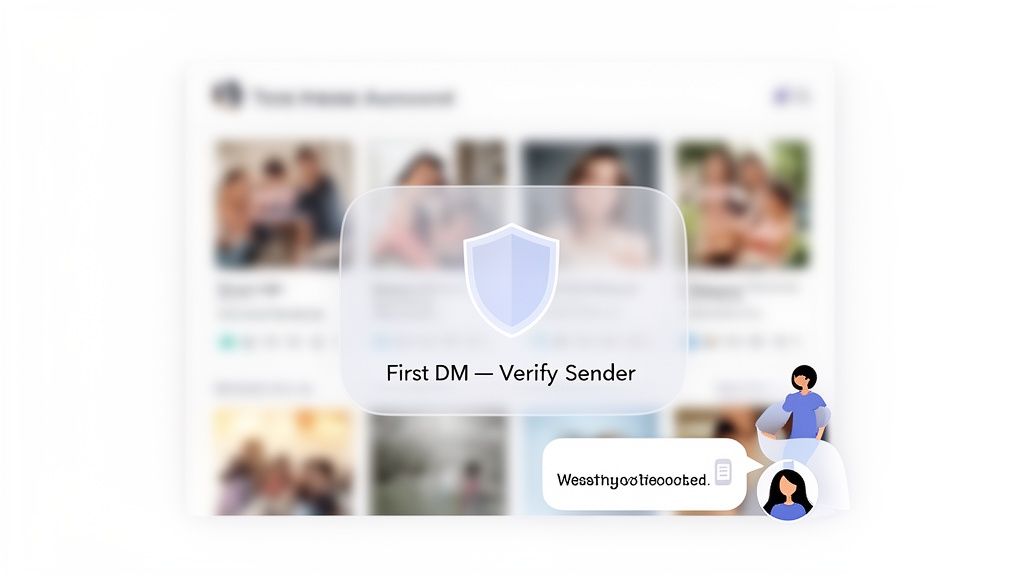
One of the most visible protections is the proactive safety alert. When a teen gets a direct message from a user they've never interacted with before, Discord pops up a warning. This alert asks them to double-check if they really want to reply and gives them quick, easy options to block the user or report them if something feels wrong.
This simple prompt is a surprisingly effective speed bump. It gives teens a moment to pause and think before jumping into a conversation with a stranger, empowering them to make smarter choices and reinforce good online habits.
Why These Settings Are Different
So, why are these settings less flexible for teens? It all comes down to a safety-first philosophy. By making the explicit media filter and DM alerts the default, Discord removes the need for younger users to actively opt into being safe. It’s an approach that values protection over personalization for this age group.
These features are crucial for building a secure space, which is the foundation of any healthy online environment. Knowing how to use these tools is a fundamental skill, much like the principles you'd apply when you build online communities.
Ultimately, this layered approach gives parents, guardians, and teens themselves a little more peace of mind. Understanding the "why" behind these automatic settings helps everyone appreciate the guardrails designed to make Discord a safer place.
Troubleshooting Common Filter Problems
Even the best automated systems slip up, and Discord's explicit content filter is no different. You'll probably run into situations where the filter is either a little too aggressive or not aggressive enough. Knowing how to handle these common hiccups can save you a ton of frustration.
The most common issue by far is a false positive. This is when a perfectly innocent image gets blurred out or blocked. Maybe you shared a vacation photo from the beach, and the filter flagged it as something it wasn't. It's annoying, for sure, but it’s also a chance to help the system get smarter.
Reporting Miscategorized Images
Discord actually depends on user feedback to fine-tune its detection algorithms. So, if an image gets flagged by mistake, you can—and should—report it.
Just click on the blurred image. You'll see the option to "Show" it, but you should also find a button labeled something like "Report as Not Explicit." Clicking this sends the image to Discord’s team for review, which helps train the AI to be more accurate down the road.
On the flip side, if the filter misses something it definitely should have caught (a false negative), you need to report the message itself. On a computer, right-click the image; on mobile, just long-press it. From there, select Report Message to flag it for the Trust & Safety team to handle.
Why You Can’t Access an NSFW Channel
Another thing that trips people up is not being able to get into an NSFW channel, even when they're over 18. This usually isn't a bug—it’s just a conflict in your settings. For a server's age-gated channel to be accessible, two things have to be true:
Your age must be registered with your Discord account. Discord has to verify you meet the minimum age.
Your personal user settings must allow it. You need to have enabled the option to view NSFW content on iOS or have the right privacy defaults set for your account.
Key Takeaway: If you're locked out of an NSFW channel, the first place to look is your own "Privacy & Safety" settings. Your personal settings can override server permissions, so make sure you haven't blocked yourself from viewing age-restricted content.
At the end of the day, remember that tools like filters and bots are powerful but they aren't perfect. They’re built to help human moderators, not completely replace them. If you're a server owner wanting to create a more tailored moderation setup, learning how to make Discord bots can give you much more granular control, letting you build a safety net that's just right for your community.
Frequently Asked Questions
When you're trying to get a handle on Discord's safety settings, a few common questions always seem to pop up. Let's get you some quick, clear answers on how the explicit content filter really works.
Can I Completely Turn Off the Filter?
For users 18 and older, you can essentially disable the filter for your private messages. Just head into your Privacy & Safety settings and select the "Do not scan" option. This stops Discord from automatically scanning the images people send you directly.
But that's where your control ends. This setting has zero impact on server-level rules. If a server has its own AutoMod filters or properly configured NSFW channels, those settings will always override your personal choice. For teen users, the filter is a permanent safety feature and can't be turned off.
Does the Filter Work on Videos and GIFs?
This is a really important distinction: Discord's built-in filter is designed almost exclusively for still images. It's not built to scan or analyze video content. While it might catch an animated GIF here and there, you absolutely cannot rely on it for video moderation.
Key Takeaway: Thinking the default image filter will protect your server from unwanted videos is a common and risky mistake. You need a more robust strategy for dynamic content.
If you're running a server, you need a multi-layered approach to handle videos and GIFs effectively:
Have active human moderators ready to review content and respond to user reports.
Bring in specialized moderation bots that are actually built to detect and flag suspicious video files or malicious links.
Set up strict channel permissions to control who can upload files in the first place.
What Happens If I Post Explicit Content Outside an NSFW Channel?
Don't do it. Posting explicit stuff in a regular, SFW channel is a clear violation of Discord's Community Guidelines, and the consequences are usually fast.
First, the content will almost certainly be deleted, either by an automated system or a moderator. You'll likely get an official warning or even a temporary mute. If you ignore the warning and do it again, you're looking at a server ban. For really serious or repeat offenses, Discord's own Trust & Safety team might step in, which could get your entire account suspended from the platform.
How Do I Report Content the Filter Missed?
Your reports are a huge part of keeping Discord safe. If you see something that breaks the rules and the automated systems didn't catch it, reporting it is simple and makes a real difference.
On a computer, just right-click the message and hit Report Message. If you're on your phone, long-press the message until the option appears. Discord will then ask you to categorize the violation, which helps their team review it and take action much faster.
Here at Postiz, we're all about helping people build valuable and safe online communities. Our tools are designed to take the headache out of managing your social media, letting you focus on what really matters: creating positive engagement. Find out more at https://postiz.com.