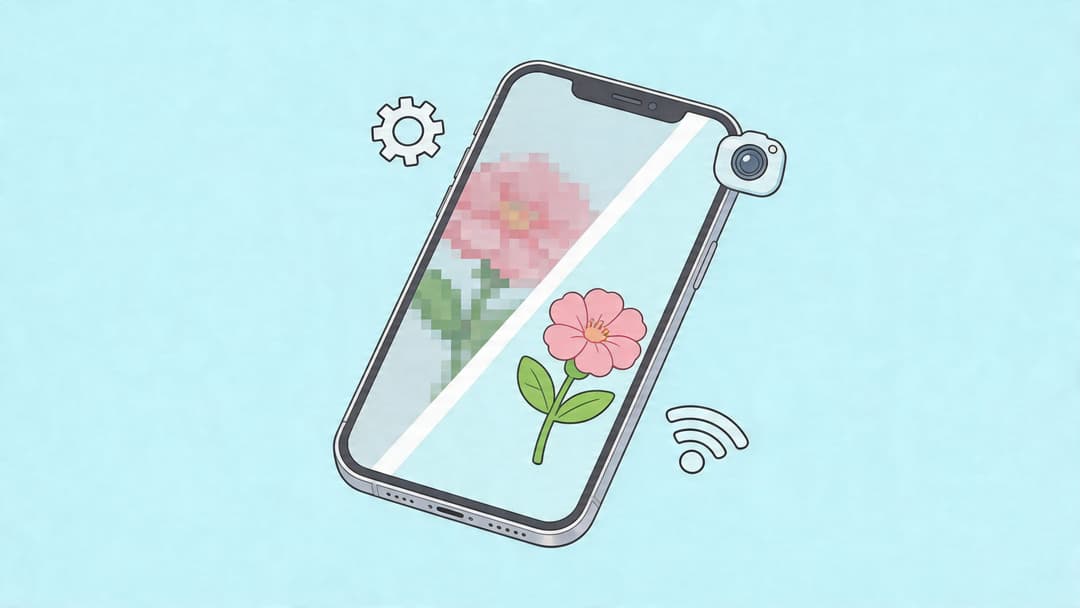
You export a clean video. The colors look right. The text is sharp. You upload it to Stories, watch the preview finish, and suddenly everything looks soft, smeared, or slightly out of focus.
That’s usually the exact moment people search why does my instagram story look blurry.
The frustrating part is that the problem often isn’t your camera. It isn’t always your editing app either. In a lot of cases, Instagram takes a perfectly usable file and makes trade-offs for speed, file size, and playback. If your content also passed through another app before upload, the quality can fall apart even faster.
I’ve seen this with client Stories made in Canva, exported from Premiere, saved from TikTok drafts, forwarded through WhatsApp, and uploaded through schedulers that re-encode media in the background. The pattern is consistent. Blur usually comes from a handful of technical mismatches, not from some mysterious shadowban or random bad luck.
The good news is that blurry Stories are usually fixable. The better news is that once you understand the failure points, you can prevent most of them before you upload.
That Frustrating Moment Your Perfect Story Turns Blurry
A creator spends time getting everything right. Good lighting. Strong hook. Clean captions. Brand colors. Maybe you even retake the clip three times because the first two weren’t quite there.
Then Instagram publishes the Story, and the result looks worse than the file in your camera roll.
That gap between what you made and what Instagram shows is why this issue feels so annoying. It doesn’t look like a creative mistake. It looks like the app ruined your work after the fact.
I’ve debugged this for product launches, event Stories, behind-the-scenes clips, and polished brand assets. The same complaint comes up over and over. “It looked fine before I posted it.”
That complaint is valid.
What’s usually going wrong
Most blurry Story problems come from one of these buckets:
Instagram compresses the file hard: The app prioritizes fast playback over preserving every detail.
The file was prepared in the wrong shape: Stories want vertical assets, not square posts stretched into place.
The upload happened on a weak connection: Instagram reacts by reducing quality.
The media got compressed before Instagram ever saw it: This is the double compression problem that generic guides often miss.
The phone used an advanced format Instagram handles badly: This shows up a lot with newer iPhones.
Practical rule: If a Story looks crisp in your editor but blurry after posting, assume the issue happened during file handling, not during content creation.
Why basic advice often doesn’t solve it
A lot of guides stop at “check your internet” or “try updating the app.” Those tips matter, but they don’t explain why some Stories stay sharp while others fall apart.
Two uploads can happen on the same phone, over the same Wi-Fi, minutes apart. One looks clean. The other looks muddy. That usually means the source file, export settings, or file history are different.
That’s where real troubleshooting starts. You don’t just need a better connection. You need a cleaner media path from capture to upload.
Manage all your social media in one place with Postiz
Instagram compresses every Story upload. That’s not a bug. It’s built into how the platform works.
According to WinXDVD’s breakdown of blurry Instagram Stories, Instagram automatically compresses uploaded images and videos for Stories to optimize streaming speeds. That compression affects over 500 million daily active users globally and can reduce file sizes by up to 80%, especially when content doesn’t match the ideal 1080 x 1920 format at a 9:16 aspect ratio.
Why sharp files still get softer
The easiest way to think about compression is this. You hand Instagram a full-quality file, and Instagram makes its own lighter version so it can load quickly for viewers.
That means detail gets traded away.
Fine text, skin texture, subtle gradients, and shadow detail are often the first things to suffer. If your Story already starts with tiny text, heavy filters, or lots of layered graphics, compression makes those weak points more obvious.
The photocopy of a photocopy problem
Compression gets uglier when Instagram has to do extra work.
If your file is already in the right shape and close to Story-friendly specs, Instagram has less to reinterpret. If your file is square, horizontal, oversized, undersized, or exported in a format that doesn’t map cleanly to Story playback, the app has to resize, crop, and compress at the same time.
That’s when blur starts looking more dramatic.
Think of it like making a photocopy of a clean original versus making a photocopy of a photocopy. The second version loses edge detail much faster.
Why dimensions matter more than people think
A lot of creators repurpose feed posts, ad creatives, or clips from other platforms and hope Instagram will “figure it out.” It does figure it out. Just not in your favor.
When the source doesn’t fit 1080 x 1920, Instagram has to resize it. Resizing plus compression is a rough combination for quality. Text gets softer. Faces look flatter. Motion gets more blocky.
This is also why a very high-resolution file doesn’t guarantee anything. If the file arrives in the wrong shape, Instagram still has to process it aggressively.
What this means in practice
If you want cleaner Stories, stop thinking only about capture quality. Start thinking about compression survival.
That means:
Match the Story canvas from the start: Create for 9:16, not after the fact.
Avoid unnecessary edits across multiple apps: Every export can change the file.
Don’t rely on Instagram to resize for you: Manual prep usually beats auto-processing.
Once you understand that Instagram is always going to compress, the goal changes. You’re no longer chasing “perfect quality.” You’re trying to give Instagram the file it can damage the least.
Your Pre-Upload Checklist for Crystal Clear Stories
The best Story quality work happens before upload. Once Instagram gets a messy file, you’re in damage-control mode.
If you want the short version, build the asset for Stories first, export it in a format Instagram handles well, and avoid passing it through extra apps unless you have to.
Start with the right source file
A clean source gives Instagram fewer opportunities to ruin the result.
If you shoot on your phone, keep the framing vertical if the destination is Stories. Don’t record horizontally and crop later unless you have a very specific reason. If you design graphics, build them on a Story-sized canvas from the beginning.
For edited video, Klap’s benchmark guidance on blurry Instagram Stories recommends exporting with H.264 at a bitrate between 5-8 Mbps, using 1080 x 1920 resolution, and keeping the file under 4GB. The same source says these settings can produce an 85-95% clarity improvement compared with recycled or badly formatted files.
The settings worth checking every time
Here’s the checklist I use when a Story matters:
Canvas first Build the asset in 1080 x 1920. Don’t design square and “adapt” later.
Export for Instagram, not for archive If you’re exporting from Premiere Pro, Final Cut, CapCut, or Adobe Express, choose H.264 for video.
Keep the file clean Upload the master export. Don’t save it from a chat app, a draft repost, or a social downloader.
Watch your text Thin fonts and tiny captions often look fine in the editor and weak after upload.
Choose the right image format JPEG is usually the safer default for Story photos. PNG can be useful, but oversized graphics with transparency don’t always survive compression gracefully.
If you need help cleaning up a photo before export, these beginner-friendly photo editing apps are a practical place to start.
Optimal Instagram Story upload settings
Setting
Photo (Image)
Video
Resolution
1080 x 1920
1080 x 1920
Aspect ratio
9:16
9:16
Format
JPEG or PNG
H.264
File approach
Export once from the original
Export once from the timeline
Size discipline
Keep the file lightweight and clean
Keep under 4GB
Editing approach
Avoid repeated saves across apps
Avoid recycled or reposted files
Best use case
Graphics, stills, text slides
Native clips, edited vertical video
What works and what doesn’t
Some habits consistently help:
Best practice: Shoot or design with Stories as the final destination.
Good workflow: Edit once, export once, upload once.
Helpful tools: Canva, Adobe Express, Premiere Pro, Final Cut Pro.
Some habits cause trouble fast:
Weak workflow: Downloading your own video from another platform and reposting it.
Common mistake: Sending a file through WhatsApp or another messaging app before uploading.
Hidden problem: Cropping a feed post into Story format at the last minute.
If you’re unsure whether your asset dimensions are correct before export, this guide on what are the dimensions of an Instagram post is useful for keeping platform sizes straight.
A Story file should feel boring before upload. Right size, standard codec, one clean export. The more “handled” a file is, the worse it usually performs.
One more practical note
A lot of creators assume 4K capture automatically solves everything. It doesn’t.
Higher capture quality can help if the edit is clean, but Instagram still wants a Story-friendly final file. A giant file exported carelessly can look worse than a simpler file exported correctly. Clean in wins over huge in.
Troubleshooting App Settings and Network Issues
Sometimes the file is fine and the upload process ruins it.
People often lose quality without realizing it. They check the media, see that it looks sharp in the camera roll, and assume Instagram will preserve that quality. Then the app sees a slow connection, a restrictive setting, or stale app data and makes a lower-quality version.
When your connection forces Instagram to downgrade the upload
Poor upload conditions are a major trigger. According to SocialRails’ guide to fixing blurry Instagram Stories, poor internet connectivity during upload is cited in 70% of user reports, and getting upload speed above 10 Mbps can improve resolution for 90% of users.
That matches what I see in practice. A Story uploaded on weak cellular data often looks softer than the exact same file uploaded later on stable Wi-Fi.
Use this quick check:
Test the upload environment: If possible, upload on strong Wi-Fi instead of mobile data.
Retry one file twice: Upload once on your current network, then again later on better Wi-Fi. If the second version looks sharper, the file wasn’t the problem.
Avoid movement between networks: Don’t start an upload while your phone keeps switching between signal conditions.
The settings that quietly wreck quality
Instagram’s own data-saving settings can lower Story quality.
Check these inside the app:
Data Saver: Turn it off if you care more about Story clarity than data reduction.
Upload at highest quality: Turn it on. This setting matters more than many users realize.
App version: Update Instagram if you’ve been ignoring updates.
Cache on Android: If uploads keep misbehaving, clearing cache can help remove bad local app behavior.
One troubleshooting flow that actually works
Instead of changing five things at once, test in order:
Confirm the file is sharp before upload
Switch to stable Wi-Fi
Disable data-saving behavior
Enable high-quality uploads
Force-close and reopen Instagram
Update the app
Retry the same file
That process isolates the problem faster than random guesswork.
Bad Story quality often isn’t one big failure. It’s a small stack of compromises. Weak connection, saver mode on, old app version, and a marginal export can combine into one blurry result.
A useful sanity check
Upload one plain test Story. No sticker. No music. No GIF. Just the media.
If the plain upload looks clean and the decorated version looks worse, the issue may be happening inside Instagram’s rendering process after you add layers. That won’t be the main cause every time, but it’s a useful way to separate file problems from in-app composition problems.
Advanced Fixes for iPhone ProRAW and Double Compression
A newer phone doesn’t guarantee sharper Stories. In some cases, it creates extra problems.
That’s especially true on iPhone Pro models where advanced capture formats sound great on paper but don’t always translate well into Instagram’s Story pipeline.
Why ProRAW and HEIF can backfire
According to this Apple Discussions thread on blurry Instagram uploads, an estimated 35% of iOS Story blur issues stem from ProRAW and HEIF format conflicts. The same source notes that Instagram struggles with ProRAW’s 12-bit depth, and blur-related issues spiked by 22% after recent iOS updates increased HEIF adoption.
That lines up with what many iPhone users notice. The original file can look rich and detailed in Photos, then look flatter and more artifacted once Instagram processes it.
The fix for advanced iPhone users
If you’re shooting specifically for Stories, simplify the capture path.
Disable ProRAW for Story-destined photos: Save it for workflows where you control the final output.
Convert HEIF to JPEG before upload if needed: Especially for graphics, text-heavy Story slides, and edited stills.
Keep HDR separate from experimental formats: HDR may be fine, but stacking advanced capture options increases the odds of Instagram mishandling the file.
A lot of creators assume “highest capture quality” automatically means “best upload quality.” That assumption breaks down on social platforms that aggressively reprocess media.
Double compression is the bigger hidden problem
This is the issue I wish more guides talked about.
If you create a file, upload it to another platform, save it back down, edit it again, send it through chat, and then upload it to Instagram, you’re not uploading the original anymore. You’re uploading a file that may already be compressed once or twice.
That second pass can be brutal.
A reposted clip from TikTok drafts, a WhatsApp-forwarded video, or a file exported by a low-quality scheduler can all arrive at Instagram already damaged. Then Instagram compresses it again.
That’s why some Stories look bad even when dimensions are correct.
Here’s a quick visual explainer before the next set of fixes:
How to avoid double compression
The practical fix is simple, even if the cause isn’t.
Upload from the master export: Not the reposted version.
Don’t use chat apps as file transfer tools: They often compress media.
Avoid downloading from social platforms for reuse: Start from your original timeline export instead.
Check the file history: If you can’t remember how many apps touched it, assume too many did.
The cleanest Story files usually have the shortest path. Capture or edit, export, upload. Every extra stop increases the risk.
How to Maintain Quality with Scheduling and Cross-Posting
Cross-posting saves time, but it can also wreck Story quality if the workflow is sloppy.
The problem usually isn’t the idea of scheduling. The problem is what happens to the file inside the process. Some tools resize aggressively, flatten metadata, recompress media on upload, or encourage users to recycle files that were already exported for another platform.
That’s how teams end up blaming Instagram for blur that started much earlier.
What a safer workflow looks like
A better workflow keeps the original file intact for as long as possible.
That means:
Create platform-specific versions: Don’t reuse a square feed export for Stories.
Store master assets in one place: Pull from originals, not downloaded social copies.
Check the output before scheduling: Especially if text sits near the edges.
Use one publishing path per asset: Multiple handoffs create more opportunities for recompression.
Why manual uploading becomes risky at scale
Manual posting feels harmless when you do it occasionally. It gets messy when you manage multiple brands, creators, campaigns, and revisions.
That’s when people start grabbing files from Slack threads, forwarded chats, cloud previews, and saved platform downloads. Quality drift creeps in because nobody is sure which file is the clean one.
For teams publishing frequently, a structured scheduler matters because it reduces random file handling. If you want a better workflow for Story publishing specifically, this guide on how to schedule Instagram Stories is a practical next step.
The benefit isn’t just convenience. It’s consistency. The fewer accidental re-exports and cross-platform downloads you allow into the workflow, the fewer blurry Story surprises you’ll get.
Your Final Checklist for Blur-Free Instagram Stories
If you want a Story to stay sharp, think in three parts.
First, prepare the file well. Second, upload under the right app and network conditions. Third, keep the workflow clean so the file doesn’t get degraded before Instagram touches it.
That’s the whole system.
The short checklist
Use this before you publish:
Build for Stories: Use a vertical 9:16 canvas.
Export cleanly: Keep one master export for upload.
Avoid recycled files: Don’t repost downloaded versions from other apps.
Watch iPhone formats: If you use ProRAW or HEIF, simplify before upload.
Upload on strong Wi-Fi: Don’t force a weak cellular upload if quality matters.
Review Instagram settings: Data-saving behavior can inadvertently lower quality.
Keep the app healthy: Update it and clear cache if uploads start acting strange.
The setting many people miss
One of the biggest quality killers is still Instagram’s own saver behavior.
According to ContentStudio’s guide on blurry Instagram Stories, enabling Data Saver causes blurry Stories for about 40% of affected users, and manually enabling Upload at highest quality resolves the issue immediately for 75% of testers.
If you only change one setting today, check that one.
Good Story quality is usually boring behind the scenes. Correct size, standard export, stable upload, no recycled file. Boring workflows produce the cleanest results.
FAQ
Do stickers, music, and filters make Stories blurry
They can. Extra overlays give Instagram more to render on top of compressed media. If your base file already looks borderline, in-app additions can make softness more noticeable.
Why do my video Stories look worse than my photo Stories
Video is harder to preserve under compression. Motion, text, shadows, and detailed backgrounds give the encoder more to simplify, so flaws show up faster than they do on still images.
Is it better to record inside Instagram
Sometimes, yes. Native capture can reduce file handling issues because the app works with media it created itself. But it’s not always better than a clean external workflow. A properly exported file can still look great if the settings and upload conditions are right.
Why does one Story slide look blurry while the next one looks fine
Usually because the slides were prepared differently. One may be a clean original export, while another may be a screenshot, reposted file, mismatched aspect ratio, or heavily layered design.
If you’re tired of chasing blurry uploads and want a cleaner publishing workflow, Postiz helps you plan, organize, and schedule content without the usual file chaos that leads to double compression and last-minute Story fixes. It’s a smart option for creators, teams, and agencies that want more control over how content gets prepared and published.