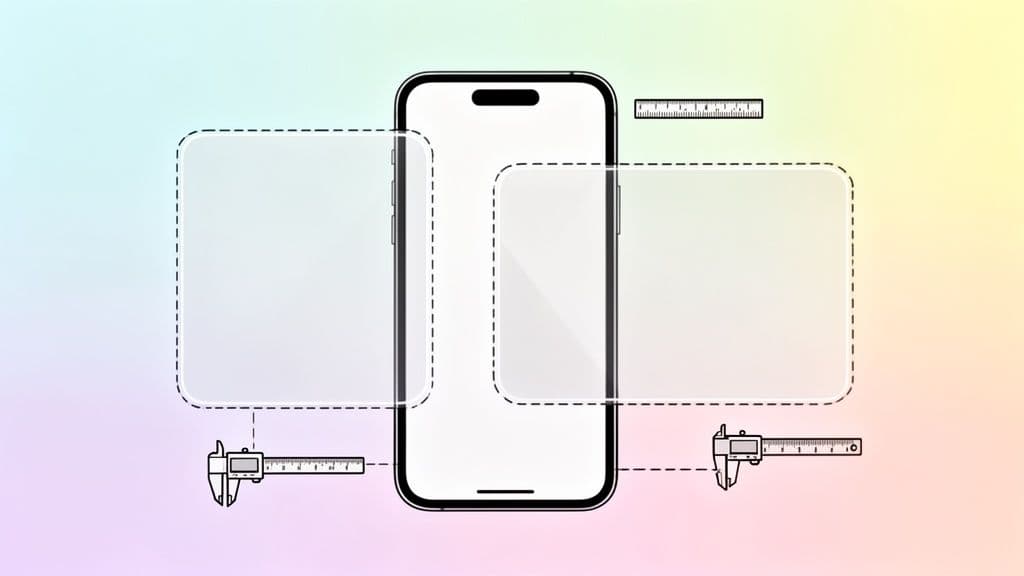
So, you're wondering about the perfect size for an Instagram post? The short answer is to always start with a width of 1080 pixels. From there, the height will change depending on whether you're creating a square, portrait, or landscape image. The go-to dimensions are 1080×1080 px for square, 1080×1350 px for portrait, and 1080×566 px for landscape.
Your 2026 Instagram Dimensions Cheat Sheet
Getting your post dimensions right is one of the easiest ways to make your feed look polished and professional. Think of it this way: if your image isn't sized correctly, Instagram has to either shrink or stretch it to fit the feed. This is where you run into problems.
When Instagram's algorithm gets ahold of an incorrectly sized file, it can lead to frustrating issues like blurry images, awkward cropping that cuts off important details, and an overall drop in quality. Sticking to the right dimensions from the start ensures your work is displayed exactly as you designed it.
It really comes down to understanding two simple things: the pixel dimensions (the exact width and height) and the aspect ratio (the proportional shape of your image).
This graphic gives you a great visual overview of the key formats.
As you can see, every placement—from the classic square post to a full-screen Story—requires a different canvas. To make it even easier, here is a quick reference table with all the numbers you'll need.
Instagram Post Dimensions at a Glance (2026)
This table breaks down the most common formats, giving you the exact pixel dimensions and aspect ratios to use for perfect-looking content every time.
Post Type
Pixel Dimensions (Width x Height)
Aspect Ratio
Square Post
1080 x 1080 px
1:1
Portrait Post
1080 x 1350 px
4:5
Landscape Post
1080 x 566 px
1.91:1
Story / Reel
1080 x 1920 px
9:16
Profile Photo
320 x 320 px (minimum)
1:1
By keeping these core sizes in mind, you can design with confidence. You'll avoid any last-minute surprises and ensure your visuals stop the scroll for all the right reasons.
Mastering the Main Feed Post Sizes
Getting the pixel dimensions right is a great start, but the real secret to a stunning Instagram feed is knowing why and when to use each post size. Think of it this way: your posts have three basic shapes to choose from—the classic square, the tall portrait, and the wide landscape.
Each one has a different job to do. Knowing how to pick the right one for your image or video is what separates the pros from the amateurs.
Manage all your social media in one place with Postiz
Ah, the good old square. It’s the original Instagram format, and it’s still incredibly useful. Its perfect symmetry creates that clean, balanced grid on your profile page that so many brands love.
Dimensions:1080 x 1080 pixels
Best For: Product shots, text-based graphics, and keeping a consistent look across your profile grid.
The square post is your reliable workhorse. It’s a safe bet for most content and works especially well in carousels, where you want a seamless swiping experience.
The Attention-Grabbing Portrait Post (4:5)
Here’s where you can really gain an edge. A portrait post is taller, which means it physically takes up more of the screen on a mobile phone. That simple fact makes it much harder for someone to just scroll on by.
A taller post is a natural "scroll-stopper." It gives your visuals more room to breathe and makes it more likely that a user will pause, look, and engage with your content.
This is my go-to format for anything visually detailed, like infographics or photos of people. Since the early days, the portrait size at 1080 x 1350 px has become a favorite for savvy marketers. Given that vertical content often gets more interaction, it’s no surprise that top brands use it to drive more clicks. You can dive deeper into how different sizes perform in a detailed report from Buffer.
The Cinematic Landscape Post (1.91:1)
Now, the landscape format. It uses the least amount of vertical screen space, so you might think it's a poor choice. But it has a very specific, important role to play. It's the only way to share wide, cinematic shots without cropping out the good stuff.
Dimensions:1080 x 566 pixels
Best For: sweeping panoramic views, large group photos, and certain types of video previews.
You probably won’t use this one every day, but when you have an image where the story is told in its width, the landscape format is a lifesaver. It ensures you never have to sacrifice a great composition just to fit it into a taller box.
The Rise of Taller Vertical Posts
It's official: Instagram is a vertical-first world now, and our feed posts are finally catching up. For years, the 4:5 portrait post (1080 x 1350 pixels) was the gold standard for anyone serious about grabbing attention. But a recent, quiet update has made vertical content even more dominant.
This wasn't just a random tweak. It was a clear move by Instagram to make static images feel as immersive and screen-filling as Reels. Think of the user's feed as prime real estate. A taller post simply takes up more of it, making it much harder for people to just scroll on by.
For creators and brands, this is a huge win. Taller posts are natural scroll-stoppers. They hold a user's attention longer and show that you're creating content that’s designed for how people actually use the app today.
The New Tallest Post Dimension
Just when we all got comfortable with the 4:5 format, Instagram expanded the maximum height for feed posts again. In a significant shift detailed in a recent industry analysis, the platform started supporting a taller 3:4 aspect ratio, bringing static posts even closer to the full-screen feel of Reels.
This update gives us a new set of dimensions to work with:
New Tallest Post:1080 x 1440 pixels
Aspect Ratio:3:4
That change hands you an extra 90 pixels of vertical space to play with. It might not sound like a lot, but that 6.7% increase in height is enough to push competing posts further down the screen, giving your content a serious edge.
This shift confirms what many of us have known for a while: vertical is the winning format. If you want to maximize your visibility and engagement, you should be designing for taller aspect ratios like 4:5 and now 3:4.
Getting your creative process in line with this vertical-first approach is no longer optional. Whether you’re a photographer, a graphic designer, or running a business account, framing your visuals for a taller canvas is now a key part of the job. And as you get into that mindset, don't forget it applies to video, too—you can learn more in our guide to vertical video dimensions.
How New Dimensions Affect Your Profile Grid
Think of your Instagram profile grid as your digital handshake—it's the very first impression a new visitor gets. For years, that grid was a neat mosaic of 1:1 square thumbnails. But a huge, recent shift has completely changed how you need to think about your profile's design.
Instagram's update directly fixes a major headache for creators. Before, if you posted a gorgeous 4:5 portrait photo, the grid would just chop it into a square, often cutting off the most important parts. That frustrating problem is now a thing of the past.
The Shift from Square to Tall Previews
The classic grid, a core feature since Instagram launched back in 2010, always forced a center-crop on every post. This wasn't just a minor annoyance. An analysis from Oktopost found that this awkward cropping messed with an estimated 62% of vertical posts, leading to a real loss of visual information.
Now, your profile grid shows a taller 3:4 aspect ratio preview for your posts. This is a game-changer. It means your vertical images and videos finally show up on your profile exactly as you wanted them to, with no strange cropping.
This change is Instagram's way of telling us that a cohesive, visually stunning grid is more important than ever. It's what gets visitors to stick around, explore your work, and hit that "Follow" button.
This new format rewards thoughtful design. To make your grid look polished and professional, you now need to be mindful of centering your key elements like text, faces, or logos. It's the same principle as framing your main profile picture; each thumbnail now demands that same level of care. For more on that, you can dive into our complete guide on optimizing your profile image size.
Your Instagram feed is just one piece of the puzzle. To really build a presence that gets noticed, you have to look beyond standard posts and master the formats that dominate today's app: Stories and Reels.
These full-screen, vertical videos are all about creating an immersive experience, and that starts with getting the dimensions right.
Stories and Reels: The 9:16 Golden Rule
For both Instagram Stories and Reels, there’s one number to remember: 1080 x 1920 pixels. This is the perfect 9:16 aspect ratio that fills an entire phone screen.
Get this wrong, and Instagram will either add clunky black bars or crop your content in ways you never intended. It immediately looks unprofessional and can ruin the effect you were going for.
Don't Forget The Safe Zone
But here's the catch—just because your canvas is 1080 x 1920 doesn't mean you can use all of it. Instagram overlays its own interface on top of your content, like your profile icon and username at the top and the comment and like buttons at the bottom.
This is why you have to design for the "safe zone." It's the central part of the screen where your most important visuals and text won't get covered up.
Think of the safe zone as the guaranteed viewable area. Anything you put here—your logo, a call-to-action, or critical text—is safe from being obscured by Instagram's buttons and icons.
A good rule of thumb is to keep your key elements away from the top 250 pixels and the bottom 340 pixels of the screen. This ensures everyone sees your message loud and clear. For a more detailed breakdown, check out our guide to Reel sizes for Instagram.
A Quick Look at Other Key Sizes
To help you get every detail right, here’s a quick-reference table breaking down the dimensions for all the other formats that make your Instagram profile shine.
Dimensions for Stories, Reels, and Other Formats
Format Type
Pixel Dimensions (Width x Height)
Key Considerations
Stories & Reels
1080 x 1920
This is a 9:16 aspect ratio. Always design within the "safe zone" to avoid UI overlap.
Profile Photo
Upload at 320 x 320
Displays as a 110 x 110 circle, so make sure your image looks good when cropped.
Carousel Thumbnails
Varies (Square, Portrait, Landscape)
The key is consistency. Every slide in a carousel must have the same aspect ratio to avoid awkward auto-cropping.
Nailing these sizes ensures your profile looks polished and professional from every angle, whether someone is watching your Story, swiping through a carousel, or just glancing at your profile picture.
Export Settings for Crystal-Clear Posts
You’ve spent all this time getting your image dimensions just right, but there’s one last hurdle that can ruin everything: the export settings. Get this part wrong, and all your effort results in a blurry, pixelated mess on the feed.
The trick to outsmarting Instagram's compression algorithm is surprisingly simple. Never upload an image wider than 1080 pixels.
Think of it this way: if you hand Instagram a massive file, it will aggressively shrink it down to size, and a lot of sharpness gets lost in that process. But if you give it an image that’s already the perfect width (1080px), the app has much less work to do. Less compression means your photo stays crisp and clear. This is the part of the equation most people miss.
File Type and Quality
Beyond the pixel dimensions, the file format you choose plays a huge role in how your final image looks.
Go with JPEG for photos: For standard photography, JPEG is your best friend. It hits the sweet spot between quality and file size. When you’re exporting, crank the quality setting all the way up—look for a slider that goes to "100" or "12."
Pick PNG for graphics: If you’re working with something that has sharp lines, text overlays, or needs a transparent background (like a logo), PNG is the way to go. It preserves those hard edges beautifully without the fuzzy artifacts JPEGs can sometimes create.
Taking a moment to double-check these settings before you export is the difference between a professional-looking post and a blurry one. When your files are properly sized and saved, they can easily withstand Instagram’s compression and look exactly the way you intended.
A Few Lingering Questions About Instagram Dimensions
Even with a cheat sheet, some questions about Instagram's dimensions tend to pop up again and again. Getting these sorted is the final piece of the puzzle for posting with confidence and making sure your content always looks sharp.
Are Square Posts Still Relevant on Instagram?
Absolutely. The classic 1:1 square post (1080 x 1080 pixels) isn't going anywhere. It’s still a fantastic choice for creating a clean, uniform grid on your profile and works especially well for carousel posts where consistency is key.
While taller posts grab a bit more attention in the feed, don't discount the simple power of a well-composed square.
What Happens If I Upload a Photo With the Wrong Dimensions?
If you upload an image that doesn’t fit one of Instagram’s preferred aspect ratios, the app will take matters into its own hands and crop it for you. This rarely ends well. A beautiful, wide landscape shot might get its sides lopped off, completely ruining the composition.
To avoid nasty surprises, always resize your image to the correct dimensions before you upload. It’s the only way to maintain complete creative control.
Think of it this way: pre-sizing your images is non-negotiable if you want a professional-looking feed. Letting the app crop your work is a gamble you’ll almost always lose.
Should I Only Post in Taller Formats?
Not at all. It's true that taller posts, like the 4:5 (1080 x 1350px) or 3:4 (1080 x 1440px) formats, take up more real estate on the screen and often get great engagement. However, the best format really comes down to the photo or video itself.
A balanced feed that mixes different formats can feel much more dynamic and interesting to your followers. The secret is simply to plan for the final dimensions right from the start.
Why Do My Photos Look Blurry After I Upload Them?
This is a classic problem, and the culprit is almost always Instagram's own compression algorithm. When you upload an image that's wider than 1080 pixels, Instagram aggressively shrinks it down, which can make it look soft or blurry.
For the sharpest possible results, make it a habit to resize your image to a width of exactly 1080 pixels and save it as a high-quality JPEG before you even think about uploading.
Ready to take all the guesswork out of your social media workflow? Postiz is designed to help you schedule, design, and analyze everything in one place. With AI-powered tools and a dead-simple scheduler, you can create perfectly sized posts every single time. Start your free trial at https://postiz.com and see the difference for yourself.
Learn how to schedule YouTube Shorts to keep your audience engaged. This guide covers native tools, third-party apps, and finding the best times to post.