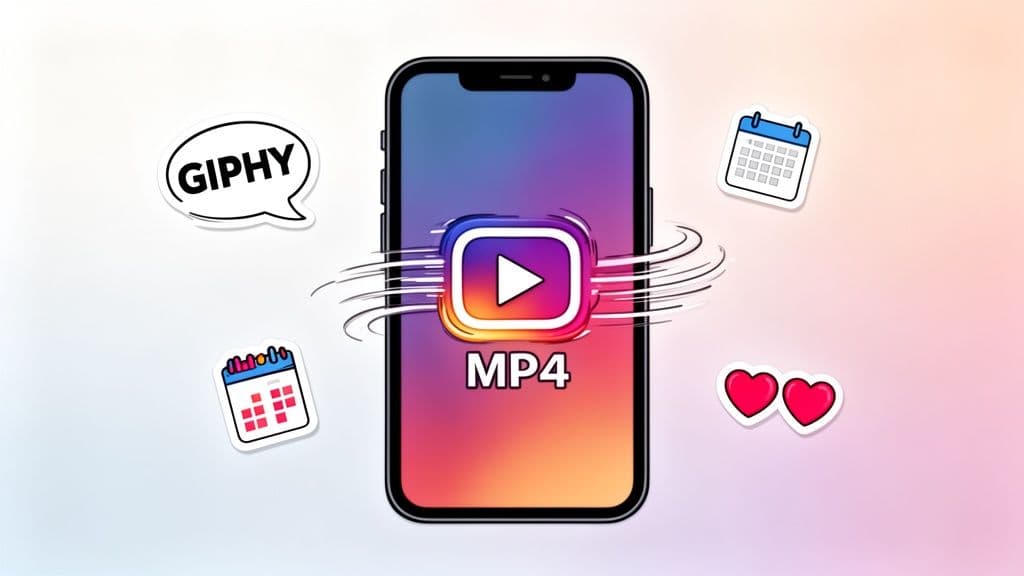
Struggling to get your posts noticed on Instagram? It feels like an uphill battle sometimes. The good news is, there's a simple trick that can make a huge difference: motion. While you can't just upload a .GIF file, you can easily convert it into a short, looping video that the Instagram algorithm absolutely loves.
This guide is your complete playbook for turning those simple animations into content that stops the scroll and drives real engagement.
Why GIFs Are Your Secret Weapon on Instagram
In a feed packed with beautiful but static photos, anything that moves is bound to catch the eye. Instagram doesn't technically support the .GIF format for your feed or Reels, but that hasn't stopped smart creators. The workaround is simple and incredibly effective: turn your GIF into a video file.
Think about it. A local coffee shop posts a great photo of its latte art. It’s nice, but it blends in. Now, imagine they post a quick, looping clip of steam gently rising from that fresh latte. It’s mesmerizing, isn't it? You pause to watch it. That’s the power of using GIF-style content on Instagram. It’s not about the file type; it’s about using motion to create a thumb-stopping moment.
The Power of Motion When Reach is Declining
Let's be honest, getting organic reach on Instagram has gotten tougher. With feeds more saturated than ever, a static image just doesn't cut it anymore. Motion-based content—like the looping videos we're talking about—is the perfect answer. The seamless loop keeps people watching longer, which is a massive signal to the algorithm that your content is worth showing to more people.
And the proof is in the numbers. According to Metricool's 2026 Instagram study, average post reach fell by a staggering 31% between 2024 and 2025. But here's the interesting part: Reels and other video formats didn't take as big of a hit. This tells us one thing loud and clear: motion keeps eyes on your content, giving you a serious edge. You can see more details in the 2026 Instagram statistics on Metricool.com.
Before we dive into the "how-to," let's quickly break down your options.
Quick Guide to Posting GIFs on Instagram
Here's a quick look at the different ways you can get your animated GIF content onto Instagram. We'll explore each method in detail throughout this guide.
Instagram Feature
Method
Best For
Feed Posts & Reels
Convert GIF to MP4
Showcasing brand animations, memes, and eye-catching product loops.
Stories
GIPHY Share Function
Quickly sharing popular GIFs or your own branded GIFs directly to Stories.
Stories & Reels
GIPHY Sticker Search
Adding fun, searchable animated stickers on top of your photo or video content.
Now, let's get back to why this is such a game-changer for your engagement.
Manage all your social media in one place with Postiz
When you convert a GIF into a video for your feed, you unlock a few powerful advantages that a static image just can't compete with.
Sky-High Watch Time: A good loop is hypnotic. People will watch it two, three, or even four times without realizing it, which rockets your total watch time and tells the algorithm your post is a winner.
Boosted Engagement: GIFs are the native language of the internet. They're fun, relatable, and often humorous, making them perfect for sparking reactions, comments, and shares. For more on this, check out our guide on how to get more engagement on Instagram.
Show Off Your Personality: Want to be seen as witty, helpful, or just plain fun? Animations are a brilliant way to express your brand's unique voice and connect with your audience on a more human level.
Here's a pro tip: Treat your converted GIF like a mini-Reel. If you can make that short loop entertaining, educational, or just satisfying to watch, people will save it. A "save" is one of the most powerful signals you can send to Instagram, telling the algorithm your content is high-quality and worth showing to more people. A simple animation can quickly become a powerful tool for organic growth.
How to Convert GIFs for Your Instagram Feed and Reels
So, you've got the perfect GIF, but you've run into Instagram's biggest little annoyance: you can’t actually post a .gif file to your feed or as a Reel. If you try, the platform just shows a static image, completely killing the vibe.
The secret is to make Instagram think it’s a video. All you need to do is convert your animated GIF into an MP4 file. It sounds technical, but it’s surprisingly simple and opens up a whole new world for your grid. Once you get the hang of it, you’ll be turning GIFs into scroll-stopping posts in no time.
This quick chart shows the whole game plan: start with your GIF, run it through a converter, and you’re left with a video that Instagram will happily play on a loop.
Essentially, you’re just swapping the file extension to get past Instagram's rules. It’s a simple workaround that makes all the difference.
Choosing Your Conversion Tool
You don’t need to be a video editor to do this. There are a bunch of tools out there, from dead-simple websites to powerhouse software. What you pick really just depends on your needs.
For Quick and Easy Conversions
Ezgif: This is my go-to for a reason. It's a free online tool that’s incredibly fast. You just upload your GIF, hit the "Convert to MP4" button, and download the result. It’s perfect for those one-off conversions when you're in a hurry.
Canva: If you’re already making social graphics in Canva, you can do this right inside your existing workflow. Upload your GIF to a video design, maybe add your logo or a branded background, and then download the whole thing as an MP4. It’s a great way to add a bit of extra polish.
For More Control and Quality
Adobe Premiere Pro or After Effects: If you’re a marketing pro or just a perfectionist, this is your path. Importing a GIF into a proper video editor gives you total control over everything—timing, looping, quality, you name it. This is what agencies and serious brands use to make sure everything looks flawless.
Photoshop: This one surprises a lot of people. Photoshop has a powerful video timeline that’s great for this kind of work. You can open a GIF, see all the frames, and then export it directly as an MP4. If you already live in Photoshop for design, this is a fantastic option.
Whichever tool you end up using, the goal is always the same: create a clean video file. A blurry, pixelated animation just looks unprofessional and will sink your post before anyone sees it.
The Art of the Seamless Loop
The magic of a good GIF is that perfect, mesmerizing loop. A video that loops seamlessly can trick people into watching it over and over, which is pure gold for the Instagram algorithm. More watch time tells Instagram your content is valuable.
To make an animation loop, you need the end to match the beginning. Think of a rotating object—you just need to trim the clip so the last frame flows perfectly back into the first. When it replays, the motion feels continuous and hypnotic.
A pro tip for this is the "boomerang" technique. In an editor like Premiere Pro, you can duplicate your clip, reverse the second one, and place it right after the first. The action plays forward, then backward, creating an endlessly watchable loop from almost any short movement.
Optimal Export Settings for Instagram
Before you hit export, let's talk settings. Instagram is going to compress your video no matter what, so you need to give it a high-quality file to start with. If your original GIF is low-resolution, it’s going to look even worse after uploading. Sometimes you might even need to run it through a GIF upscaler first to improve its quality.
When you're ready to export your new MP4, dial in these settings:
Codec:H.264. This is the standard for web video and exactly what Instagram wants to see.
Frame Rate: Stick with 30 frames per second (fps). It gives you smooth motion without making the file huge.
Resolution: Always aim for 1080px wide. For a 4:5 portrait post, that means 1080×1350 pixels. For a square, it's 1080×1080 pixels. You can dig deeper into sizing in our guide on the dimensions of an Instagram post.
Length: Here’s a big one—feed videos must be at least 3 seconds long. If your GIF animation is shorter, just copy and paste it a few times in your video editor’s timeline until you cross that 3-second mark.
Getting these little details right ensures your animated video looks crisp and professional in the feed, grabbing the attention you want.
Using GIPHY to Create Viral Instagram Stories
While turning GIFs into videos for your feed is a great tactic, the most powerful way to get your animations seen is through Instagram Story stickers. This method literally puts your brand into the hands of millions of users, effectively turning them into your own personal marketing team.
The whole system runs on GIPHY, the massive library that powers every single GIF sticker you see on Instagram.
When someone adds a dancing cat or a "Good Morning" animation to their Story, they're pulling it directly from GIPHY. By getting your own branded animations into that search, you unlock an incredible form of user-generated content. Imagine your customers decorating their Stories with your logo, products, or catchphrases. That’s organic reach you simply can’t buy.
Becoming a Verified GIPHY Creator
So, how do you get in on this? The first hurdle is getting a verified GIPHY brand or artist channel. This isn't just for show; it's the gatekeeper that allows your content to be pushed into Instagram's sticker search. GIPHY uses this to make sure only legitimate, quality content makes the cut.
Applying is pretty straightforward, but you'll want to have your ducks in a row first. Make sure your channel looks professional with a clear profile picture, a link to your active website, and your social profiles all connected.
Most importantly, you need to upload some of your own original GIFs to prove you're a real creator. GIPHY's official advice is to start with at least 5 to 10 animations. These can't just be random GIFs you found online; they have to be your own work. The review can take up to a week, but once you get that green light, every public GIF you upload will be discoverable in Instagram Stories.
Creating Stickers That Get Found
Getting your GIFs onto the platform is one thing, but getting them found is another. This is where most people miss the mark. The secret is smart tagging. You have to think exactly like a user would. What words would someone type into that sticker search bar to find your animation?
A good tagging strategy uses a mix of broad and specific terms.
Brand-Specific Tags: Always include your brand name, product names, and any slogans. This is for the loyal fans who are already looking for you.
Descriptive Tags: What is literally happening in the animation? Use simple terms like "dancing," "waving," "excited," or "coffee."
Emotional Tags: How does the animation feel? This is huge. Think "happy," "love," "celebrate," "funny," or "omg."
Let's say you're a coffee shop with a GIF of your steaming logo. You might tag it with: [YourBrandName], coffee, good morning, caffeine, latte, happy, warm, cozy. Being thorough with your tags is the single most important factor for getting your stickers used.
A crucial element for creating effective Instagram stickers is transparency. Your animation should be exported as a GIF with a transparent background. This allows users to place it cleanly over their photos and videos without a clunky white box around it. In tools like Photoshop or After Effects, this means hiding the background layer before exporting.
Designing GIFs for Story Success
Always remember the context where your stickers will be used. They’ll be shrunk down, spun around, and slapped onto busy, colorful photos and videos.
Keep these design rules in mind:
Bold and Simple: Fine lines and intricate details get completely lost. Stick with bold shapes, clean lines, and high-contrast colors that pop.
Focus on Emotion and Action: The GIFs that get used the most convey a clear feeling or action. Think cheers, thumbs-ups, eye-rolls, or confetti. They're universal and highly shareable.
Create a Smooth Loop: Just like with feed videos, a seamless loop feels much more polished. An animation without a jarring stop-and-start is way more pleasant to watch on repeat in someone's Story.
By following this roadmap, you can turn GIPHY from a fun distraction into a serious engine for brand awareness. It’s one of the most effective strategies for posting GIFs to Instagram, putting your brand right into the daily conversations of your audience.
Optimizing Your Animated Posts for Engagement
Getting your GIF converted into an Instagram-friendly video is a great first step, but the real magic happens next. A silent, looping video dropped into the feed with no context is just noise. To really succeed when you post GIFs to Instagram, you need to optimize the entire package—from the caption and hashtags to hidden details like alt text.
Think of it this way: your animation is the punchline, but your caption is the setup. They need to work together to tell a little story. Without that connection, you're leaving a ton of engagement on the table.
Your mission is to make every piece of that post pull its weight. This means writing captions that add a layer of humor or context, picking hashtags that introduce you to new people, and even using accessibility features to give your post a little SEO juice.
Crafting Captions and Hashtags That Amplify Your Animation
A killer caption can take a simple looping graphic from visual eye-candy to something truly compelling. Don't just state the obvious. Give it meaning. Is that looping coffee cup a stand-in for your Monday mood? A little dance celebrating a project you just launched? A reaction to something happening in pop culture?
This is more important than ever. With average engagement rates on Instagram dropping to a measly 0.45%—that's a 24% dive from last year—a plain old static image just doesn't cut it anymore. Your animated posts can capture the high-engagement feel of Reels but live right in your feed or in carousels, which already get more interaction. You can discover more insights about these Instagram statistics on skedsocial.com to see just how tough the landscape is.
When it comes to hashtags, don't just throw everything at the wall. I've found a tiered strategy works best:
Go Broad: Start with 3-5 popular, high-level hashtags that fit the general theme. Think #animation, #digitalart, or #motiongraphics.
Get Specific: Next, add 5-7 niche hashtags. If it’s that coffee GIF, try things like #coffeelover, #latteart, or #morningcoffee. This is where your target audience hangs out.
Find Your People: Finish with 2-3 community or branded hashtags. These connect you with peers, industry leaders, and your own superfans.
Animated content is also perfect for jumping on trends. A quick, funny reaction GIF can get a huge number of saves and shares, especially if it taps into a current meme or event.
The Power of Saves and Carousels
Instagram's algorithm is watching one metric very closely: saves. When someone saves your post, they're telling the algorithm your content is so valuable or entertaining that they want to come back to it. Looping animations are practically made for this.
An informative or genuinely funny animated loop is something people will save to reference or share with friends later. This is one of the strongest signals you can send to Instagram that your content is high-quality and deserves to be shown to more people.
Here's a pro tip: don't just post your animation as a single video. Try tucking it inside a carousel post. This is a game-changer for engagement.
For instance, you could build a carousel that starts with a strong static image, surprises followers with your looping animation on the second slide, and finishes with a call-to-action on the last slide. This whole structure encourages people to swipe, which dramatically increases the time they spend on your post—another huge win for the algorithm.
Mixing static and dynamic content in one post creates a much more engaging experience. It breaks the user's scrolling pattern and holds their attention far longer, making your efforts to post GIFs to Instagram really pay off.
Don't Forget Accessibility and SEO with Alt Text
Finally, take that extra 30 seconds to write good alt text for your post. Alt text (or alternative text) is a simple description of your video that screen readers use to help visually impaired users understand your content.
While its main job is accessibility, it also helps Instagram's search engine figure out what your post is about. When you write alt text for your animation, get specific. Don't just say, "logo animation." Instead, try something like, "Looping animation of the Postiz logo where the letters playfully bounce into place against a solid blue background."
It’s a small, often-ignored step that makes your content more inclusive and helps it show up in more searches on the platform. It's the final polish on a perfectly optimized post.
How to Automate Your Animated Content Workflow
Let's be honest: staying consistent on Instagram is a key to growth, but it can also be a massive time-drain. Manually converting every GIF, optimizing it, and posting daily is a recipe for creative burnout. This is where a little bit of automation can feel like a superpower.
By using a social media scheduling tool, you can shift your entire mindset. Instead of waking up and thinking, "What am I going to post today?" you can have a strategic plan. You can sit down once and knock out a full week or even a month's worth of dynamic, animated content.
Imagine queuing up all your converted GIF-to-video files for your Feed and Reels in less than an hour. That's not a dream; it's just a smart workflow.
Plan Your Animated Content in Advance
The real magic of automating your animated posts is that it lets you switch from one-off tasks to batching your work. Rather than converting a single GIF to an MP4 and posting it on the spot, you can prep a dozen of them all at once.
This approach helps you build a library of content that's always ready to go. You could schedule a funny reaction GIF for Monday, a slick looping product animation for Wednesday, and a fun celebratory animation to kick off the weekend. All planned out.
A tool like Postiz gives you a visual calendar where you can see your whole week at a glance. You can drag and drop your animated posts to make sure you have a good content mix, all without feeling rushed or overwhelmed. For anyone trying to maintain a cohesive brand look, this kind of visual planning is a game-changer.
Automation isn't about being lazy; it's about being smart. It frees you from the daily grind of posting so you can put your energy back into what matters: creating better, more engaging animations. The goal is to spend less time on logistics and more time on creative strategy.
Here’s a peek at how a scheduling dashboard in Postiz can help you organize all your upcoming animated posts. It makes it incredibly easy to spot any gaps in your content calendar.
Having a central hub like this is absolutely essential when you're juggling multiple animated posts for your Feed, Reels, and maybe even other social platforms.
Go Beyond Scheduling with Smart Tools
The best scheduling platforms in 2026 do way more than just fill up a calendar. They’re packed with features that genuinely speed up the entire content process, especially for visual posts like your converted GIFs. If you want to really streamline how you deliver content, checking out different social media automation tools is a great next step.
AI Caption Generation: Staring at a blank caption box with a witty animation ready to go? Many tools now have AI assistants that can brainstorm caption ideas, find relevant hashtags, or just rephrase your text to make it pop.
Cross-Platform Posting: With just a click, you can schedule your animated video for Instagram and have it automatically post to your Facebook Page or other networks. This helps you get the most mileage out of every single animation you create.
Built-in Analytics: How do you know if your animated content is actually connecting with your audience? Good scheduling tools provide analytics that show you which of your GIF-based posts are getting the most views, likes, and saves.
This data is pure gold. If you notice that your looping product animations get a ton of saves, you know to make more of them. If a particular meme format consistently drives high engagement, you can lean into that style. If you want to dive deeper, you can learn more about how to automate social media posts in our detailed guide.
By automating your workflow for posting GIFs to Instagram, you're doing more than just saving time. You're building a powerful system for creating, publishing, and analyzing your content. This turns simple animations into a reliable and measurable way to drive engagement for your brand, keeping you one step ahead.
Got Questions About Instagram GIFs? Let’s Get Them Answered
Even when you know the basic steps, posting GIFs on Instagram can sometimes throw you a curveball. It’s those little, frustrating issues that can stop a great piece of content in its tracks. Let's run through some of the most common questions I hear and get you sorted out.
Think of this as your go-to guide for those "Why isn't this working?!" moments.
Why Won’t My GIF Play on Instagram?
You've done everything right—you converted your GIF to an MP4, you hit upload, and… nothing. It either won't upload or it just sits there, frozen. Nine times out of ten, the culprit is the video length.
Instagram has a strict rule: all videos in the main feed must be at least 3 seconds long. Most reaction GIFs or simple logo animations are way shorter than that, often just a second or two. This rule catches so many people out.
The fix is surprisingly simple. In your video editor, just loop the animation until it’s longer than three seconds. If you have a one-second GIF, copy and paste it back-to-back three or four times on the timeline before you export your MP4. Problem solved.
A quick heads-up on video length: while the feed requires 3+ seconds, a Reel must be under 90 seconds, and a Story video can be up to 60 seconds. Always keep your final placement in mind when you're editing.
Can I Post a GIF with a Transparent Background?
Ah, the transparent GIF. It’s a great idea in theory, but the execution on Instagram is specific. You can’t just post a video with a transparent background to your feed or as a standard Reel.
The MP4 format, which is Instagram’s required video type, simply doesn't support transparency. When you convert a GIF with a transparent background, the software has to fill that empty space with a solid color, which is usually black or white. Not the look you were going for.
But you can still get that transparent effect, just in a different way.
Stories & Reels are your answer: The only way to get that clean, no-background look is to upload your animation to GIPHY as a sticker. Once approved, you can search for it directly within Instagram’s sticker library and place it over any photo or video.
My Converted GIF Looks Blurry. What Should I Do?
Nothing is more disappointing than a crisp animation turning into a blurry, pixelated mess after you post it. This quality drop usually comes down to one of two things: a low-quality source file or the wrong export settings.
First, you can't make a good video out of a bad GIF. If your original animation is already tiny and pixelated, converting and uploading it will only make it worse. Always start with the highest-resolution source file you can get your hands on.
Next, pay close attention to your export settings when converting to MP4. To give Instagram’s compression algorithm the best possible file to work with, aim for these specs:
Resolution: At least 1080px wide. For a 4:5 portrait post, that’s 1080×1350 pixels.
Codec: Use the H.264 codec, which is standard for web video.
Giving Instagram a high-quality file to start with makes a world of difference in how it looks on the other side.
Ready to stop wasting time and start planning your content with ease? Postiz gives you all the tools you need to schedule, automate, and analyze your social media performance in one place. Take control of your content calendar with Postiz today!
The 2026 Instagram algorithm rewards sessions, not single reels. Here are the four viral triggers — signature series, trial reels ads, discovery carousels, and secondary hooks — that are pushing creators past 200K views right now, and how to run them on autopilot.