You’ve got a folder full of event shots, product images, behind-the-scenes clips, and maybe a few screenshots you need to share today. The problem isn’t finding content. It’s deciding how to turn that pile into a Story that feels intentional instead of chaotic.
That’s where adding multiple pictures to instagram story becomes more than a basic app trick. The method you choose changes how people experience the Story. A clean collage feels curated. A sequence of frames feels like a mini narrative. A layered sticker setup feels casual and handmade. Those aren’t small differences when you’re posting for a brand, a client, or your own business.
Most tutorials stop at “tap this icon.” That’s not enough if you care about retention, pacing, and whether the Story still looks right when you schedule it for later. The useful question isn’t just how to add more than one image. It’s which format fits the message.
Why One Photo Is No Longer Enough for Your Story
A single Story frame still works when you have one clear message. A flash sale graphic. One announcement. One strong portrait. But most of the time, one image forces you to leave context out.
If you just wrapped an event, one photo doesn’t show the room, the people, the product table, and the reaction shot. If you’re launching a product, one frame can’t always handle the detail shot, the use case, and the social proof screenshot without feeling cramped. Posting all of those as separate one-off Stories can work, but it often feels scattered if you haven’t planned the flow.
The opportunity is bigger than a lot of teams realize. Instagram Stories with 1 to 3 frames account for about 60% of all brand Story activity, while only 10% of Stories have 7 or more frames, according to Agorapulse’s analysis of brand Story behavior. That tells you two things. First, most brands still play it safe. Second, a thoughtful multi-photo Story can stand out because it feels more developed.
Practical rule: Don’t add more photos just because you can. Add more photos when each one answers a different question.
A good multi-photo Story usually does one of these jobs:
Shows progression: Before and after, setup to result, morning to evening, sketch to final.
Adds texture: Wide shot, close-up, team moment, detail frame.
Improves clarity: One image introduces the point, the next image explains it.
That’s why the method matters. Instagram gives you different native tools for different kinds of storytelling. One is better for chronology. One is better for symmetry. One is better for a loose, collage-style composition. And if you schedule Stories for clients or a team, your workflow tool matters just as much as the visual idea.
Manage all your social media in one place with Postiz
Instagram already has three solid ways to build a multi-photo Story. The right one depends on what the Story needs to do. I choose differently for a product walkthrough, a side-by-side comparison, and a casual collage, even if the same photos could technically fit all three.
A common mistake is forcing every Story into the same format. The result is usually publishable, but strategically off. A launch recap needs sequence. A comparison needs clarity at a glance. A casual behind-the-scenes update can handle more visual looseness.
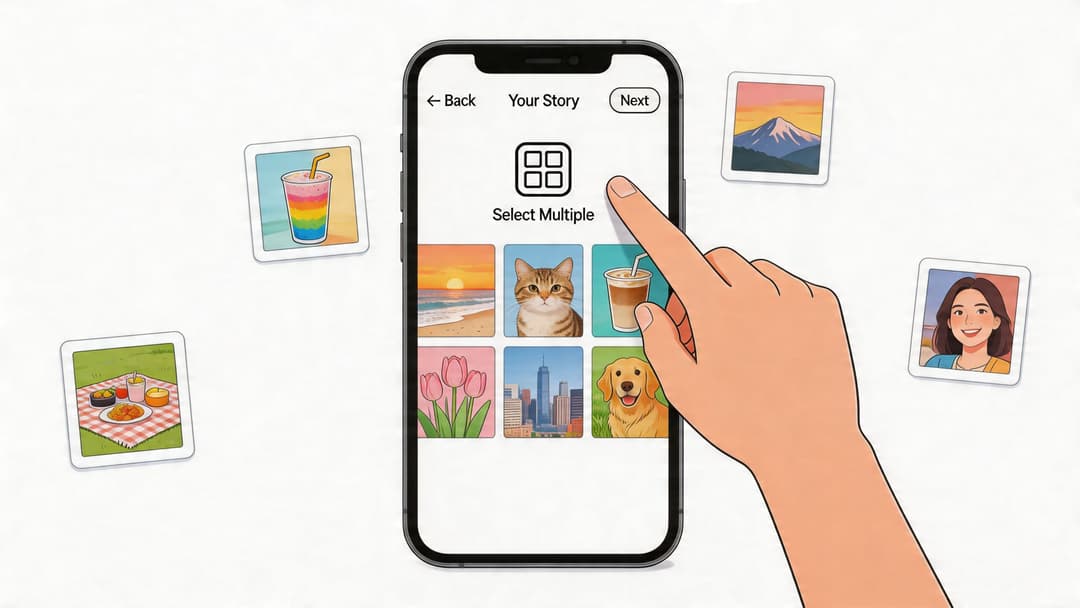
Use Select Multiple when order matters
If people need to follow a sequence, use Select Multiple. It works best for tutorials, event recaps, unboxings, recipe steps, and any Story where one image sets up the next.
With Select Multiple, each photo becomes its own Story slide instead of being merged into one design. Viewers process each frame individually, so this format gives you better control over pacing, emphasis, and sticker placement.
The workflow is simple. Open Stories, swipe up to your camera roll, tap the multi-select option, and choose your images in the order you want them to appear. Then edit each frame on its own. Keep the purpose of each slide narrow. If slide three needs a poll, put the poll there. Do not ask slide one to carry the whole story.
I usually recommend this method first for teams that are still learning Story structure. It is harder to overcrowd, easier to review before posting, and much easier to repurpose later.
Layout works best when the viewer should understand the whole point in one glance. It is a strong fit for before-and-after images, product bundles, menu previews, outfit roundups, and testimonial sets.
The strength of Layout is visual order. The weakness is that it tempts people to cram in too much. Once that happens, every photo gets smaller, the focal point disappears, and the Story starts to look like a contact sheet instead of a message.
A few rules help:
Choose the grid first. The grid decides what crops will survive.
Use photos with similar lighting and color temperature. Layout makes inconsistency more obvious.
Group images that answer the same question. Before and after. Detail and wide shot. Problem and result.
Avoid screenshots with tiny text. They usually become unreadable inside a grid.
If the goal is polished presentation on a single frame, Layout is usually the fastest native option. If the goal is explanation over time, go back to Select Multiple.
Later in the editing flow, a visual demo helps if you haven’t used the interface in a while.
Use the Photo Sticker method when flexibility matters
The Photo Sticker method gives you the most freedom inside Instagram itself. You start with a background image or solid color, then layer additional photos on top, resize them, rotate them, and place them wherever they fit.
I use this for Stories that should feel more human than formal. Recap dumps, customer screenshots over a branded background, moodboards, day-in-the-life updates, and quick reaction posts all work well here.
The trade-off is clear. You get flexibility, but you also take on more design responsibility. Poor spacing, awkward overlap, and hidden elements happen fast, especially near the reply bar and top UI. If you use this method, leave breathing room around the edges and stop adding images before the frame feels full.
If the Story feels crowded before you’ve added any text, it’s already too busy.
The best native workflow is the one that matches the job. Use Select Multiple for sequence, Layout for symmetry, and Photo Stickers for a collage that feels more spontaneous. That decision shapes how the Story reads, not just how it looks.
Creating Advanced Collages with Third-Party Apps
Native tools are fast. Third-party apps give you more control.
That’s the trade-off. If you need to post quickly from your phone, Instagram’s built-in options are enough for most day-to-day work. But if you care about brand consistency, custom type, reusable templates, or a more editorial look, external apps are easier to manage.
When an external app makes sense
Canva, Unfold, and Mojo solve a different problem than Instagram. They help you design first, then publish. That’s useful when a Story needs to match a campaign look, reuse the same layout each week, or include brand fonts and spacing rules.
Native Instagram tools usually win on convenience. Third-party apps usually win on:
Template control: You can build repeatable Story formats for launches, testimonials, FAQs, or weekly recaps.
Typography choices: Brand fonts and cleaner text hierarchy are easier to maintain.
Asset management: Logos, color palettes, and graphic elements stay consistent.
Animation options: Subtle motion can make a static photo set feel more alive.
The process is basically the same no matter which app you use. Design the Story in the external app. Export it as an image or video. Save it to your camera roll. Then upload it into Instagram Stories and add native elements like music, polls, or links if needed.
That workflow works well when your priority is appearance. It’s less ideal if you’re making last-minute changes on the fly, because editing inside Instagram becomes more limited once the collage is flattened into one file.
A simple comparison helps:
Method
Better for
Main trade-off
Native Instagram tools
Fast posting and in-app edits
Less layout control
Third-party design apps
Branding and polished composition
Extra prep time
Use external design apps when the layout itself is part of the message, not just a container for the message.
Best Practices for Arranging and Designing Your Story
The tool doesn’t save a weak composition. A messy grid is still messy, even if Instagram builds it for you.
Most Story design problems come from trying to show too much at once. When people tap through Stories, they don’t study them like a website. They scan, decide in a second whether the frame is understandable, and move on. Your job is to make that decision easy.
Build a visual sequence instead of a photo pile
Even one Story frame can tell a sequence. Put the strongest image first, then support it with details. In a collage, that might mean one larger focal image and two smaller supporting images. In a sequential Story, it means opening with context and following with proof or detail.
A simple mental check helps. Ask whether each image plays a distinct role. If two photos say the same thing, cut one.
Lead with the anchor image: Pick the image that explains the topic fastest.
Support with contrast: Mix close-ups with wider shots or product shots with real-use images.
Keep the end useful: Final frames should point somewhere, ask something, or wrap the thought cleanly.
For group events and celebrations, this matters even more. If you’re collecting images from several people before building the Story, tools that help you Share guest photos can make the sorting process much easier before you ever open Instagram.
Design for readability, not just aesthetics
A polished Story usually feels spacious. That doesn’t mean empty. It means every image, sticker, and caption has room to breathe.
Keep these rules in mind:
Respect safe zones: Leave breathing room near the top and bottom where Instagram overlays profile info and reply controls.
Use one editing style: If one image is warm and saturated and the next is cool and flat, the collage feels accidental.
Limit text blocks: Short captions work better than dense explanations inside a fast-moving format.
Let white space help you: Empty space often makes the Story look more premium and easier to scan.
A clean Story doesn’t need more elements. It usually needs fewer competing elements.
Interaction matters too. Add text that gives the viewer a job. Ask for a reply. Label choices. Add a short context line so the images don’t have to do all the explanatory work alone.
How to Schedule Multi-Photo Stories with Postiz
A multi-photo Story often looks finished in the design app and falls apart at publish time. Frame order shifts. A collage that looked balanced gets cropped by Story UI. A teammate grabs the wrong export because the final files were never separated from drafts.
That causes trouble for busy social teams, especially when they are handling client calendars, launches, or event recaps across multiple accounts. The fix is not just “use a scheduler.” The fix is choosing the right Story format first, then scheduling the finished version that matches that format.
Prepare the Story assets before you schedule
Start by deciding what you are publishing.
If you want a chronological Story, such as a tutorial, event recap, or step-by-step product demo, export each frame as its own Story slide and name the files in order. If you want a designed collage with exact placement, export one final image or video and treat it as a finished asset. That choice matters because schedulers handle sequential slides and prebuilt collages differently, and mixing the two approaches usually creates preventable mistakes.
A prep workflow that holds up under pressure looks like this:
Separate sequences from finished collages: Keep them in different folders so nobody uploads the wrong format.
Use filenames that preserve order:01-cover, 02-detail, 03-proof is better than final-final-2.
Check the Story-safe area before export: Leave room for profile info, reply controls, and any sticker you plan to add later.
Approve the final assets before upload: Scheduling drafts that are still changing leads to version mistakes fast.
I have found that this is the trade-off teams miss. If the creative depends on precise layering, export a locked final frame. If the story depends on pacing, upload separate slides and review the sequence carefully.
Build a workflow your team can repeat
A scheduling platform helps once the assets are already correct. It does not rescue a messy file handoff.
Postiz fits well here because it gives teams a place to plan campaigns, load multi-asset content, and review what is going out before publish time. If you need setup guidance, this walkthrough on how to schedule a post in Postiz covers the publishing side.
The review process matters as much as the tool. I recommend a two-pass check. First, review the creative like a viewer would. Does the opening frame earn the tap? Does the order make sense? Then review it like an operator. Are the right files attached? Are the collage exports final? Did you leave space for any native Instagram elements that must be added manually?
That second pass saves a lot of embarrassment. Scheduled Stories feel quick and disposable, but the production process should be tighter than that.
Treat multi-photo Stories like campaign assets, not temporary throwaways. The format disappears in 24 hours. The mistakes are visible immediately.
Troubleshooting Common Multi-Photo Story Issues
Some problems show up so often that it’s worth having quick fixes ready.
The Select Multiple option isn’t showing
Close Instagram and reopen it first. If that doesn’t work, update the app. If the option still doesn’t appear, try entering Stories from a different path, then opening your camera roll again. Feature placement shifts more often than people expect.
Layout is cropping photos badly
That usually means the photos weren’t chosen with the grid shape in mind. Swap in images with simpler framing, or move the subject inward before exporting from your camera roll or editing app. Tight edge-to-edge compositions break fast inside small grid cells.
The Story looks blurry after upload
Check the original file before blaming Instagram. Screenshots, heavily compressed exports, and repeatedly saved images lose quality quickly. Export once from the design tool, then upload the fresh file.
Sticker collages feel cluttered
Remove one image before you remove text. Most clutter comes from too many competing visuals, not from captions. If the background is busy, simplify that too.
Scheduled multi-photo Stories don’t look right
Use finalized assets instead of half-built drafts. Review the publishing preview carefully, especially frame order and spacing left for interactive elements. If a Story depends on precise placement, manual final checks are still worth doing.
If multi-photo Stories are part of your weekly workflow, it helps to plan them in the same place you schedule the rest of your content. Postiz is an agent-ready option for teams that want a content calendar, publishing workflow, and collaboration setup without juggling separate tools for every step.
Stuck in a rut? Discover 10 powerful social content ideas to boost engagement and growth. Get fresh, actionable strategies to level up your social media game.