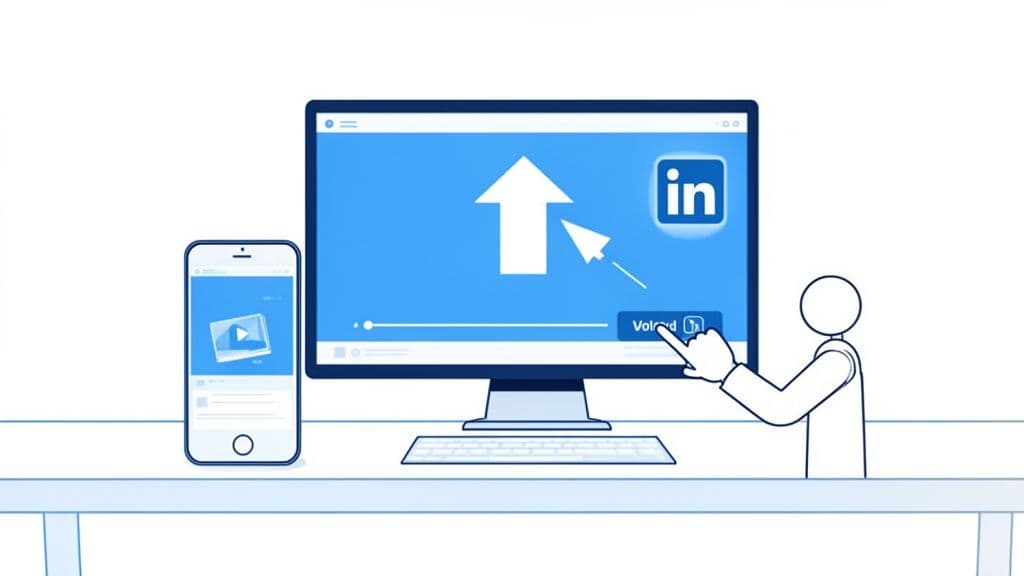
Uploading a video to LinkedIn is about more than just a quick click. The real secret is to upload it natively. That means you're giving LinkedIn the actual video file from your computer or phone, not just sharing a link from YouTube. It’s a small distinction, but it makes a huge difference in who sees your content.
Why LinkedIn Video Is an Essential Growth Tool in 2026
Before we get into the nitty-gritty of posting, let's talk about why this is so important. In 2026, video isn't just another option on your content menu—it's the main course. LinkedIn has evolved far beyond its roots as a digital resume file. It's now a buzzing hub for storytelling, building a brand, and making real, human connections.
So, why is LinkedIn pushing video so hard? It all comes down to engagement.
The platform's algorithm is built to keep people scrolling, and nothing grabs and holds attention quite like a good video. Because of this, LinkedIn gives a massive boost in reach and interaction to native videos compared to a simple text or image post.
This has completely changed the game for professionals. I've seen a quick, authentic behind-the-scenes clip or a 60-second video tip build more trust than a dozen perfectly polished articles ever could. It makes you and your business feel real, opening the door for genuine conversations with clients, employers, and peers in your industry.
The Undeniable Impact of Native Video
The numbers don't lie. Posting videos natively on LinkedIn can boost your engagement by up to 5 times compared to other kinds of content.
We're seeing video posts get 5x more interactions across the board. If you're brave enough to go live, that number skyrockets to 24x more engagement. This is fueled by a 36% year-over-year jump in video views, with people creating video content twice as fast as any other format.
And if you’re still tempted to just share a YouTube link? Native videos are watched 52% longer. People just don't click away as quickly.
This translates into some serious advantages for your brand:
Builds Trust and Authenticity: Video lets your personality come through in a way that text just can't match, creating a much stronger connection.
Increases Visibility: The algorithm rewards video, plain and simple. It actively pushes your content to a larger audience. To really understand how this works, check out our guide on LinkedIn algorithm updates.
Showcases Expertise: Short tutorials, industry explainers, and thought leadership clips are the fastest way to establish yourself as an authority.
Drives Action: A clear call-to-action in a video feels more personal and persuasive, making it easier to guide viewers to your website, a product page, or your connection requests.
Manage all your social media in one place with Postiz
So, you’ve created a great video and you're ready to get it out there on LinkedIn. Excellent choice. But the process can feel a bit clunky if you don't know the ropes. This is where we get practical.
We'll walk through the exact steps for posting on both your computer and your phone, covering the subtle but important differences between a personal profile and a Company Page. You'll see exactly where to click, what to watch out for, and why you should almost never just drop a YouTube link and call it a day.
Think of it as a simple, three-part flow: you upload the video, you engage with the comments, and you watch your network and influence grow.
The real magic happens after you hit "Post." That's when you start building community, which is what fuels real professional growth on the platform.
Posting a Video From Your Desktop
Most of the time, you'll probably be uploading from your computer. It’s where you have the most control and access to all the bells and whistles, like adding captions and a custom thumbnail.
First, head over to your LinkedIn homepage. At the top of your feed, you can't miss the post creation box. Click on "Start a post." A new window will pop up, which is your command center. Look for the "Add media" icon at the bottom—it looks like a little picture of a mountain.
Click that icon and select "Upload from computer." This opens a file browser where you can find and select your video. A pro tip: MP4 files are your best friend here, as they're the most universally compatible format.
After you select your file, LinkedIn will process it. Now's your chance to write a killer caption, add your thumbnail, and attach your captions file. Once you’re happy with how it looks, just hit the “Post” button and you’re live!
Posting a Video From Your Mobile Device
What about when you’re out and about? The mobile app is perfect for those more spontaneous, in-the-moment videos, like a quick update from a conference or a behind-the-scenes tour.
The process is just as simple.
First, tap the “Post” button that sits right in the middle of the bottom navigation bar.
On the next screen, you’ll see a few options. Choose the "Video" icon to open your phone’s gallery.
Scroll through and pick the video you want to share. You might get a chance to trim the start or end, which is handy for cutting out any awkward pauses.
Once you’ve selected your video, you’ll land on the composer screen. This is where you write your post text, tag relevant people or pages, and add your hashtags.
Give it one last look, and when you’re ready, tap "Post" in the top-right corner.
Here's a piece of advice I give everyone: Never, ever just paste a link to a YouTube or Vimeo video. You have to use the native uploader. The LinkedIn algorithm heavily favors videos uploaded directly to the platform, and the difference in reach isn't small—we're talking about a potential 10x increase in views.
It's a tiny change to your workflow that can mean the difference between a video that fizzles out with a handful of views and one that connects with thousands. The effort is minimal, but the payoff is massive.
Nail the Details: How to Make Your Video Stand Out
Getting your video onto LinkedIn is the easy part. The real challenge? Making it stop the scroll in a sea of professional updates. This isn't just about hitting "post"; it's about crafting an experience that grabs attention and delivers your message, even if your audience never turns the sound on.
Think about that first impression. The opening line of your post is your video's headline. Don't waste it. Hook them immediately with a surprising stat, a bold question, or a controversial take. Your only job in that first sentence is to make them curious enough to pause.
Combine that killer hook with a custom thumbnail. A blurry, auto-selected frame from your video looks sloppy and unprofessional. A sharp, well-designed thumbnail, on the other hand, signals quality and tells people your content is worth their time.
Build a Complete Post, Not Just a Video Upload
Once you've earned that pause, the elements surrounding your video need to hold their attention. Remember how people use LinkedIn—they're scrolling on their lunch break, on a train, or in a quiet office. They're probably not blasting audio.
It's a well-known secret that a massive number of users—some studies say as high as 85%—watch videos on mute. If your message depends on sound, you're immediately losing the vast majority of your audience.
This is non-negotiable: you absolutely must add captions or subtitles to your videos. You can upload an SRT file right when you post. This one small step makes your content accessible to everyone and ensures your key points land, sound or no sound.
Before you hit publish, it's always a good idea to double-check that your video file meets all of LinkedIn's technical requirements. A quick look at this table can save you a lot of headaches from failed uploads or poor playback quality.
LinkedIn Video Specifications and Best Practices
Specification
Requirement / Recommendation
File Format
MP4 is the most reliable format.
File Size
Minimum 75 KB, Maximum 5 GB.
Video Length
Minimum 3 seconds, Maximum 10 minutes (native video).
Frame Rate
Maximum 60 FPS (frames per second).
Resolution
Minimum 256×144, Maximum 4096×2304.
Aspect Ratio
1:2.4 to 2.4:1. We recommend 1:1 (square) or 4:5 (vertical).
Captions
SRT format is required.
Sticking to these specs ensures a smooth upload and a high-quality viewing experience for your audience.
Give Your Video the Best Chance to Go Viral
With a great video and solid captions in place, a few final touches can dramatically boost your reach. It all comes down to telling the algorithm what your video is about and telling viewers what to do next.
Here’s how to polish it off:
Be smart with hashtags. Don't just spray and pray. Use 3-5 super-relevant hashtags. A good mix includes a broad industry term (#marketing), a niche topic (#b2bcontent), and perhaps a branded tag (#YourCompany2026). This is how LinkedIn knows who to show your video to.
Keep it brief. You can post a 10-minute video, but should you? The sweet spot for engagement is almost always between 30 and 90 seconds. Get to the point fast, deliver value, and wrap it up.
Include a clear Call to Action (CTA). Don't leave your viewers hanging. Tell them what to do next! Ask a question to get comments flowing, point them to a link, or invite them to follow your page. A simple CTA turns a passive view into an active engagement.
By paying attention to these details, you shift from just "posting a video" to strategically driving performance. And if you want to get even more granular on visuals, our guide on LinkedIn post dimensions has all the technical specs you'll ever need.
Troubleshooting Common Video Upload Issues
There's nothing more frustrating than having a great video ready to go, only for LinkedIn to throw an error message your way. You hit "Post," the progress bar stalls, and… nothing. It’s a real momentum killer, but don't worry—it happens to everyone.
After years of posting videos, I’ve learned that almost every upload failure comes down to just a few predictable culprits. When your video gets stuck processing or simply won’t upload, it’s almost always a technical mismatch. Think of it less as a mysterious error and more as a quick diagnostic check you can run yourself.
In my experience, the problem usually falls into one of three buckets: the file itself, its size, or its length. Let's walk through how to spot and fix these common issues.
First Suspect: The File Itself
When a video upload fails, the very first thing I check is the file format. You might have a beautiful, high-quality MOV file straight from your camera, but LinkedIn is notoriously picky. It overwhelmingly prefers MP4. This format hits the sweet spot between quality and compression, making it the platform's standard.
An unsupported format is probably the number one reason a video gets stuck in limbo. The good news? Converting it is easy. There are dozens of free online tools or functions built right into your video editing software that can switch it over to MP4 in a minute or two. This one fix solves a massive number of upload headaches.
Another potential issue is a corrupted file. This can happen if the export from your editing software was interrupted or if there was a glitch while transferring it. A quick way to check is to just try playing the file on your own computer. If it won’t play for you, it definitely won’t upload for LinkedIn.
Checking the Video's Dimensions and Duration
Okay, so your file is an MP4 and plays perfectly. What next? Check the specs. LinkedIn has firm rules about file size and video length. They’re pretty generous, but it’s easy to get caught out, especially if you're working with high-res footage.
Here are the two magic numbers to remember:
The maximum file size is 5 GB.
The maximum video length is 10 minutes.
If your upload is failing, take a look at the file's properties. Is that 12-minute interview just a bit too long? Is that gorgeous 4K promo video clocking in at 6 GB? These are easy mistakes to make.
I always recommend a quick "pre-flight check" before you even try to upload. It's a simple habit that takes seconds but can save you a ton of frustration and make sure your videos go live without a hitch.
Here’s the mental checklist I run through every single time:
Format: Is it an MP4? If not, I convert it.
Size: Is it under 5 GB? If it’s too big, I’ll either compress it or trim a few seconds off.
Length: Is it under 10 minutes? If not, it's time to edit it down to the most valuable parts.
Playback: Does it play smoothly on my desktop? A quick double-click tells me if the file is healthy.
By running through these four points, you can catch and fix the vast majority of upload errors before they ever become a problem. It turns a potential technical nightmare into just another simple step in your content workflow.
Use Postiz to Get Your Video Strategy on Autopilot
Consistency is the name of the game on LinkedIn. But let's be realistic—who actually has time to manually post videos every day, keep up with comments, and track what's working? This is the exact point where most video strategies stall out.
A smart tool like Postiz can be a total game-changer here. It helps turn that time-sucking manual process into a smooth, automated workflow. Think of it as your command center for all things content. You can map out your entire LinkedIn video calendar for weeks, or even months, in advance. Set your videos to go live at peak engagement hours, and they'll post for you, even if you’re stuck in a meeting.
One Dashboard to Rule Them All
I see this all the time with busy marketing managers. They’re juggling a company LinkedIn page, a Twitter account, and a Facebook page. Without a good system, they're stuck manually uploading the same video three different times, tweaking the copy for each platform, and trying to hit the "best" posting time for each audience. It's a fast track to burnout.
Now, imagine that same workflow with Postiz. The manager uploads their new video just once. From a single screen, she can schedule it to post natively to LinkedIn, Twitter, and Facebook. She can also tweak the caption for each one, matching the tone and hashtags perfectly for that platform's audience. No more duplicating work.
This is what that central dashboard looks like. You get a clean view of your schedule, a preview of the video, and all the post details in one spot.
This kind of centralized control saves a massive amount of repetitive work every single week.
Go Beyond Scheduling with Smart Automation
The real magic, though, is in the smart features that go beyond simple scheduling. If you're staring at a blank screen wondering what to write, the built-in AI assistant can help you brainstorm compelling copy. Just give it a basic prompt, and it will suggest different hooks, calls to action, and relevant hashtags designed for a LinkedIn audience. It’s great for breaking through creative blocks.
The most valuable part of any content strategy is understanding what actually works. Posting consistently is great, but posting with purpose is what drives results. Good tools give you the data to make informed decisions instead of just guessing.
And Postiz keeps working for you long after the video is live. The analytics suite tracks all the important metrics—views, engagement rates, comments, and audience demographics. You can stop spending hours manually pulling numbers into a spreadsheet. Instead, you can see at a glance which videos are hitting the mark and which ones aren't.
This gives you clear, actionable feedback to sharpen your strategy. For example, if your "how-to" videos are getting double the engagement of your "behind-the-scenes" content, you know exactly what to create next quarter. This feedback loop is what separates a stagnant strategy from a growing one. If you want to dive deeper into building a solid content cadence, you can find more tips in our guide on how to schedule posts.
By taking the tedious tasks off your plate, Postiz frees you up to focus on what really matters: creating fantastic video content that connects with people and helps your business grow.
Common Questions (and Answers) About LinkedIn Video
Even after you get the hang of posting videos on LinkedIn, a few questions always seem to come up. These are the little details that can really make or break your video's performance. Let's dig into some of the most common ones we hear.
What Is the Best Length for a LinkedIn Video?
LinkedIn lets you upload videos up to 10 minutes long, but don't let that fool you. Just because you can doesn't mean you should.
In our experience, the real magic happens in under two minutes. Most of the top-performing videos we see are somewhere between 30 and 90 seconds. Your job is to deliver value fast. People are scrolling, and their attention is a precious commodity. Get to the point, offer a killer insight, and then give them a clear next step.
Longer videos can work for things like in-depth tutorials or detailed case studies, but for your everyday feed content? Shorter is almost always the right answer.
Can I See Who Viewed My LinkedIn Video?
This is a classic point of confusion. For a regular video you post, LinkedIn won't give you a list of every single person who watched it. Instead, you get a dashboard of anonymous, big-picture data:
Total number of views
Engagement metrics (likes, comments, shares)
Audience demographics, like their job titles, companies, and locations
You will, of course, see the names of people who actually liked or commented. While LinkedIn Live gives you a bit more real-time info on who is tuning in, the analytics you get afterward look pretty similar.
Don't get hung up on not seeing every viewer's name. The real gold is in the demographic data. Use it to confirm you're actually reaching the right audience—the VPs of Marketing or the software engineers you were targeting.
Should I Post Vertical or Horizontal Videos?
The answer really depends on where you expect people to be watching. With around 60% of all LinkedIn traffic now happening on mobile, thinking vertically is a very smart move.
Vertical (like 9:16 or 4:5): This is your go-to for mobile. It fills the whole screen, making it super immersive. Perfect for quick tips, behind-the-scenes clips, or anything you'd shoot on your phone.
Square (1:1): This is a fantastic, safe-bet format. It takes up a ton of screen space on both mobile and desktop, so you really can't go wrong here.
Horizontal (16:9): Save this traditional format for more polished, high-production content. Think recorded webinars, professional interviews, or detailed product demos where you need that wider perspective.
For most of the videos you post, starting with a square or vertical format is the best way to grab the attention of that huge mobile audience.
Ready to stop juggling platforms and start building a consistent video strategy? Postiz brings your entire workflow under one roof, letting you schedule, analyze, and automate content across all your social channels from a single dashboard. Discover how Postiz can save you hours every week.
Learn easy and safe ways to download Facebook videos and reels using online tools, apps, or extensions with this step-by-step Facebook video download guide.