You’re probably in one of two spots right now. You’ve been posting on Instagram from a personal profile, trying to promote a business, creator brand, service, or client account, and the results feel fuzzy. Some posts get traction. Others disappear. You can’t see enough data to know why.
Or you’ve hit the next problem. You want better workflow control, ad options, contact buttons, and proper scheduling support, but Instagram still treats your profile like a casual account.
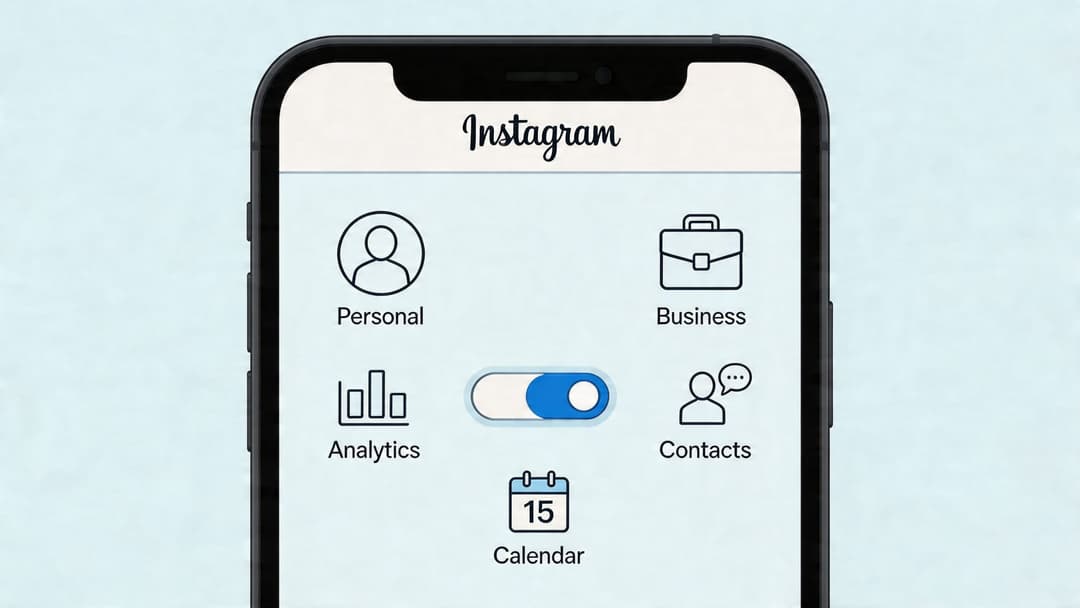
That’s why learning how to change instagram to business account matters. It’s not just a settings tweak. It’s the first real step toward managing Instagram like a business channel instead of a hobby feed. Once the switch is done, you can start using analytics, ad tools, profile actions, and pro workflows that personal accounts don’t get.
Why a Personal Instagram Account Is Holding You Back
A personal account works fine when Instagram is just for sharing updates with friends. It breaks down fast when you need leads, bookings, product interest, or measurable growth.
The usual pattern looks like this. A small business owner posts consistently, answers DMs manually, and hopes the right people see the content. But there’s no serious view into audience behavior, no clean way for people to contact the business from the profile, and no proper path into ads or professional account tools.
That creates blind spots:
You’re posting without feedback. You can see surface reactions, but not the deeper performance data that helps you improve.
Prospects have to work too hard. If someone wants to email, call, or get directions, a personal profile makes that less direct.
Your setup doesn’t support scale. As soon as you want to run campaigns, connect tools, or manage the account professionally, a personal profile starts getting in the way.
A personal account is fine for presence. It’s weak for operations.
This is the part many people miss. The switch itself isn’t the goal. The goal is what the switch enables after that. Better reporting. Better contact flow. Better campaign control. Better compatibility with professional publishing and management tools.
The good news is the actual conversion is simple. It’s free, it takes very little time, and you can reverse it later if needed. What matters more is making the switch with the right setup choices, so you don’t create cleanup work for yourself later.
Unlocking the Benefits of a Business Account
Switching to a business account changes Instagram from a posting app into a workable marketing channel.
Manage all your social media in one place with Postiz
The first real gain is Instagram Insights. A personal account can show basic reactions. A business account gives you performance data you can use. You can review reach, engagement, follower activity times, top-performing posts, and how people are finding your content.
That changes how you manage the account day to day. Instead of posting on instinct, you can spot patterns, adjust timing, and repeat formats that already earn attention. If the goal is leads, bookings, or sales, that feedback loop matters more than the badge on your profile.
Practical rule: Make the switch for better decisions, not just better account status.
You also get tools that remove friction for potential customers. Contact buttons let people call, email, or get directions from the profile. Category labels help clarify what the business does. The professional dashboard pulls key account actions into one place, which makes routine management easier if more than one person touches the account.
Ads are another major change. A business account gives you a direct path into Instagram promotions and the wider Meta ad system. That matters even if you are not planning to run paid campaigns today. It gives you room to test offers later without rebuilding the account setup from scratch.
This is also the point where outside tools become practical. Once the account is set up as a business profile, you can connect it to scheduling, reporting, and publishing systems with fewer limitations. That is usually the primary reason to switch. The business account is the starting point for a more organized workflow, not the finish line.
For a business, the value is operational. You get clearer reporting, cleaner customer contact options, access to paid promotion, and better compatibility with professional management tools.
That last point gets missed often. The switch itself does not grow the account. What it does is give you the setup needed to manage Instagram properly after the switch. You can measure content, connect tools, delegate work, and build a process that scales past manual posting. For any brand treating Instagram as a real acquisition or retention channel, that is the difference that matters.
The Step-by-Step Guide to Switching Your Account
You log into Instagram to post, then realize half the tools you need are still out of reach. No contact buttons, limited reporting, and fewer options for managing the account as a business. The switch fixes that in a few minutes, and it sets up everything that usually comes next, including scheduling, analytics, permissions, and tool connections.
Open the right menu path
Start in the Instagram app, not a browser. Go to your profile, tap the three-line menu in the top corner, and follow this path:
Settings > Account > For Professionals > Account Type and Tools > Switch to professional account
Instagram changes labels from time to time, so the wording may look slightly different on your device. If you see Professional tools, Creator tools and controls, or Account type, you are in the right area.
Choose Business, not Creator
Instagram will ask whether you want a Business account or a Creator account. For a company, local service, ecommerce brand, restaurant, clinic, agency, or any account tied to sales and customer contact, choose Business.
That choice matters later. Business accounts are usually the better fit if you plan to run ads, show contact details, connect a Facebook Page, or manage the account through external tools. Creator accounts can work for influencers and public-facing personal brands, but they often create confusion for companies that need a clearer operational setup.
Pick the category customers would expect
Instagram will ask you to select a category. Keep it accurate and practical.
The best category is usually the one a customer would use to describe you in plain language. A bakery should not hide behind a vague label like Brand. A consultant should choose the closest service category available, not something broad just because it sounds more impressive. Category choice affects how the profile reads at a glance, which matters when someone lands on your page and decides in seconds whether they are in the right place.
Instagram may also ask whether you want promotional emails. That setting is optional. It does not affect the account switch.
A quick walkthrough can help if you want to see the interface before tapping through it yourself:
Add business contact details
Instagram will prompt you to add an email address, phone number, or business address. Use the contact method your team monitors.
Small setup mistakes can result in missed leads. If DMs are your primary sales channel, you may keep contact options lighter. If customers book by phone or request quotes by email, make those options visible now. Do not use a personal inbox you rarely check, and do not add a number that sends people into a voicemail dead end.
Link a Facebook Page if you have one
Instagram may ask you to connect a Facebook Page during setup. If you already have one, I usually recommend linking it now instead of postponing it until you need ads, permissions, or a tool connection.
Skipping this step is fine if speed is the priority today. Still, linking early usually makes account management easier once you start using publishing and reporting tools. If you want the cleanest setup path, this guide on linking Instagram to a Facebook business page covers what to do.
Finish and confirm the new account type
Once you complete the prompts, Instagram updates the profile to a professional account under the Business type. Check that the switch went through by opening your profile and looking for business tools in settings or contact options on the profile itself.
Do one more check before you move on. Open the Professional Dashboard if it appears, review the category display, and confirm your contact details are correct. The switch itself is only the first step. The primary value comes from what you set up after it, especially if you plan to connect scheduling, reporting, and day-to-day management tools to support growth.
Setting Up Your New Business Profile for Success
Switching is the easy part. The setup right after the switch is where many accounts either start strong or leave value on the table.
Clean up the public-facing basics
Check these first:
Contact method: Add the email or phone number customers should use.
Category fit: Make sure your category is specific and accurate.
Profile presentation: Review your bio, profile photo, and action buttons together so the page feels consistent.
A business account creates more ways for people to reach you. That only helps if those routes are correct and monitored.
Link Facebook for a smoother tool setup
If you skipped Facebook Page connection during the switch, go back and handle it once you’re ready. It’s one of those steps people postpone until they need ads, analytics connections, or account permissions. At that point it becomes urgent cleanup instead of simple setup.
Your Instagram profile should answer three questions fast: who you help, what you offer, and how someone contacts you.
Make the profile operational
A good business profile isn’t just polished. It’s usable. Tap every public button and check every field as if you were a customer finding the brand for the first time.
If the profile sends people into confusion, the switch didn’t solve much. If it gives clear context, clear contact options, and a clear business identity, then the account is ready to support real marketing work.
Troubleshooting Common Instagram Switch Issues
A typical problem looks like this: the account switches to professional mode, then the setup stalls when it tries to connect business assets or confirm permissions. The account owner assumes Instagram is bugged. In practice, the issue is usually simpler. The wrong Facebook Page is attached, the right person is not logged in, or the account was switched before anyone decided how it would be managed afterward.
The switch option is missing
If you do not see the option to change account type, start with the app itself. Update Instagram, force close it, then sign back in. Menu labels shift over time, so check both Settings and privacy and Account type and tools before treating it like a platform error.
If the option still does not appear, look at the account state. Older cached sessions, test accounts, or accounts with interrupted setup flows can hide settings until the session refreshes.
Facebook permissions are blocking the setup
This is the failure point I see most often with client handoffs. Someone has access to post on Facebook, but not enough control to connect business tools properly.
Check three things:
Page access: Confirm the person doing the setup has full business access to the connected Facebook Page.
Correct asset selection: If the business owns several Pages, verify you are attaching the right one.
Single decision-maker: Have one person complete the setup start to finish so roles and assets do not get mixed.
Permission issues waste time because the error messages are vague. Fixing them usually happens on the Facebook side, not inside Instagram.
Switching back can create reporting gaps
Treat the switch as an operational change, not a casual profile tweak. If the business relies on performance history, save what matters before changing account type again. Historical insights and connected tool settings do not always carry over cleanly after reversals.
That matters once the account becomes part of a real workflow. Scheduling, approvals, reporting, and campaign tracking all depend on a stable setup. If you plan to use outside tools later, a rushed switch now often becomes cleanup work later.
A safer way to handle the change
Before switching, confirm who owns the account, which Facebook Page belongs to it, and who will manage publishing after setup. That keeps the account usable for business tools instead of leaving it half-configured.
After the switch is complete, the next job is growth and process. Start with a practical plan for how to grow Instagram followers with a repeatable content system, then decide how Instagram fits into paid acquisition if your team needs to compare advertising platforms. That is where the switch starts paying off. It gives the business an account structure that can support better reporting, better publishing, and better decisions.
Supercharge Your Growth After Switching
A business account is the foundation. The full payoff starts when you use that account inside a proper workflow.
According to Hootsuite’s conversion documentation, agencies report a 35% faster content scheduling workflow when they use unified dashboards enabled by the Business API. The same source notes that compliant automation must respect Meta’s limit of 50 automated actions per hour per account.
That matters because the switch isn’t just about analytics in the Instagram app. It’s what allows more advanced publishing, coordination, and reporting across channels. Once the account is business-enabled, you can build a repeatable system instead of posting one piece at a time.
What changes in practice
After the switch, teams can:
Schedule with more control: Plan content in batches instead of publishing manually every day.
Track performance in one place: Compare Instagram with other channels instead of reviewing each platform separately.
Run cleaner campaigns: Tie content, timing, and paid promotion into one operating rhythm.
If paid social is part of your next step, it also helps to compare advertising platforms before deciding how Instagram should fit into your broader acquisition mix.
Frequently Asked Questions About Business Accounts
Does it cost anything to switch?
No. The switch to a business account is free.
Will I lose my followers when I switch?
The switch itself doesn’t mean you start over with a new account. Your profile stays the same account. The main caution is around switching back later, since reversals can come with data and transition issues.
Should I choose Business or Creator?
Choose Business if the account represents a company, service, store, agency, or brand that needs clear contact options and operational tools. Creator is usually better for individual personalities or public-facing personal brands.
Can I switch back to personal later?
Yes, Instagram allows reversals through account type settings. But treat that as a real business decision, not a casual toggle. Some accounts may face a cooling period, and some users report losing historical insights after switching back.
Do I need Facebook to complete the switch?
No. You can skip Facebook Page linking during setup. But if you want the fullest professional tool stack later, linking the correct Page is usually worth doing.
If you’re ready to move beyond basic posting and manage Instagram with a real workflow, Postiz gives you one place to plan content, publish across channels, organize team work, and review performance without stitching together separate tools. It’s a practical next step once your Instagram account is set up for business.
Oliver Henry built an AI agent named Larry that autonomously creates TikTok slideshows and posts them via the Postiz API. Within five days, Larry crossed 500,000 views, with four posts clearing 100K each. Here is the full technical breakdown and step-by-step guide to building your own.
Discover the 12 best ai content creation tools for text, images, video, and social media. Our 2026 guide helps you choose the right platform to save time.