So, you're thinking about linking your Instagram to your Facebook Business Page? Good call. This isn't just some small technical tweak; it's a foundational move for any business serious about growing on social media. It connects your Instagram professional account directly to your Facebook Page, which opens up a ton of powerful tools and simplifies your entire workflow.
Why Bother Linking Your Instagram And Facebook Business Accounts?
Let's be real: managing social media can feel like juggling. Connecting your Instagram and Facebook accounts is like putting down a few of those balls. It’s less about just ticking a box and more about creating a cohesive, efficient strategy. This single action turns two separate platforms into one central hub, saving you a ton of time and unlocking features you simply can't access otherwise. Think of it as moving from managing two different storefronts to running one streamlined digital operation.
One of the biggest immediate wins is how much easier your day-to-day work becomes. Instead of hopping between apps to check messages, you can handle everything from a single inbox in Meta Business Suite. Imagine replying to a Facebook comment and then an Instagram DM without ever leaving the same screen. This is a massive relief when you're focused on managing multiple social media accounts efficiently and giving your customers quick responses.
Seriously Step Up Your Marketing Game
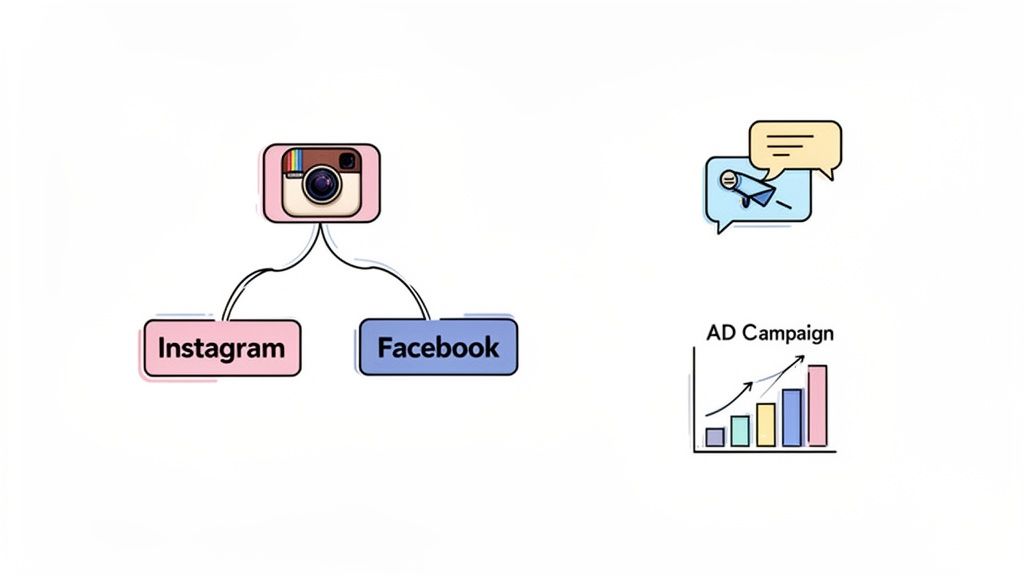
Beyond just making life easier, linking your accounts gives your advertising a major boost. Suddenly, you have Meta's entire advertising arsenal at your fingertips. You can run campaigns that hit users on both platforms at the same time. This means creating one ad that shows up in Facebook feeds, Instagram Stories, and even Reels—letting you reach a way bigger audience with a lot less work.
This unified approach also gives you much richer data. When your accounts are connected, your analytics paint a complete picture of how your audience behaves across both platforms. For those of us using tools like Postiz to schedule AI-generated content, this integration is essential for tracking what’s actually working and what’s not.
The real power comes from combining the strengths of each platform. You can tap into Instagram's high engagement while using Facebook's massive user base and detailed ad targeting options to drive conversions.
Key Benefits of Linking Instagram and Facebook
To make it even clearer, here’s a breakdown of what you gain by connecting your accounts. This simple action has a ripple effect across your entire social media workflow.
Feature Area
Benefit of Connection
Impact on Your Workflow
Content Management
Cross-post Stories, Reels, and posts to both platforms from one place.
Drastically cuts down on content creation and scheduling time.
Community Engagement
Manage DMs and comments from both Instagram and Facebook in a single inbox.
Faster response times and a more organized way to handle customer interactions.
Advertising
Run unified ad campaigns across both platforms with more advanced targeting.
Reach a wider, more relevant audience and get better ROI on your ad spend.
Analytics & Reporting
Access combined insights to see a holistic view of your audience and performance.
Make smarter, data-driven decisions for your overall social strategy.
E-commerce
Sync product catalogs for Instagram Shopping and Facebook Shops.
Create a seamless shopping experience for customers on both platforms.
Ultimately, linking these accounts is about working smarter, not harder. It removes friction from your daily tasks and gives you the tools you need to build a stronger, more effective presence online.
Manage all your social media in one place with Postiz
If you're still on the fence, the data really seals the deal. Instagram is famous for its high engagement rates, but Facebook often delivers a lower cost-per-click (CPC) on ads and a higher conversion rate in many industries.
For example, Instagram’s average click-through rate (CTR) is around 0.52%, while Facebook's is 0.90%. By running ads across both, you can balance your budget, play to each platform's strengths, and optimize for different goals—which almost always improves your return on investment.
Before you even think about linking your Instagram and Facebook Business Page, a little prep work can save you a ton of headaches. Think of it as laying the foundation. Getting these two key things right from the start will prevent the most common connection errors that trip people up.
First things first, your Instagram account absolutely must be a Professional Account. This is a non-negotiable from Meta if you want to use their business tools. If your account is still set to "Personal," you simply won't be able to connect it to a Facebook Page or get access to crucial features like ads and detailed analytics.
Check Your Instagram Account Type
You can see what you have in about ten seconds right inside the Instagram app.
Go to your profile, tap the menu icon (the three horizontal lines) in the top-right corner, and then head into "Settings and privacy."
Now, scroll down until you see the "For professionals" section. If you see options like "Business tools and controls" or "Creator tools and controls," you’re good to go. If you see "Account type and tools" with an option to "Switch to professional account," you need to do that first.
Don’t worry, switching is free and only takes a minute. It’s what unlocks essential features like Instagram Insights, which are vital for tracking your performance. You can read our detailed guide on how to turn on Insights on Instagram to learn more.
Make Sure You Have Facebook Page Admin Rights
Next, let's jump over to Facebook. You need to have the right permissions for the Business Page you want to connect. You must be an Admin of the Page. A lesser role, like an Editor or Moderator, just won't cut it—you won't have the authority to approve the connection.
Here’s how to quickly verify your role:
Navigate to your Facebook Business Page.
Click the "Manage" button near the top.
In the menu on the left, select "Page Access."
This screen will show you everyone who has a role on the Page. If your name is listed under "People with Facebook access" and it says you have "Full control," then you have the admin rights you need.
Doing this quick check now prevents that frustrating "permissions error" that stops so many people in their tracks. It's a critical step, especially since 79% of marketers now use Instagram alongside Facebook. For more interesting data, check out these social media usage statistics at Agorapulse.com.
How To Link Your Accounts From Three Different Places
Alright, now that you've got your accounts in order, it's time to connect them. The good news is there isn't just one way to do it. The best method for linking your Instagram to a Facebook Business Page really comes down to your personal workflow—where you spend the most time managing your brand.
We're going to cover three different paths to get this done. Each one lands you in the same place, but they start from different platforms to suit your style, whether you’re managing things from your phone or you're a power user on a desktop.
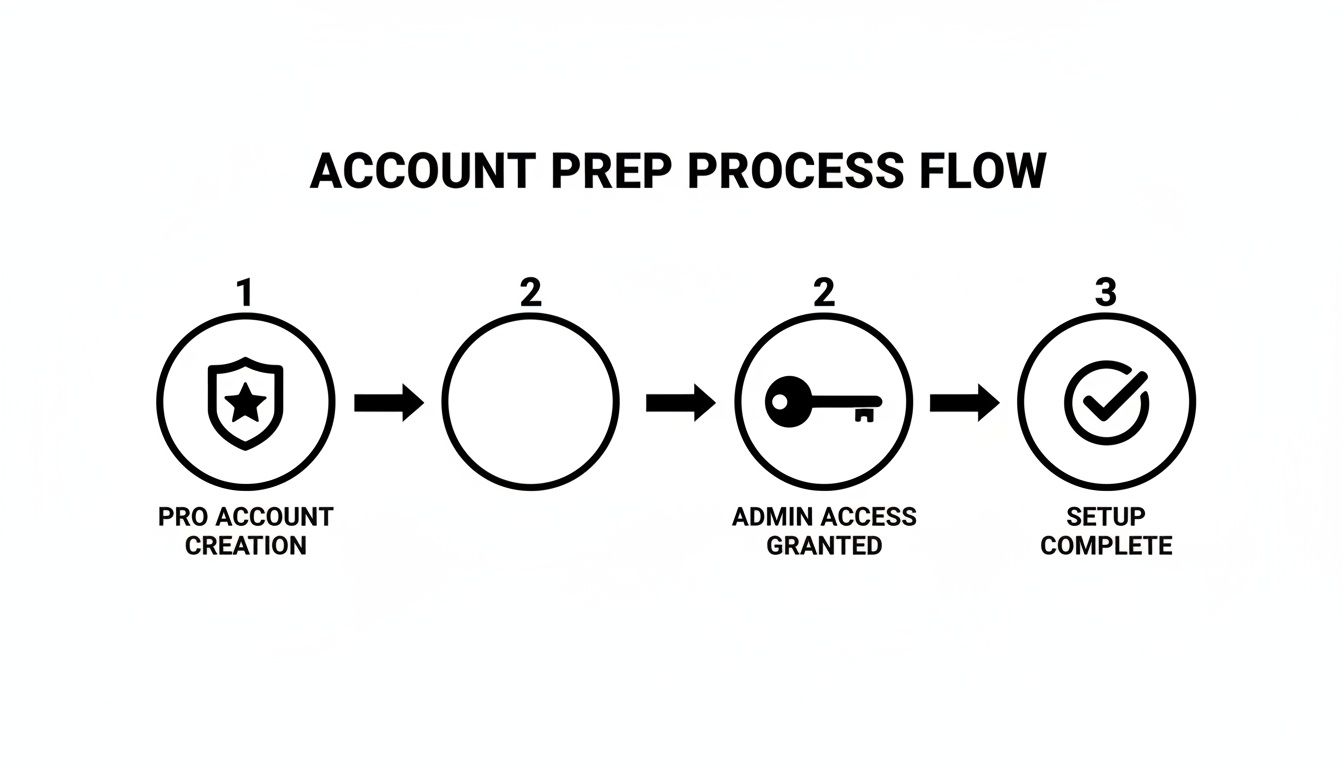
This flow chart lays out the two absolute must-haves we covered earlier: a Professional Instagram account and Admin access to your Facebook Page. You need both of these before you can even start.
Think of these as the keys to the kingdom. Without them, none of the doors below will open.
Choosing the Right Linking Method for You
So, which path should you take? It often depends on what you're trying to accomplish and where you feel most comfortable working. I've put together a quick comparison to help you decide.
Method
Best For
Key Advantage
Potential Limitation
Instagram App
Social media managers on the go or small business owners who primarily use their phone.
Speed and Convenience. It's the fastest way to get it done without needing a computer.
Lacks the advanced settings and oversight of desktop methods.
Facebook Page Settings
Desktop users who are already managing their Facebook Page and want a direct connection point.
Intuitive for Facebook users. The process feels natural if you're already in your Page's dashboard.
Can be tricky if you manage multiple business assets, as it's not a centralized view.
Meta Business Suite
Agencies, social media managers, or businesses managing multiple brands and ad accounts.
Total Control. Provides the best oversight and ensures all permissions are set correctly for advertising and analytics.
Can feel a bit overwhelming for beginners due to the number of features.
Ultimately, for most serious businesses, I steer them toward the Meta Business Suite. It just sets you up for long-term success. But if you're just looking for a quick and simple link, the other two methods work perfectly fine.
Method 1: Use The Instagram App
For many people, the Instagram app is their command center. If you're always on the move, this is easily the most direct route to link your accounts. You can do it in under a minute without ever opening a laptop.
It's a pretty simple process:
Head to your Instagram profile and tap "Edit Profile."
Look for the "Public business information" section and tap on "Page."
Instagram will pull up a list of Facebook Pages that your personal Facebook profile manages.
Just pick the right Business Page from the list, and that’s it. You're connected.
If your page doesn't show up, it's almost always a permissions problem. Double-check that you're logged into the correct Facebook account on your phone (either in the Facebook app or your mobile browser) and that you're an Admin of the Page.
Method 2: Connect Through Your Facebook Page Settings
If you’re more of a desktop person, linking directly from your Facebook Page settings just makes sense. This method is great if you're already in your Page’s backend, responding to comments or scheduling posts.
Here's how to get it done:
Go to your Facebook Business Page.
On the left-hand menu, click "Settings."
From there, find and select "Linked Accounts."
You'll see options for Instagram and WhatsApp. Click "Connect account" next to the Instagram logo and just follow the prompts to log in.
This keeps everything within the Facebook ecosystem, which a lot of people find more straightforward than digging through Instagram's settings menu.
Pro Tip: During this process, Facebook will ask if you want to allow access to Instagram messages in your inbox. Absolutely say yes to this. This is the magic switch that turns on the unified inbox, letting you manage Facebook and Instagram DMs in one place. It’s a huge time-saver.
Method 3: Link Via Meta Business Suite
For agencies, dedicated social media managers, or anyone juggling multiple brands, the Meta Business Suite is the undisputed champion. This is the professional-grade method because it situates the connection within Meta's entire suite of powerful business tools.
The Business Suite gives you a complete, top-down view of every asset you manage—your Pages, ad accounts, pixels, and Instagram profiles—all in one clean dashboard.
Connecting your accounts here ensures that all permissions and asset assignments are handled properly right from the get-go, which prevents a lot of headaches down the road.
Here’s the step-by-step for the Business Suite:
Head over to business.facebook.com and make sure you're in the correct Business Account.
Click the "All tools" hamburger menu (the three horizontal lines) and go to "Business Settings."
In the left sidebar, look under "Accounts" and click on "Instagram accounts."
Click the big blue "Add" button, then choose "Connect your Instagram account."
A pop-up window will appear, asking you to log into your Instagram to authorize the connection. Just sign in, and you're all set.
I highly recommend using the Business Suite because it gives you the clearest control and makes troubleshooting a breeze later on. This is the method that truly prepares you for running sophisticated ad campaigns and diving deep into your analytics.
Putting Your New Connection Into Action
Alright, you’ve done the behind-the-scenes work to link your Instagram and Facebook Business Page. Now comes the fun part: putting that connection to good use. This isn't just about checking a box; it's about unlocking a smarter, more efficient way to manage your social media presence.
Let's start with the most immediate win: streamlining your content workflow. You no longer have to post the same photo or video twice. By enabling cross-posting, you can publish a new post or Story to Instagram and, with a single tap, have it appear on your Facebook Page. You still have full control—you don’t have to share everything—but the option is there when the content fits both audiences.
This simple feature is a huge time-saver, especially for small teams or solo entrepreneurs. If you're looking for more ideas on getting the most out of your content, we have a whole guide on https://postiz.com/blog/how-to-share-from-facebook-to-instagram with extra tips.
Unify Your Customer Communication
One of the biggest headaches of managing two active platforms is keeping up with messages and comments. The unified inbox in Meta Business Suite solves this problem completely.
No more jumping between apps. Now you can manage everything from one central dashboard:
Instagram Direct Messages (DMs)
Facebook Messenger chats
Comments on your Instagram posts and Reels
Comments on your Facebook posts and ads
This is a game-changer for community management. It means you can respond to people faster and make sure no one falls through the cracks, which does wonders for your brand's reputation.
By centralizing your communications, you create a seamless experience for your audience. A customer can message you on Instagram and get the same level of service as someone who comments on a Facebook ad, all without adding extra work for your team.
Supercharge Your Advertising Campaigns
Here's where things get really powerful. With your accounts linked, you gain access to the full capabilities of Meta Ads Manager. This is how you scale your marketing.
You can now create single ad campaigns that run across both Instagram and Facebook, reaching people in their feeds, Stories, and Reels. But the real magic is in the targeting.
Imagine being able to show a follow-up ad on Facebook to someone who just engaged with one of your Instagram posts. Or creating a Lookalike Audience based on your best Instagram followers to find new, similar customers on Facebook. This kind of sophisticated, cross-platform strategy is only possible when your accounts are connected, and it's key to getting the most out of every dollar you spend.
Now that everything is set up, you can start building out these smarter campaigns. For some practical ideas, check out these tips on how to market a law firm on Instagram. The advice is solid for any professional service looking to build a serious presence online.
How To Fix Common Instagram And Facebook Linking Issues
Let's face it, even when you follow all the steps to the letter, technology has a way of throwing a curveball. If you're hitting a wall trying to link your Instagram to your Facebook Business Page, don't panic. Most of the time, the problem comes down to a few common permission or account setting hiccups that are actually pretty easy to sort out.
The most common complaint I hear is that the correct Facebook Page just isn't showing up in the list on Instagram. This is almost always a permissions problem. What it really means is that the personal Facebook profile you're using on your phone doesn't have full Admin access to the Business Page you need to connect.
Another frequent snag is the dreaded "Permissions Needed" error. This usually pops up when the initial connection between the platforms wasn't fully authorized in the first place.
Let's walk through the most reliable ways to get you back on track.
Refresh Your Business Tool Permissions
Sometimes, all the connection needs is a quick digital reset. The best place to handle this is inside the Meta Business Suite, as it's the central hub for all the backend permissions for your business assets. Forcing it to re-evaluate the link can clear up a lot of strange, unexplained issues.
Here's the most direct way to do it:
First, log into Meta Business Suite from a desktop computer.
Head over to Business Settings and then click on Business Assets.
In the menu on the left, find and select Instagram accounts.
Choose the Instagram account that's giving you trouble and click the "Review Connection" button. Just follow any on-screen instructions to re-authorize the link.
This one move often clears up vague error messages because it essentially reminds Meta's system that you have the right authority to manage both accounts.
The Classic "Turn It Off and On Again" Method
If a simple refresh doesn't do the trick, the next best thing is to start with a clean slate. Disconnecting and then reconnecting your accounts forces a brand-new handshake between Instagram and Facebook, which can wipe out any old or buggy settings that were causing the problem.
Important Takeaway: Don't worry, you won't lose anything. Disconnecting your accounts will not delete any of your posts, messages, or followers on either platform. It just removes the administrative bridge between them.
To do this the right way, start from your Instagram app:
Navigate to your profile and tap Edit Profile.
Under "Public business information," tap on Page.
You'll see your currently linked Facebook Page. At the bottom, select "Unlink Page."
After you've unlinked, give it a few minutes. Then, simply go through the linking process again using your preferred method—whether that's through the Instagram app, your Facebook Page settings, or the Meta Business Suite. This is the go-to fix when you're positive your permissions are correct but the connection still isn't behaving.
Got Questions? Here Are Some Quick Answers
Even with the best instructions, you're bound to have a few questions pop up when you're connecting your accounts. It happens to everyone. To save you some time and a potential headache, I've rounded up the most common questions people ask when they're trying to get this sorted out.
Getting these details right from the get-go makes everything that follows—from running ads to managing messages—so much smoother.
Is a Facebook Business Page Absolutely Necessary?
Yes, 100%. There's no way around this one. You need an active Facebook Business Page, and you have to be an Admin on that Page to make the connection.
This setup is the backbone for all the good stuff, like running ads across both platforms, getting all your messages in one place with Meta Business Suite, or using third-party tools. Your personal Facebook profile just doesn't have the features needed for this, as the whole system is designed to link two business-level assets together.
I Messed Up and Linked the Wrong Facebook Page. What Now?
Don't worry, this happens all the time and it’s a super easy fix.
Just pop over to your Instagram profile and tap 'Edit Profile.' Scroll down to the 'Public business information' section and tap on 'Page.' You'll see an option to 'Change or Create Page.' From there, you can disconnect the wrong one and pick the correct Page from your list.
It's a good idea to sort this out right away, otherwise your messages, posts, and any ads you run will be going to the wrong place.
It's easy to click the wrong thing in a list, so don't sweat it if this happens. The important thing is to fix it before you start relying on the connection for things like your inbox or ad campaigns, which would be pulling data from the wrong source entirely.
Can I Link One Instagram to Multiple Facebook Pages?
Nope, you can't. An Instagram account can only be connected to one Facebook Business Page at a time.
Think of it as a unique bridge between two specific properties. This one-to-one relationship is what keeps your analytics, ad targeting, and inbox management clean and accurate. If you’re managing several different brands, each one will need its own dedicated Instagram account paired with its own dedicated Facebook Page.
Will Everything I Post on Instagram Automatically Show Up on Facebook?
Not at all. Linking your accounts just unlocks the option to share your content across both platforms—it never forces you to.
When you're creating a new post, Reel, or Story on Instagram, you'll now see a little toggle switch to also share it to your linked Facebook Page. You get to decide for each individual piece of content whether to flip that switch on or off. This gives you the flexibility to maintain different content strategies for each platform if you want to.
At Postiz, we're all about making social media management simpler and more effective. Once your accounts are properly connected, our platform helps you streamline everything from scheduling to analytics. See how a smarter workflow can help you grow by trying Postiz today.
Compare top social media management tools like Hootsuite, Buffer, Sprout Social, Later, and Loomly to simplify scheduling, analytics, and team collaboration.