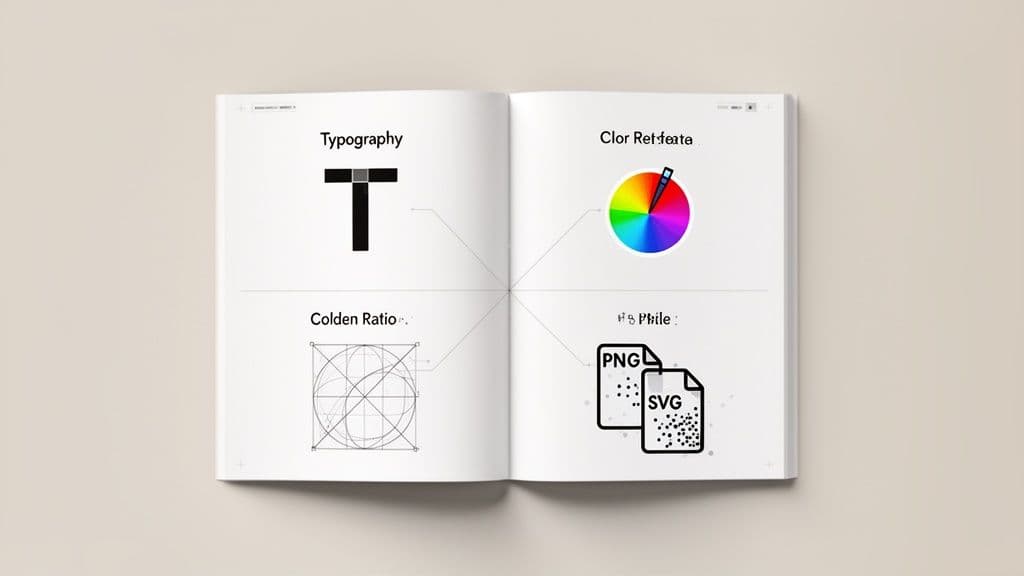
Ever felt like designers are speaking a different language? Words like "kerning," "CMYK," and "raster" get thrown around, and it's easy to just nod along while secretly feeling lost. If you're a creator or a business owner, you've probably been there.
But here’s the thing: understanding these graphic design terms isn't just for the pros. It's the key to turning the ideas in your head into visuals that actually work. Knowing this language lets you make deliberate choices, transforming a good-enough post into a thumb-stopping piece of content that builds your brand.
Think of it this way: when you know the difference between RGB for screens and CMYK for print, your brand colors will look perfect everywhere. When you get why a vector file is better for your logo than a raster one, you'll never have to deal with a blurry, pixelated mess again. These aren't just buzzwords; they're the building blocks of effective design.
Fundamental Design Terms at a Glance
To get you started, here's a quick cheat sheet. Use this as a quick reference for the most critical graphic design terms every creator and marketer should know.
Term
Category
Quick Definition
Typography
Text & Fonts
The art of arranging text to be readable and visually appealing.
Color Theory
Color
The science and art of using color, including harmony and psychology.
Layout & Composition
Arrangement
How visual elements are organized on a page to guide the eye.
Vector
File Type
Graphics made of paths that can be scaled infinitely without losing quality.
Raster
File Type
Graphics made of pixels that lose quality when scaled up.
RGB
Color Mode
Red, Green, Blue color model used for digital screens.
CMYK
Color Mode
Cyan, Magenta, Yellow, Black color model used for printing.
Resolution
Image Quality
The detail an image holds, often measured in DPI or PPI.
This table is just the beginning. As we dive deeper, you'll see how these concepts connect to create powerful visuals.
The Foundation of Modern Design
So where did all this lingo come from? While visual communication is as old as cave paintings, the term 'graphic design' is much younger. It was officially coined back in 1922 by an American designer named William Addison Dwiggins.
Of course, the practice itself was already well-established. Johannes Gutenberg’s invention of the printing press in 1439 was a massive turning point. It set the stage for concepts like typography and layout that are still fundamental to the work we do today, even in digital tools like Postiz. If you're a history buff, you can dig into the full story on the history of graphic design on Wikipedia.
To get you truly comfortable, we need to look at the three main pillars of design:
Typography: This is all about how you arrange text to make it easy and enjoyable to read. It’s more than just picking a font; it’s about creating a clear hierarchy.
Color Theory: This is the art and science of using color. It covers everything from the color wheel and creating harmonious palettes to understanding the emotions different colors evoke.
Layout & Composition: This refers to how you arrange all your visual elements—text, images, shapes—to create a balanced design that naturally guides your viewer's eye.
Once you have a solid grasp of these core ideas, you'll be well on your way to speaking the language of design fluently.
Manage all your social media in one place with Postiz
Typography is all about how you arrange text to make it both easy to read and beautiful to look at. People often throw around the words typeface and font like they mean the same thing, but for any creator, knowing the difference is key. A typeface is the design family—think Helvetica or Times New Roman—while a font is a specific member of that family, like Helvetica Bold in a 12-point size.
Put simply, the typeface is the artistic vision for the letters, and the font is the actual digital file you use to bring that vision to life. Your choice of typeface really sets the mood for an entire design, whether you're aiming for something modern and minimal or something more traditional and elegant. Getting a feel for popular book fonts can give you great insight into how different styles work in practice.
Fine-Tuning Your Text for Readability
Picking a great typeface is just the start. The real magic happens when you control the spacing, which is crucial for a polished, professional finish. This is where three important terms come into play: Kerning, Tracking, and Leading.
Kerning: This is the space between two individual letters. Proper kerning fixes those awkward gaps you sometimes see between letters like 'A' and 'V', making sure everything looks cohesive and natural.
Tracking: Also called letter-spacing, this adjusts the space uniformly across an entire word or block of text. You can increase tracking to give your text an airy, sophisticated feel or decrease it to make words feel more compact and impactful.
Leading: This is the vertical space between lines of text, often called line-height. Getting the leading right is non-negotiable for readability. Too little, and your text feels cramped and hard to follow; too much, and the lines feel disconnected.
These might seem like minor details, but they have a massive impact on how your audience experiences your content. Thankfully, design tools like Postiz give you simple sliders and controls for all three, so you can nail the perfect spacing without being a typography expert.
Creating a Clear Visual Hierarchy
A typographic hierarchy is your roadmap for the reader. It’s a system that uses different text styles to guide the eye, telling people what’s most important and what to read first. You build this hierarchy by playing with size, weight (like bold or light), and style (like italics).
A classic hierarchy breaks down like this:
Headline (H1): This is your big, bold attention-grabber. It should be the most prominent piece of text on the design.
Subheadings (H2, H3): Smaller than the headline, these are used to break your content into digestible sections and introduce new ideas.
Body Text: This is the main text of your message. The top priority here is always readability, so it should be set at a comfortable size.
One of the most common mistakes I see is using way too many fonts, which just creates visual chaos. A solid rule of thumb is to stick to two or three complementary fonts at most. For example, pairing a strong sans-serif font for your headlines with a readable serif font for your body text creates fantastic contrast and establishes a clear hierarchy. If you want to see how a major brand approaches this, check out our case study on what font Telegram uses.
Applying Color Theory to Your Designs
Color is one of the first things people notice, often making a split-second judgment about your design before they even read a word. If you want to make your social media graphics truly effective, getting a handle on basic color theory is non-negotiable. It’s one of the most powerful tools in your design kit.
First things first, let's talk about the two big color models: RGB and CMYK. Think of them as different dialects of color, one for screens and one for print.
RGB (Red, Green, Blue): This is the language of digital screens. Your phone, laptop, and TV all use RGB, creating colors by mixing red, green, and blue light. For social media, this is your world.
CMYK (Cyan, Magenta, Yellow, Black): This is the model for anything you plan to print, like a poster or a business card. It works by mixing inks on paper.
Getting these mixed up is a classic rookie mistake. If you design a social post in CMYK, the colors will look disappointingly dull on screen. If you send an RGB file to your printer, the colors might come out looking completely different. The good news? Postiz works exclusively in RGB, so your posts are always optimized to look bright and vibrant right where you need them.
The Building Blocks of Color
Beyond the models, you can tweak any color with three core properties: Hue, Saturation, and Value. Understanding these is how you go from just picking colors to truly designing with them.
Hue: This is just the pure color itself—what you'd call red, yellow, or blue. It’s the base ingredient.
Saturation: This dial controls the color’s intensity. High saturation gives you a rich, punchy color, while low saturation washes it out toward gray.
Value (or Brightness): This is simply how light or dark the color is. When you add white to a hue, you get a lighter tint. When you add black, you get a darker shade.
Learning to play with these three elements is the secret to creating a flexible and interesting brand palette from just a single core color.
Creating Harmony with Color Schemes
The best designs don't use random colors; they use colors that have a relationship with each other. This is called color harmony, and you can use the color wheel to find combinations that are practically guaranteed to work.
Complementary Colors These are opposites on the color wheel, like blue and orange or red and green. The high contrast they create is electric, making them perfect for grabbing attention. Use a complementary color for your call-to-action button to make it impossible to miss.
Analogous Colors These colors are neighbors on the wheel—think blue, blue-green, and green. This combination always feels natural and cohesive, making it a great choice for creating a calm and trustworthy brand aesthetic.
Triadic Colors This scheme involves three colors evenly spaced on the color wheel, forming a triangle. A triadic palette gives you a lot of vibrant contrast but still feels balanced and harmonious. The trick is to let one color dominate your design and use the other two as supporting accents.
One last thing that's absolutely crucial: color contrast. This is all about making sure your text is easy to read against its background. Always double-check that your foreground and background colors have enough contrast for your message to be clear to everyone, which is a cornerstone of accessible design.
Mastering Layout and Composition Principles
A great design’s secret weapon is its composition. It’s the art of arranging your text, images, and shapes in a way that feels intentional, creates a sense of order, and tells the viewer exactly where to look. Getting a handle on these layout principles is what separates amateur graphics from truly professional work.
Think of it this way: you wouldn't just toss ingredients into a bowl and hope for a delicious meal. You follow a recipe. The same goes for design—these principles are your recipe for creating visuals that just work.
Achieving Visual Balance
Balance is all about making sure your design doesn't feel like it's about to tip over. It’s the visual distribution of weight, and you can tackle it in two main ways: symmetrical balance and asymmetrical balance.
Symmetrical Balance: This is when elements on one side of your design mirror the elements on the other. It creates a feeling of formality and calm. Think of a perfectly centered headline over a centered image—it's classic and reliable.
Asymmetrical Balance: This approach is a bit more modern and dynamic. Instead of mirroring elements, you balance them using different visual weights. A large photo on one side, for example, can be balanced by a smaller block of text and a couple of icons on the other.
A common mistake we see is shoving all the important stuff into one corner, making the whole graphic feel lopsided. Here's a quick trick: squint your eyes and look at your design. If one area feels "heavier" than the rest, you probably need to adjust your balance.
Guiding the Eye with Structure
Once you've found your balance, your next job is to lead your viewer’s eye on a journey through the design. This is where structure comes in, and one of the most powerful tools in your kit is the rule of thirds.
The rule of thirds is a time-tested technique for finding the sweet spots in your design. Just imagine your canvas is split into a 3×3 grid by two horizontal and two vertical lines. The four points where these lines cross are natural focal points.
Placing your most important element—like your main message or call-to-action button—on one of these four points is an instant way to make your composition more compelling. It’s a simple shift that beats centering everything every single time.
Next up is alignment. This is just the simple act of lining things up. When you align text and images along a common invisible line, you create a clean, organized look. It tells the viewer's brain that these items are related and belong together.
Finally, there’s repetition. By using the same font for all your headings or repeating a specific color or shape, you build a sense of rhythm and unity. This consistency doesn't just look good; it reinforces your brand identity. For a deeper dive into making your posts pop, check out our guide on creating amazing social media graphics.
And please, don't forget about white space! Also known as negative space, this is the blank area around your design elements. It isn't "wasted" space at all—it's an active tool that gives your content room to breathe, reduces clutter, and makes everything easier to read. A design that uses white space generously always feels more high-end and confident.
Navigating Image Formats and Resolution
Nothing tanks a great design faster than a blurry or pixelated image. Getting the technical side right—things like file formats and resolution—is the secret to making sure your visuals look crisp and professional every single time you hit post.
Let's start with the two main families of image files: vector and raster. Think of a vector graphic as a drawing made from math. It uses lines and curves defined by formulas, which means you can scale it up to the size of a billboard or down to a tiny icon, and it will never lose quality. Logos are a perfect example.
On the other hand, raster images, like the photos you take with your phone, are built from a grid of tiny colored squares called pixels. When you try to make a raster image bigger than its original size, you're essentially just stretching those squares out, which is why it gets all blurry and blocky.
This decision tree gives you a quick visual guide on how to choose the right layout principle to get the effect you're after.
As you can see, your primary goal for the design—whether it's creating order or drawing attention to one spot—points you directly to the best technique for the job.
Choosing The Right File Type
Different file types are built for different jobs. Using the right one is key to making your images look fantastic and load quickly on social media feeds.
JPEG (or JPG): This is your workhorse for photographs. JPEGs balance millions of colors with smart compression, keeping file sizes small so your web pages and social posts load fast.
PNG: Need a transparent background? PNG is your hero. It’s perfect for things like logos, icons, or text overlays that you want to place on top of other images without a clunky white box around them. The quality is generally higher than a JPEG, but the file sizes can be a bit larger.
SVG (Scalable Vector Graphic): This is a web-native vector format. If you're working with logos, icons, or simple illustrations online, an SVG is the way to go. It stays perfectly sharp on any screen, at any size, because it’s not made of pixels.
If you're creating content in Postiz, you don't have to sweat this too much. The platform is designed to handle these common formats seamlessly, giving your posts that polished, professional edge without the headache.
Demystifying Resolution and Quality
You've probably heard the terms resolution, PPI, and DPI thrown around when talking about image quality. They’re related, but they aren't the same thing, and knowing the difference is important.
Resolution simply means how much detail an image holds. For anything you create for a screen, the term you really need to care about is PPI (Pixels Per Inch). This is a measure of pixel density. The higher the PPI, the more pixels are packed into each inch of your screen, and the sharper your image will look.
DPI (Dots Per Inch), however, is a printing term. It refers to the number of physical ink dots a printer puts down on a piece of paper. It’s absolutely critical for print design, but it’s not something you need to worry about when designing for Instagram or Facebook. To ensure your visuals are always top-notch, it helps to know the recommended dimensions for each platform. You can learn more in our guide to the best profile image sizes.
Your A-Z Glossary of Essential Design Terms
Ever feel like designers are speaking another language? You're not alone. This glossary is your personal translator, breaking down all the key terms we cover in this guide into simple, plain English.
We've organized everything alphabetically so you can find what you need in seconds. Think of it as your quick-reference cheat sheet. Whenever a term throws you for a loop, just pop back here for a clear definition and a link to dive deeper.
The Complete Glossary of Graphic Design Terms
Here's a handy table summarizing all the key terms we'll be exploring. Use it for a super-fast lookup to find a term and see exactly where to get more details.
Term
Brief Definition
See Section For Details
Alignment
How you line up text and graphics.
Mastering Layout and Composition Principles
Analogous Colors
Colors that sit next to each other on the color wheel.
Applying Color Theory to Your Designs
Asymmetrical Balance
Balancing a design with elements of different visual weights.
Mastering Layout and Composition Principles
CMYK
A color model (Cyan, Magenta, Yellow, Black) used for printing.
Applying Color Theory to Your Designs
Color Harmony
The art of pairing colors to create a pleasing look.
Applying Color Theory to Your Designs
Complementary Colors
Colors directly opposite each other on the color wheel.
Applying Color Theory to Your Designs
DPI (Dots Per Inch)
A measure of print resolution; more dots mean a sharper image.
Navigating Image Formats and Resolution
Font
The specific style of a typeface, like Helvetica Bold.
Understanding Typography and Text Elements
Hue
The purest version of a color (e.g., pure red).
Applying Color Theory to Your Designs
JPEG (or JPG)
A common image format for photos, great for small file sizes.
Navigating Image Formats and Resolution
Kerning
The space between two individual letters.
Understanding Typography and Text Elements
Leading
The vertical space between lines of text.
Understanding Typography and Text Elements
PNG
An image format that supports transparent backgrounds.
Navigating Image Formats and Resolution
This table is just the beginning. Below, you'll find more detailed, yet still straightforward, explanations for each of these important concepts.
Quick Reference Glossary A-Z
Alignment
This is all about how you line up your text and graphics. Think left, right, centered, or justified. Getting your alignment right is a secret weapon for making your designs look polished and intentionally put together, rather than messy.
See Section:Mastering Layout and Composition Principles
Analogous Colors
Take a look at a color wheel—any three colors sitting side-by-side are analogous. For instance, blue, blue-green, and green. They naturally go well together and create a sense of harmony and calm in a design.
See Section:Applying Color Theory to Your Designs
Asymmetrical Balance
This is a cool trick designers use to create balance without making everything symmetrical. It’s about creating visual equilibrium with different elements. Imagine a big, bold photo on one side of your post, balanced out by a few smaller blocks of text on the other. It feels balanced, but more dynamic.
See Section:Mastering Layout and Composition Principles
CMYK
CMYK stands for Cyan, Magenta, Yellow, and Key (which is black). This is the color model used for anything that gets printed, from flyers to business cards. It's different from RGB, which is what you see on screens.
See Section:Applying Color Theory to Your Designs
Color Harmony
This isn't as complicated as it sounds! Color harmony is simply the practice of choosing colors that work well together. Schemes like complementary or analogous are time-tested combinations that help you create a visually appealing design every time.
See Section:Applying Color Theory to Your Designs
Complementary Colors
These are the power couples of the color wheel. Complementary colors sit directly opposite each other—like red and green or blue and orange. Their high contrast makes things pop, which is perfect for grabbing attention on a busy social media feed.
See Section:Applying Color Theory to Your Designs
DPI (Dots Per Inch)
DPI is all about print quality. It literally measures how many dots of ink a printer will put in one square inch. For a crisp, clear printed image, you generally want a high DPI (300 is standard). For web, you'll hear about PPI (Pixels Per Inch) instead.
See Section:Navigating Image Formats and Resolution
Font
Often confused with "typeface," a font is the specific variation within a typeface family. For example, Helvetica is the typeface, but Helvetica Bold 12pt is the font. It’s the actual file your computer uses to show the letters.
See Section:Understanding Typography and Text Elements
Hue
Hue is just the purest form of a color. Think of the basic colors you learned as a kid: red, yellow, blue. That’s the hue. Before you add any white, black, or gray to it, you're talking about its hue.
See Section:Applying Color Theory to Your Designs
JPEG (or JPG)
You've seen this one everywhere. A JPEG is a type of image file that’s fantastic for photographs because it can compress them into small file sizes. That makes them load quickly online, which is a huge plus for social media and websites.
See Section:Navigating Image Formats and Resolution
Kerning
This is the fine-tuning of space between two specific letters. Good kerning is subtle but makes a huge difference in how professional your text looks. It's about adjusting letters that look too close together or too far apart so they feel just right.
See Section:Understanding Typography and Text Elements
Leading
Pronounced "ledding," this refers to the vertical space between lines of text (also called line height). Too little leading and your text feels cramped and hard to read. Too much, and the lines feel disconnected. Finding the right balance is key to readability.
See Section:Understanding Typography and Text Elements
PNG
A PNG is another popular image file type, but its superpower is transparency. This format allows you to save an image, like a logo, with a transparent background. That means you can place it over any color or photo without a clunky white box around it.
See Section:Navigating Image Formats and Resolution
Frequently Asked Questions About Design Terms
All the design jargon can feel like a lot to take in. To help cut through the noise, we've gathered the questions that social media creators ask us the most.
Let's clear up these common points of confusion so you can get back to creating with confidence.
How Do I Choose the Right Font for My Brand?
Picking a font can feel like a massive commitment, but it doesn’t need to be so stressful. The best place to start is by thinking about your brand's personality. Do you want to come across as modern and minimalist? Or maybe something more traditional and elegant? Your font is a huge part of that first impression.
A good rule of thumb is to stick to a two-font system.
Primary Font: This is for your headlines and big statements. It needs to be eye-catching and really speak to your brand's vibe. A strong, bold sans-serif often nails that modern, confident look.
Secondary Font: This one is for your body copy and longer text. The absolute number one priority here is readability. You need a clean, simple font that’s easy on the eyes, even at smaller sizes.
The most common mistake we see is using too many fonts at once, which just looks messy and unprofessional. Sticking to two well-chosen fonts keeps your visuals consistent and helps people instantly recognize your brand.
What Is the Most Important Design Principle for Social Media?
If you're going to master just one thing, make it hierarchy. Think about how fast people scroll through their feeds. You have maybe two seconds to grab their attention and get your point across. A clear hierarchy does exactly that—it tells their eyes where to look first.
Here are a few simple ways to establish a strong hierarchy:
Size: Make your key message the biggest thing on the screen. It's that simple.
Color: Use a bright, contrasting color for the most important part, like your call-to-action button.
Placement: Put your main takeaway right where the eye naturally falls, usually near the top or dead center of your graphic.
When you guide the viewer’s eye like this, your post becomes instantly scannable and far more effective.
What's the Real Difference Between DPI and PPI?
This one trips up almost everyone, but the distinction is actually pretty simple. Just remember this: PPI (Pixels Per Inch) is for digital screens, and DPI (Dots Per Inch) is for physical printing.
Since you're creating posts for Instagram, Facebook, and other digital platforms, you really only need to worry about PPI. It refers to how many pixels are packed into one inch of a screen—more pixels mean a sharper, crisper image. DPI is about the literal dots of ink a printer puts on a piece of paper.
When you're exporting a graphic for the web, a setting of 72 PPI is the long-standing industry standard. It will look perfectly sharp on any phone, tablet, or monitor.
Ready to put all this into practice without the guesswork? Postiz is built to help you create professional-looking social media posts in minutes, with intuitive controls for fonts, colors, and layouts. Start designing with confidence by visiting Postiz.