Posting on LinkedIn isn’t just about throwing an update out there and hoping for the best. It’s about crafting a message that actually stops someone mid-scroll and makes them want to chime in. The secret lies in a simple formula: a killer hook, content that’s easy to read, and a clear call-to-action that gets the conversation started.
How to Write a High-Engagement LinkedIn Post That Gets Noticed
Posting on LinkedIn is not about publishing updates and hoping for likes. High-performing posts follow a clear formula:
A strong hook that stops the scroll
Easy-to-scan content
A clear call to action that invites conversation
Before writing a single word, remember this: LinkedIn users are not there for entertainment. They are there to learn, grow, and improve professionally.
That is your opportunity.
Your hook matters more than anything else. The first one or two lines determine whether someone clicks “see more” or scrolls past.
Effective hooks usually:
Ask a sharp question
Make a bold claim
Call out a specific pain point
How to Structure LinkedIn Posts for Maximum Readability and Engagement
Even great ideas fail if they are hard to read.
Large blocks of text kill engagement. LinkedIn is a fast-scroll environment, so your content must be scannable.
Use these formatting rules:
Short paragraphs (1–2 sentences max)
Bullet points or numbered lists for steps and takeaways
Bold key phrases to guide the reader’s eye
This is not about design. It is about comprehension.
The goal is not just to be seen. The goal is to be understood quickly.
How to Increase LinkedIn Engagement With Better Calls to Action
Every LinkedIn post needs a purpose.
Do not end posts with vague questions like:
“Thoughts?”
“What do you think?”
Instead, ask specific, open-ended questions, such as:
“What has worked best for you when posting on LinkedIn?”
“Which format gets you the most engagement and why?”
Clear questions lead to real conversations, not empty comments.
Choosing the Best LinkedIn Post Format for Your Content
Post format directly affects performance.
Different messages require different formats:
Text-only posts Best for opinions, insights, and conversation starters
Single image posts Ideal for announcements, quotes, and visual highlights Often outperform text-only posts in reach
When to Use LinkedIn Carousels and Video Posts
If your topic needs more depth, use richer formats.
Carousel (document) posts
Perfect for step-by-step guides
Ideal for frameworks, case studies, and tutorials
Position you as a subject-matter expert
Native video posts
Best for storytelling and trust-building
Great for service explanations, behind-the-scenes, or customer wins
Feel more human and personal than text
Pro tip: Rotate formats. A varied feed performs better long-term.
Manage all your social media in one place with Postiz
Builds a strong, personal connection with your audience.
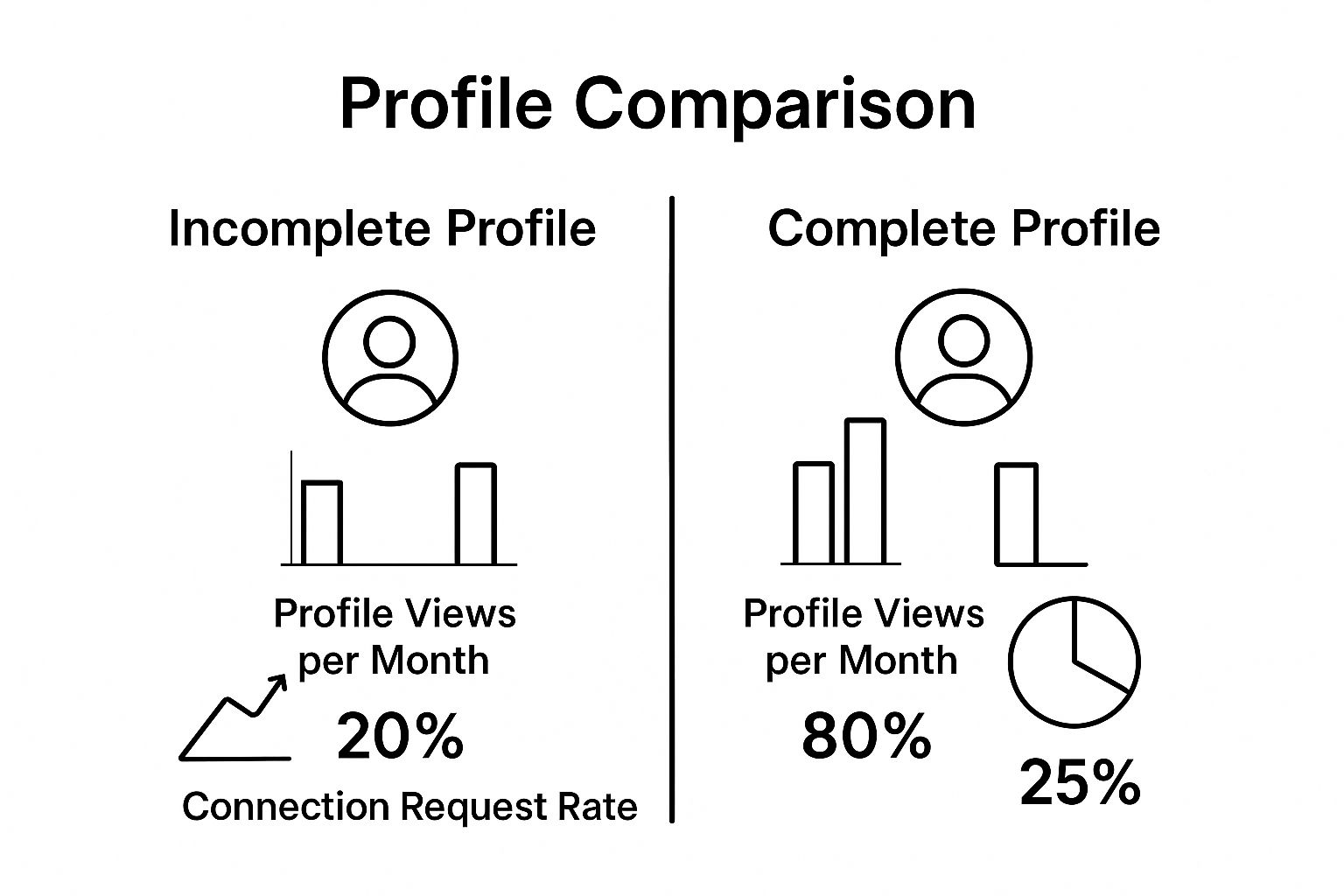
Choosing the right format is a huge part of the puzzle, but it all starts with having a solid foundation. This is where your profile comes in.
As you can see, a complete profile drastically boosts your visibility. It ensures that the perfectly formatted posts you create actually get seen by a wider, more interested audience.
And for those really big files, like high-res documents or detailed presentations you create for a carousel, you might not want to upload them directly. To maintain quality and get around platform limits, it’s often better to use advanced file sharing solutions to host your file and just share the link.
How the LinkedIn Post Editor Works (Step-by-Step)
Alright, let’s get into the nuts and bolts of posting directly on LinkedIn. When you click “Start a post” at the top of your feed, you’re opening up your main content creation tool. This is where the magic happens.
Your first step is always to drop your main message into the text box. But honestly, just writing text is only scratching the surface. The real impact comes from the other tools at your disposal right there in the editor.
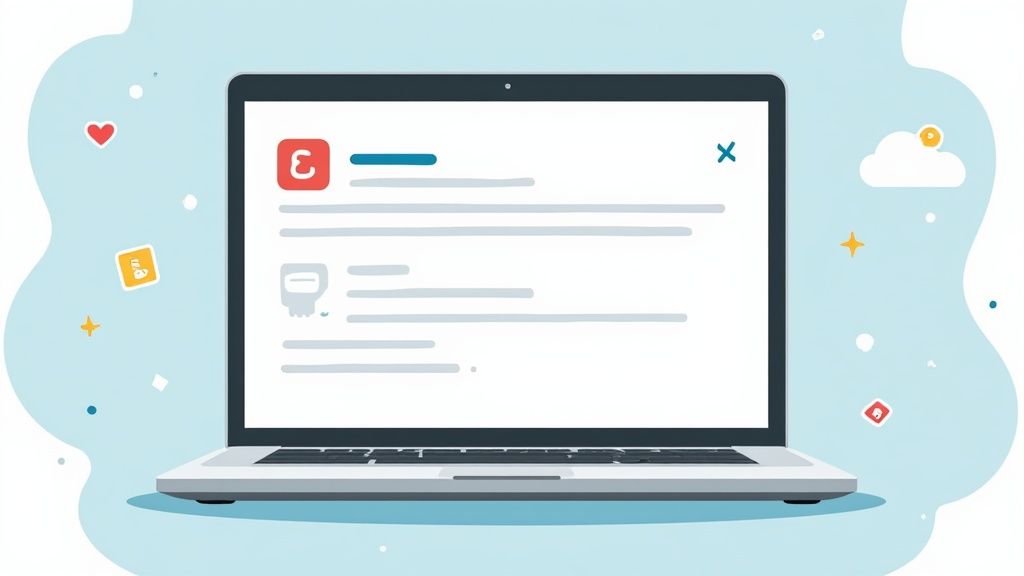
This is the straightforward interface you’ll be working with.
As you can see, everything you need to add media, text, and other interactive elements is right there, ready to go before you publish.
Essential LinkedIn Posting Features You Should Always Use
Before publishing, always check these three items:
1. Tag people and companies Use @ mentions to notify relevant users and expand reach.
2. Add relevant hashtags (3–5 max) Hashtags help LinkedIn categorize and surface your post.
3. Add alt text to images Improves accessibility and ensures your message reaches everyone.
These are small steps that make a measurable difference.
Scheduling Posts for Consistent Impact
Staying consistent is the real secret to gaining traction on LinkedIn, but that doesn’t mean you have to be chained to your desk. This is where a good scheduling tool becomes your best friend, turning your content strategy from random posts into a steady, professional presence.
Honestly, for busy professionals, it’s not just a nice-to-have; it’s essential. You can sit down for one or two hours, knock out a week’s worth of content, and then let a scheduler handle the rest. This frees you up to do your actual job while your LinkedIn profile continues working for you in the background.
Why Timing Your Posts Matters
Data consistently shows strong engagement during:
Tuesday to Thursday
9:00 AM to 12:00 PM
1:00 PM to 4:00 PM
Posting during these windows increases visibility and early engagement, which helps algorithmic reach.
Data consistently shows strong engagement during Tuesdays to Thursdays, especially between 9:00 AM and 12:00 PM, with another strong window from 1:00 PM to 4:00 PM. For a deeper breakdown by industry and audience behavior, check out our guide on the best times to post on LinkedIn.
How to Schedule Your LinkedIn Posts
Getting started with scheduling is surprisingly simple. The first thing you’ll do is connect your LinkedIn account to your chosen scheduling platform. Once you’re linked up, you can start loading in all the content you’ve prepared—your text, images, videos, and links.
Scheduling tools allow you to plan content in advance, stay consistent, and post at peak engagement times without manual effort. With LinkedIn scheduling post, you can manage posts, calendars, and publishing from one place.
From there, you just pick the exact date and time you want each post to go live on a content calendar. This whole process of batching your work is a massive time-saver and completely eliminates that daily pressure of, “What should I post today?” If you want a step-by-step tutorial, our guide on how to schedule a post on LinkedIn breaks it all down for you.
Scheduling isn’t just about making your life easier; it’s about being strategically consistent. It ensures your network hears from you regularly, which builds trust and keeps you top-of-mind. That consistent presence is what transforms a list of followers into a real community.
If you want a step-by-step walkthrough with screenshots and best practices, our guide on how to schedule posts on LinkedIn breaks down the entire process in detail.
What to Do After Posting on LinkedIn to Boost Reach
Hitting “Post” isn’t the finish line—it’s the starting gun. The moment your content goes live is when the real work of building a community and driving growth on LinkedIn actually begins. What you do in that first hour is especially critical.
Responding quickly to comments does more than just show you’re paying attention. It signals to the LinkedIn algorithm that your post is sparking a valuable conversation, which can give it a serious visibility boost. I always aim to reply to every single comment within that initial 60-minute window.
How to Turn LinkedIn Comments Into Real Conversations
Don’t let the dialogue die after your first reply. The trick is to keep the momentum going by asking follow-up questions. If someone chimes in with their experience, ask them something open-ended to encourage them to elaborate. This is how you turn a simple comment into a genuine, multi-layered discussion.
For example, if a connection comments, “Great point about project management,” you could reply with, “Thanks! What’s the biggest challenge you’re currently facing with your team’s workflow?”
A post is a conversation starter, not a monologue. The most successful creators on LinkedIn are community builders who actively participate in the discussions they initiate, fostering loyalty and deeper connections.
How to Repurpose LinkedIn Posts for More Visibility
Your post’s initial run doesn’t have to be its last. You can strategically extend its lifespan and get more eyes on your hard work.
Share in LinkedIn Groups: Find relevant, active groups that align with your topic and share your post there. Just be sure to add some context and a reason for sharing—don’t just drop a link and run.
Reference it in other conversations: If you see someone ask a question that your post answers perfectly, jump in with a helpful summary and a link back to your original content.
This proactive approach is essential in today’s crowded feed. LinkedIn’s user base has surged from 644 million in 2019 to over 1.15 billion, creating a massive but competitive audience.
Ultimately, active engagement is how you stand out from the noise.
Common LinkedIn Posting Questions
Even with a solid plan, you’re bound to run into a few practical questions when you start posting on LinkedIn. Getting these details right can make all the difference, turning a good post into a great one. Let’s tackle some of the most common ones I hear.
How Long Should a LinkedIn Post Be?
LinkedIn gives you a pretty generous 3,000-character limit, but don’t feel like you have to write a novel. In my experience, the sweet spot for getting real engagement is somewhere between 150-250 words.
The real secret is to pack your value into a tight, compelling message. Your number one job is to write a hook so good that people can’t resist clicking that “see more” link. If you’ve got a bigger story to tell, think about breaking it into a carousel post or a full-blown LinkedIn Article.
How Many Hashtags Should I Use on a LinkedIn Post?
When it comes to hashtags on LinkedIn, less is definitely more. Aim for 3 to 5 super-relevant hashtags for each post. This isn’t Instagram; piling on dozens of tags just looks spammy and won’t help you.
For the best results, use a smart mix that helps the right people find you:
Broad: Think general topics like #leadership or #marketing.
Niche: Get specific with tags like #B2Bsales or #ContentStrategy.
Branded: Create a unique hashtag for your business or a specific campaign.
Using the right combination of hashtags is like giving the LinkedIn algorithm a clear roadmap to your ideal audience. It helps people searching for your expertise find your content effortlessly.
Can I Edit a LinkedIn Post After I’ve Published It?
Yes, you absolutely can! If you spot a typo or want to rephrase a sentence after your post is live, just click the three-dot menu on your post and choose “Edit post.”
But there’s a big limitation to keep in mind: you cannot change or add any media. That means no swapping out an image, adding a video, or attaching a document. If the visual is the problem, your only option is to delete the post and start over. It’s perfect for quick text fixes, but not for bigger changes, which can be a key part of learning how to increase sales with stronger visuals.
Ready to take the guesswork out of your content strategy? Postiz helps you plan, schedule, and publish all your LinkedIn posts at just the right time. Start growing your presence today at https://postiz.com.
Discover 8 marketing automation best practices to boost efficiency, engagement, and ROI. Learn key strategies for segmentation, lead scoring, and more.
Stuck in a rut? Discover 10 powerful social content ideas to boost engagement and growth. Get fresh, actionable strategies to level up your social media game.
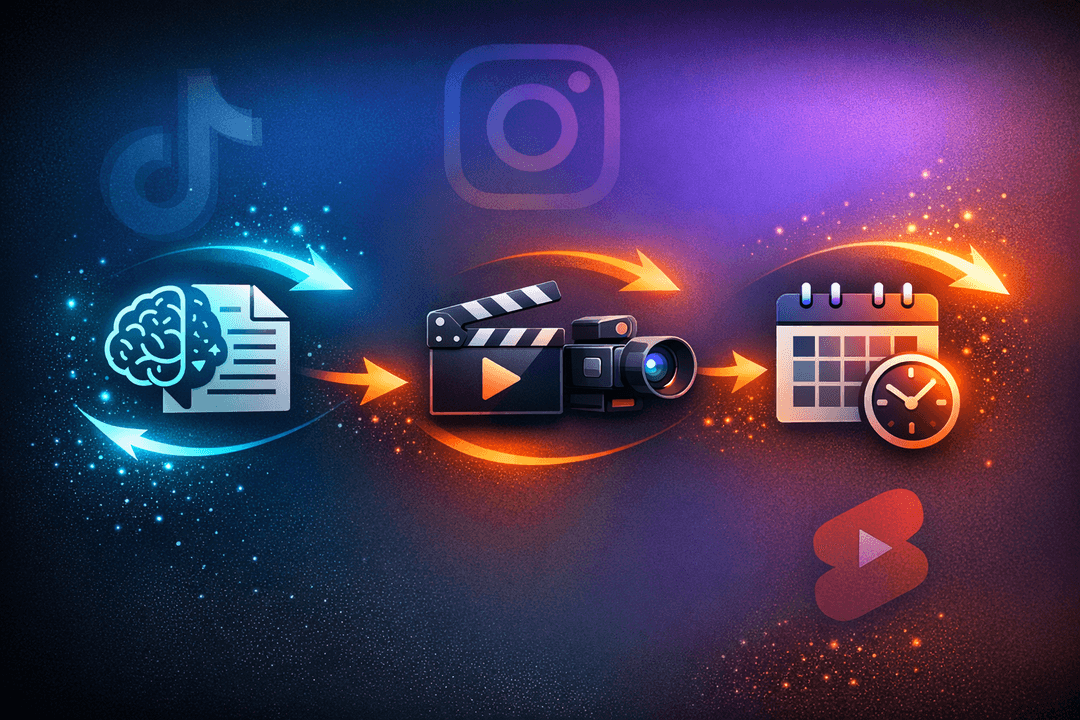
AI influencer accounts are pulling millions of views on TikTok by automating their entire content pipeline. Here is the exact three-tool workflow — Claude for scripts, Arcads AI for video production, and Postiz for scheduling — with full technical implementation details including CLI commands, API examples, and MCP integration.