Yes, you can absolutely post to Instagram from your computer, and it's easier now than ever before. What used to be a strictly mobile-only app has finally opened up, giving creators and social media managers some much-needed flexibility to manage content right from a desktop.
Why Post to Instagram From a Computer?
Let's be honest: managing an Instagram account seriously from a tiny phone screen is a pain. Moving your workflow to a desktop is a massive quality-of-life upgrade. Think about it—no more fumbling with file transfers or thumb-typing long, thoughtful captions. It’s about being more efficient and professional.
This shift from mobile-first to desktop-friendly isn't just a random feature update. When Instagram first launched back in 2010, it was all about capturing moments on the go. But the world has changed. With the rise of remote work, more people are glued to their computers, and in December 2021, Instagram officially rolled out native desktop posting for Windows and Mac. It was a long-overdue move, especially considering Instagram is now one of the most visited websites on the planet. If you want to dive deeper into its growth, you can find some fascinating Instagram user statistics on Metricool.com.
Choosing the Right Desktop Method
So, how should you go about posting from your computer? The best method really boils down to what you need to accomplish. Are you just trying to get a single photo up quickly, or are you planning a full week of content with detailed analytics?
This flowchart breaks down the two main paths you can take.
The takeaway is pretty straightforward: for simple, one-off posts, the Instagram website works just fine. But if you're serious about strategy, scheduling, and automation, you’ll want to look at a dedicated third-party tool.
Pro Tip: Before you start, do yourself a huge favor and get organized. Create folders on your computer for your photos, videos, and captions. This little bit of prep work makes finding and uploading your content so much faster, regardless of which method you end up using.
Desktop Posting Methods At a Glance
To help you find the perfect fit for your workflow, here’s a quick comparison of the main options we’ll be covering.
Advanced scheduling, analytics, and cross-posting.
Yes (Advanced)
Easy to Moderate
Browser Emulation
A technical workaround for posting Stories from desktop.
No
Difficult
Each of these tools has its place. Your choice will depend on whether you value simplicity, raw power, or something in between. Now, let’s get into the step-by-step details for each one.
Manage all your social media in one place with Postiz
Let's start with the most straightforward method. If you just need to get a single photo or video up on your feed right now, without any fuss, your best bet is using the Instagram website itself. This is my go-to when I've just finished editing a photo on my laptop and want it live immediately.
First, just pull up Instagram.com in your web browser and log in. You'll see your feed, but what you're looking for is the menu on the left. Find the little plus sign inside a square—that's the "Create" button.
Clicking that icon pops up a new window. You can either drag your photo or video file right into this window from a folder, or click the button to browse your computer's files the old-fashioned way. It's incredibly simple and saves you the hassle of sending files to your phone first.
From Upload to Post
Once your image or video is uploaded, Instagram walks you through a few familiar steps. And don't worry, you're not limited to a single photo. You can select several images to create a carousel post or upload a video, just like on the mobile app.
The desktop version gives you some basic editing tools, too. You can:
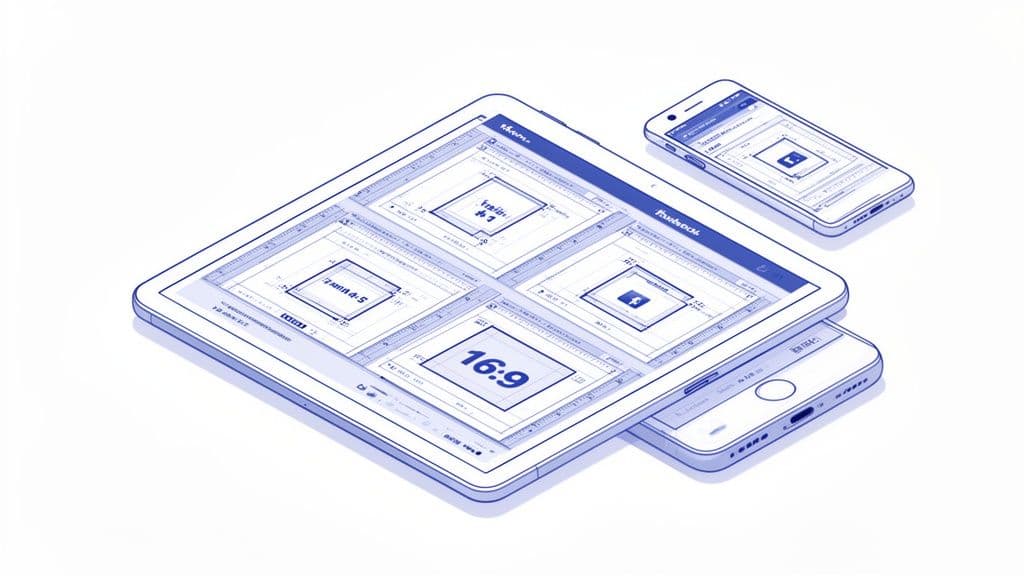
Crop your media: Choose between the classic square (1:1), a vertical portrait (4:5), or a wider landscape (16:9) aspect ratio.
Apply filters: All the standard Instagram filters are there if you want to quickly change the vibe of your photo.
Make adjustments: Fine-tune things like brightness, contrast, and saturation.
After you've got the visuals sorted, it's time for the final details. This is where posting from a desktop really proves its worth. Typing out a long, detailed caption, adding a bunch of hashtags, and tagging other accounts is so much easier and faster with a proper keyboard. You can also add a location before you publish.
A Quick Heads-Up: The native desktop uploader is designed for immediate posting only. You can't schedule posts for a later time using this method. If you need to schedule content, you'll have to use a tool like Meta Business Suite.
When you're happy with how everything looks—your caption, tags, and edits—just hit the "Share" button. That's it! Your post is now live on your profile. The whole process is built for speed and answers that common question, "can I post to Instagram from my computer?", with a resounding "yes."
Scheduling Posts with Meta Business Suite
When you need more power than the simple website uploader, your best bet is to head straight to the source: Meta Business Suite. This is Meta’s own official—and free—platform built for anyone managing a professional presence on Instagram and Facebook. It’s the perfect answer when you want to post to Instagram from your computer with more strategic control.
Before you can jump in, there's one key requirement. You'll need to have an Instagram Professional account (either Business or Creator) and have it linked to a Facebook Page. Personal accounts simply can't access these tools. If you're still on a personal profile, making the switch is quick and unlocks a ton of useful features. We've got a full walkthrough on how to link your Instagram account to a Facebook Business Page right here.
Your New Best Friend: The Content Planner
The real magic of Meta Business Suite happens in the Content Planner. This gives you a clear, calendar-based view of everything you've published and scheduled across both Instagram and Facebook. It’s a game-changer for visualizing your content strategy and making sure you’re posting consistently.
Right from this dashboard, you can create and schedule several different types of content:
Feed Posts: Handle single images, carousels, or videos.
Stories: Yes, you can plan your Instagram Stories ahead of time, adding text and stickers.
Reels: Upload and schedule your short-form videos to stay on top of trends.
Having all this in one place makes it a go-to tool for most of your content planning, all without ever picking up your phone.
The Content Planner is a lifesaver for batching your work. I'll often block out a few hours on a Monday to create and schedule everything for the week. This frees me up to actually engage with my community instead of scrambling to post every day.
Nailing the Scheduling Workflow
Creating a post in the Business Suite feels familiar, but it offers way more depth than the basic website uploader. Once your media is uploaded, you can write separate captions for Instagram and Facebook in the same window, which saves a ton of time. You can also add hashtags, tag other accounts, and include a location just like you would on your phone.
One of the best features, though, is the ability to see optimal posting times. The platform analyzes when your audience has been most active in the past and suggests the best times to schedule your content for maximum reach. This data-driven insight takes the guesswork out of your publishing schedule.
While Meta Business Suite is fantastic, it's worth knowing that other post scheduling solutions exist that might offer different features to fit your workflow. Ultimately, using a scheduler transforms social media from a reactive chore into a proactive strategy. You can build out your content calendar weeks or even months ahead, guaranteeing your brand maintains a polished and consistent online presence.
Go Pro with Third-Party Instagram Schedulers
While Meta's own tools are a great place to start, if you're serious about growing your brand on Instagram, a dedicated social media management platform is a complete game-changer. For businesses, agencies, and creators who need maximum efficiency, these tools are the real answer to the question, "can I post to Instagram from my computer?"
Think of them as a central command center for your entire social media strategy. They go far beyond just posting and scheduling, offering a powerful suite of features designed to save you time and boost your results.
More Than Just a Scheduler
The true magic of these platforms lies in the advanced features you just can't get with the native apps. Many tools, including Postiz, now come with built-in AI assistants. These can help you brainstorm compelling captions, find the perfect hashtags, and even create unique images when you're feeling stuck for ideas. Suddenly, hours of content creation can be condensed into minutes.
On top of that, the analytics are often far more powerful. You can dig into performance metrics that go well beyond simple likes and comments, helping you understand what your audience truly loves. To get an even deeper understanding of audience perception, you can pair these insights with some of the top sentiment analysis tools for social media.
The Time-Saving Power of Cross-Posting
One of the most valuable features you'll find in tools like Postiz is cross-posting. This isn’t about just copy-pasting the same message everywhere. It’s about creating one core post and then quickly customizing it for each social network, all from a single screen.
For instance, in one go you could:
Schedule a professional, polished update for your LinkedIn followers.
Tweak the caption to sound more conversational for your Facebook Page.
Optimize the hashtags and tag relevant accounts for your Instagram feed.
This simple workflow means your content always feels right for the platform it's on, but you don't have to build it from scratch three separate times. For a busy marketing team or a small business owner, this feature alone can easily save hours every single week.
Native Tools vs Third-Party Schedulers
Deciding between Meta's free tools and a paid platform can be tricky. This table breaks down the key differences to help you figure out what's best for your workflow and goals.
Feature
Instagram Web / Meta Business Suite
Third-Party Tools (e.g., Postiz)
Platform Support
Instagram & Facebook only
Multiple platforms (LinkedIn, X, Pinterest, etc.) in one place
Content Calendar
Basic calendar view
Advanced, interactive, and often includes a unified media library
AI Content Creation
Limited or non-existent
AI caption writers, hashtag generators, and image creators
Advanced Analytics
Standard engagement metrics
In-depth performance reports, competitor analysis, and best times to post
Team Collaboration
Basic user roles
Approval workflows, team assignments, and internal notes
Cross-Posting
Basic sharing between FB & IG
Customize a single post for multiple networks in one step
Ultimately, while Meta's tools are functional for basic posting, a dedicated platform like Postiz is built for efficiency, strategy, and scale.
If you’re juggling multiple clients or brands, our guide on https://postiz.com/blog/social-media-management-tools-for-small-business has some great recommendations. By bringing your content creation, scheduling, and analytics into one place, you free up your time to focus on what actually grows your business: building a community.
The Old-School Browser Developer Tools Trick
Long before Instagram gave us a proper desktop uploader, the community came up with a clever little workaround. This classic trick uses your browser’s built-in developer tools to essentially fool the Instagram website into thinking you’re on a phone. While we now have official, easier ways to post from a computer, this method is still a great one to keep in your back pocket. It’s perfect for a quick, one-off post when the main uploader is glitchy or you just need to get a single image up fast.
The whole process sounds more technical than it is. You don't need to download anything, and it's really just a few clicks. It’s ideal for those times you've just finished editing a photo on your computer and want to post it immediately without the hassle of transferring it to your phone.
First, log in to your Instagram account on the website. Then, just right-click anywhere on the page and choose Inspect from the dropdown menu. This will open a new panel full of code—don't worry, you can ignore all of that.
At the top of this new panel, look for an icon that resembles a tiny phone and tablet. It’s called the "Toggle Device Toolbar." Click it. This should instantly switch the Instagram website into its mobile layout. If you don't see the familiar plus (+) button at the bottom of your screen, just hit refresh. Voila! You now have the mobile upload button, ready to post directly from your desktop.
This workaround is a neat piece of history that shows just how far desktop functionality has come. It’s a super-fast lane from your desktop to your feed, but it's important to know its limits, especially if you're managing a professional account.
Know the Limitations of This Method
While this trick is a fantastic answer to the question "can I post to Instagram from my computer right now?", it's definitely not a substitute for a real workflow tool. The experience can feel a bit clunky, and it's stripped down to the absolute basics.
Keep these limitations in mind:
You can only upload a single photo or video to your feed at a time.
Forget about creating carousel posts with multiple images; it’s not supported.
You cannot post or schedule Instagram Stories or Reels.
There are no advanced features like analytics or scheduling.
Think of this as your emergency uploader. It’s a quick-and-dirty solution for a simple post. For anything more serious, like planning out your content calendar or analyzing performance, you’ll be much better off using the native website uploader, Meta Business Suite, or a proper third-party scheduler.
Common Questions About Posting from a Computer
Even with all the options available, a few questions always pop up when people start posting to Instagram from their desktop. Getting these sorted out first will save you a ton of headaches later and help you pick the best method for your needs. We've rounded up the most common ones right here.
Let's start with the big one: what can you actually post from your computer? While the simple answer is "just about everything," it really depends on the tool you're using.
Can I Post Instagram Stories or Reels From My Computer?
Yes, you absolutely can—but not with the most basic methods. If you're just using the native uploader on Instagram's website or the browser developer trick, you'll be stuck with standard feed posts.
For more dynamic content like Stories and Reels, you need a more powerful tool. Your best bets are:
Meta Business Suite: This is Meta's own platform, and it’s built for this. You can create, upload, and schedule both Stories and Reels directly from your browser. It’s a game-changer if you like to plan your content out.
Third-Party Schedulers: Tools like Postiz are designed for this. They offer solid support for scheduling and automatically publishing Reels. Story scheduling used to be hit-or-miss, but most top-tier platforms now handle it perfectly.
If you want to see exactly how that works, our guide on how to schedule an Instagram Story breaks down the entire process.
What Are the Best Image and Video Specs for Desktop Uploads?
The rules don't change just because you're on a computer. To make sure your content looks crisp and isn't awkwardly cropped or compressed into a pixelated mess, stick to Instagram's official specs.
Nailing these dimensions means your content will look professional every single time.
Content Type
Recommended Ratio
Ideal Pixel Dimensions
Square Post
1:1
1080 x 1080 pixels
Vertical Post
4:5
1080 x 1350 pixels
Story / Reel
9:16
1080 x 1920 pixels
For video, always try to export in MP4 format. It’s the most reliable option for quality and compatibility. Most video editing software on desktop even has presets for this, making it super simple.
Is It Safe to Use Third-Party Apps to Post to Instagram?
As long as you stick with reputable tools that are official Meta partners, it's completely safe. Platforms like Postiz are built on the official Instagram API, which means security is baked in from the start.
The biggest clue to a safe app is how it asks you to log in. A trustworthy tool will never ask for your Instagram password. Instead, it uses a secure process where you log in through Facebook, which then grants the app permission without ever sharing your credentials.
If an app asks for your Instagram login and password directly, that's a huge red flag. Stick with well-known, trusted services to keep your account safe.
Are There Any Limitations When Posting from a Computer?
Honestly, for most professional work, the desktop experience is miles better. That said, there are a handful of in-the-moment, interactive features that are still exclusive to the mobile app.
We're mainly talking about some of the creative Story stickers—like certain polls, quizzes, or music stickers with live lyrics—and the in-app camera effects for making Reels with trending audio on the spot.
But when it comes to uploading polished videos, writing detailed captions without fumbling on a tiny keyboard, and scheduling content ahead of time, the desktop is a clear winner. For most people, the efficiency you gain far outweighs those small limitations.
Ready to take your social media management to the next level with a tool that handles it all? Postiz offers advanced scheduling, AI-powered content creation, and in-depth analytics from a single, easy-to-use dashboard. Streamline your entire workflow with Postiz today.
Discover the top open source automation tools for developers, marketers, and home tech enthusiasts. Explore in-depth reviews, use cases, pros, and cons.